

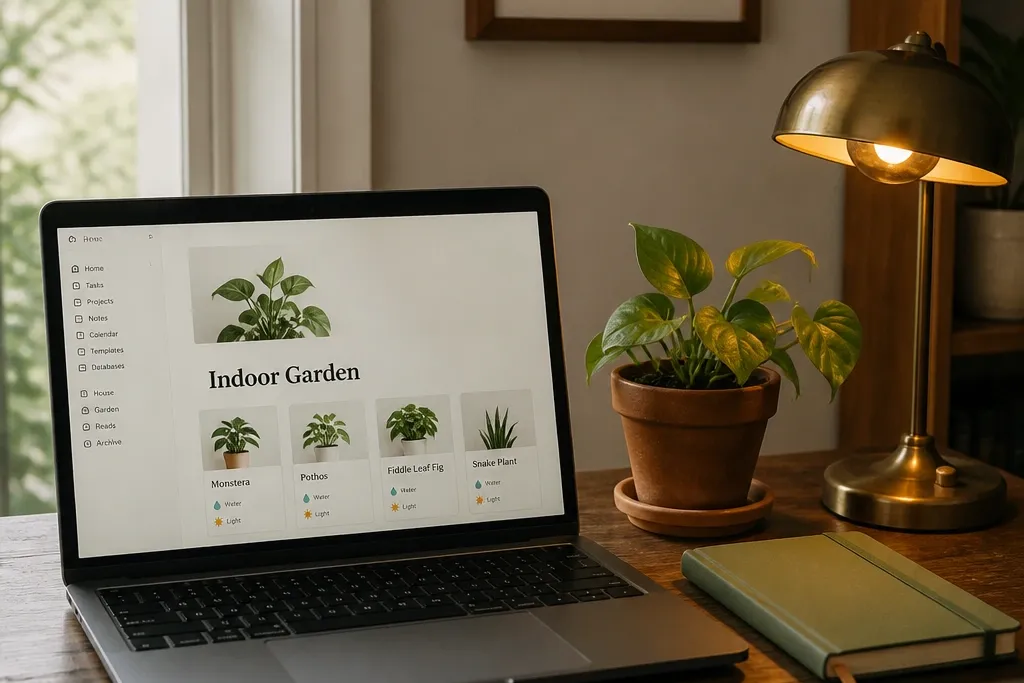
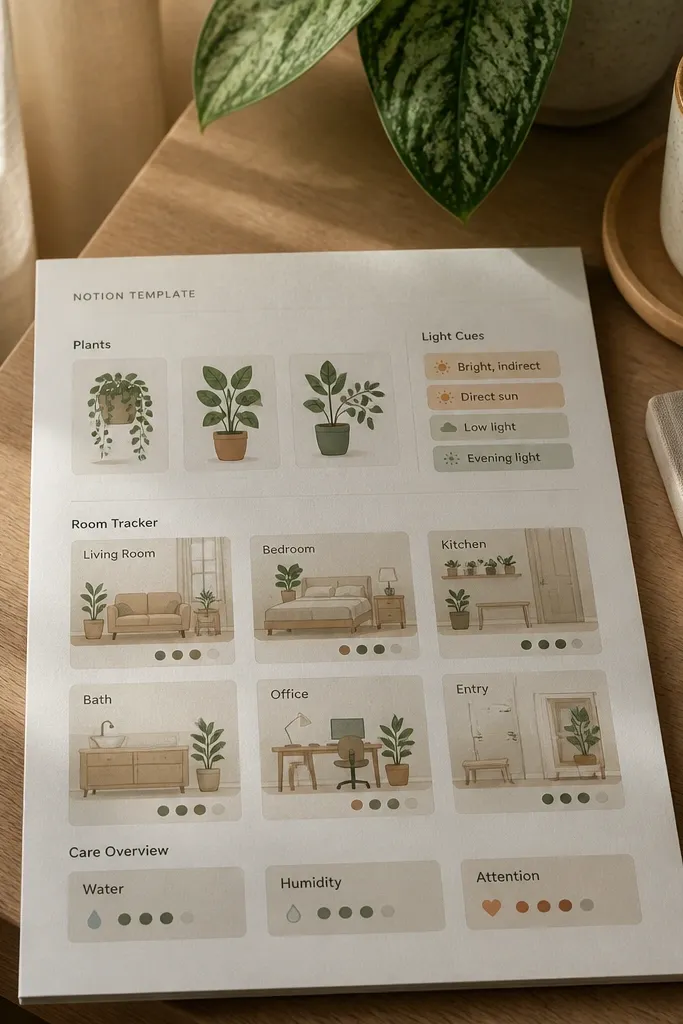
1. Foyer Welcome Board with a Plant Lineup
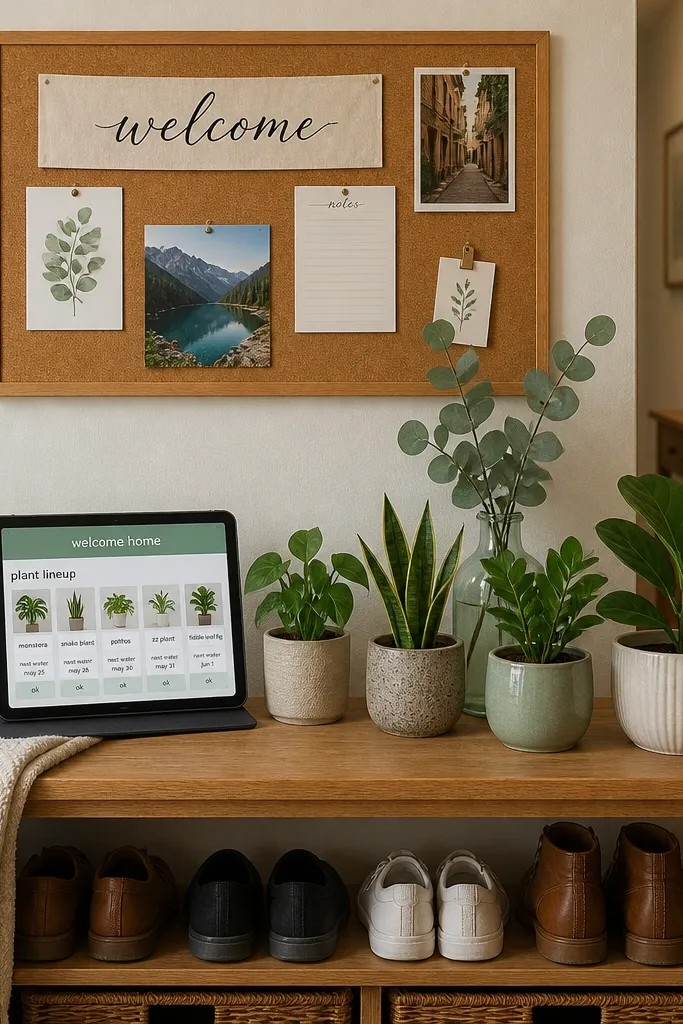
This template makes your Notion home screen feel like stepping into a calm entryway. The layout is simple: a top welcome strip, then a horizontal “plant lineup” gallery that shows only what’s in rotation right now. Plants are tied to actions — each card has a next watering date and a quick status tag like “ok” or “needs light.” The lighting cue is a small “lamp” section that reminds you to check brightness before you water, so your page feels grounded and practical.
Editor's noteUse one select color for Status and keep it consistent across every plant card so the gallery stays calm.
Start by creating a database called Room Plants with properties: Plant, Species (optional), Next watering (date), Light check (checkbox), and Status (select with 3 options). Build a dashboard page and add a linked database view set to Gallery, filtered to Status not equal to “archived.” Add a second section titled Today with a simple linked view from the same database filtered to Next watering is within 7 days. Finally, add a small divider and place a single “Lamp check” checkbox list under the plant lineup.
Skip thisDon’t add long notes inside plant cards — keep cards to 2 lines max.
2. Sunlit Shelf Organizer for Supplies + Plants
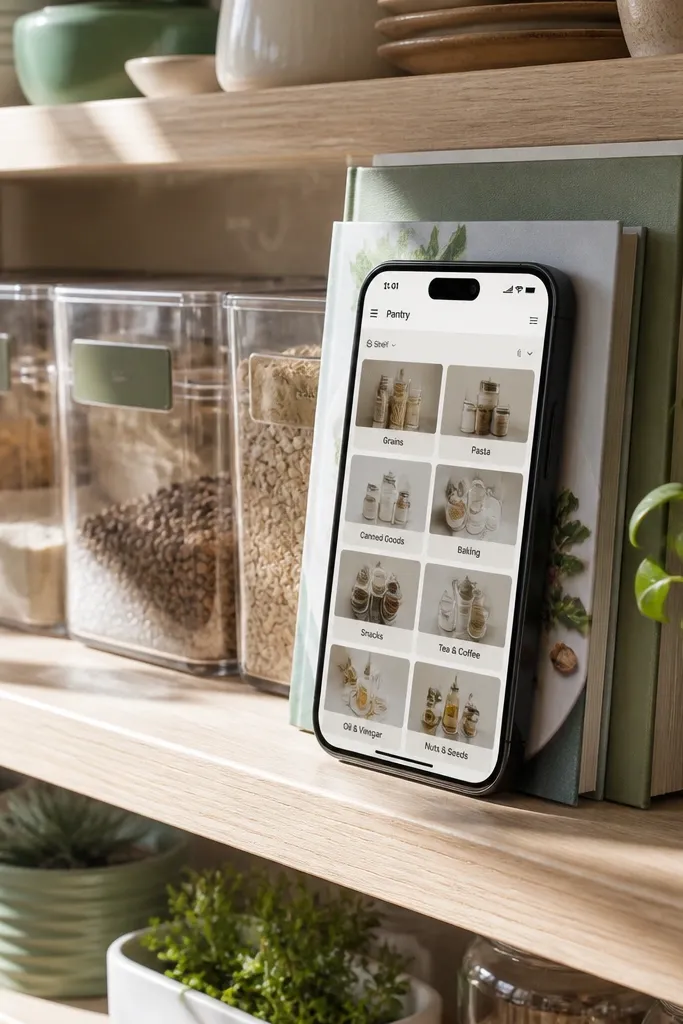
If your space feels chaotic because supplies live in random places, this template fixes that with a “shelf-first” layout. You get a grid that looks like a shelf: each shelf slot links to a plant or a supply kit. The visuals are minimal — simple labels, muted backgrounds, and one consistent icon style for each category. It’s calm because you’re not hunting through pages; you click a shelf slot and see the exact items you need in the same view.
Make two databases: Shelf Slots (Name, Location, Notes) and Items (Item name, Category select with Plants/Supplies, Slot relation, Quantity text, Last refilled date). In Shelf Slots, create a Gallery view and design it to show Location and a small count from Items using a rollup. On each Shelf Slot page, add a linked Items view filtered to Slot equals this page, then set it to List with compact cards. Add a “Refill reminders” section using a calendar view of Items filtered to Last refilled within 30 days.
Set the Items database to show Quantity and Last refilled date only; hide everything else from the shelf view.
Don’t mix plant care notes into the supply list — keep care in the plant pages.
3. Watering Rhythm Calendar with Plant Cards
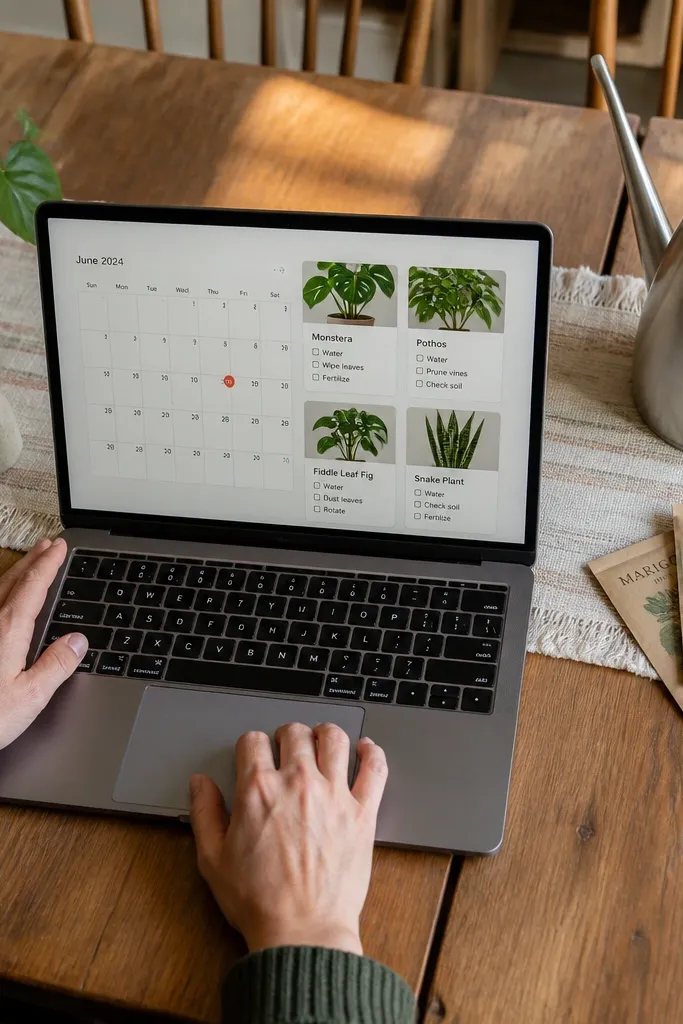
This one is built for people who want calm routines, not more dashboards. The calendar view keeps dates visible, and the plant cards keep the content human — you see what you’re doing and why at a glance. Each watering event has a checklist that matches the plant’s needs without writing paragraphs. The look stays minimal because you use short step labels and a limited tag palette, and you avoid long descriptions that turn the calendar into a wall of text.
Create a database called Care Events with properties: Plant (relation to Room Plants), Date (date), Task type (select: Water, Mist, Rotate), Checklist (text or checkbox list), and Mood tag (select: easy/medium/attention). Add a calendar view and style it so only Date and Task type appear on the tiles. Then create a separate linked view on your dashboard called “Next 14 days” using filter Date is within next 14 days and sort by Date. Add a section below the calendar with a linked view of Room Plants filtered to Status not equal “archived” and show Next watering date as a small property.
Use one checklist template for all watering events: “Check soil, water slowly, wipe leaves, reset pot.”
Skip adding full plant profiles to the calendar — keep them on the Room Plants page.
4. Desk Corner Glow Dashboard (Lights + Tasks)
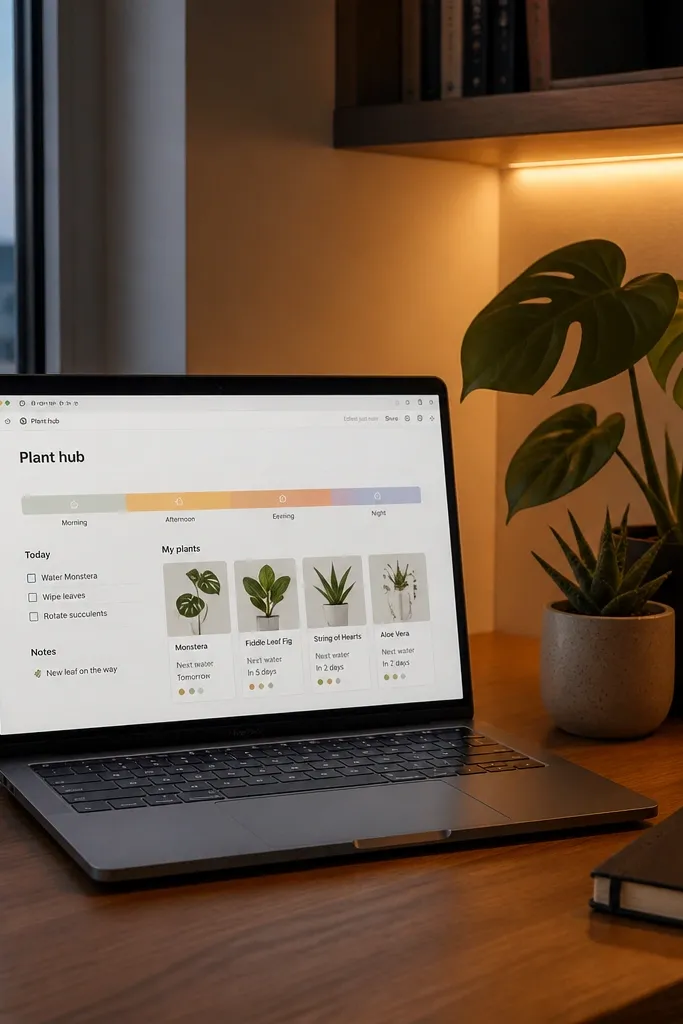
This template makes your Notion feel like a desk corner instead of a website. You’ll place a “Glow strip” at the top that tracks light conditions and time-of-day cues, then you pair it with a short task list for the day. Plants are included as mini cards that show only two properties: Next watering and Status. It’s calm because the page has a rhythm: check light, check plants, do three tasks. The visuals stay clean because each section is separated by thin dividers and one consistent font size.
Editor's noteKeep the Day Log page template to one screen height on desktop so it stays readable in a quick glance.
Create a single database called Day Log with properties: Date (date), Light level (select: low/medium/high), Plant check (checkbox), and Task 1/2/3 (text). Then add a linked view of Room Plants filtered to Status not equal “archived” and show Next watering date. On the Day Log page template, add your “Glow strip” section with Light level select and Plant check checkbox. Add a linked database view for Day Log filtered to Today and display Task 1/2/3 only.
Skip thisDon’t add more than three tasks — calm dies when the list grows.
5. Terrarium Mood Board for Color-Controlled Notes
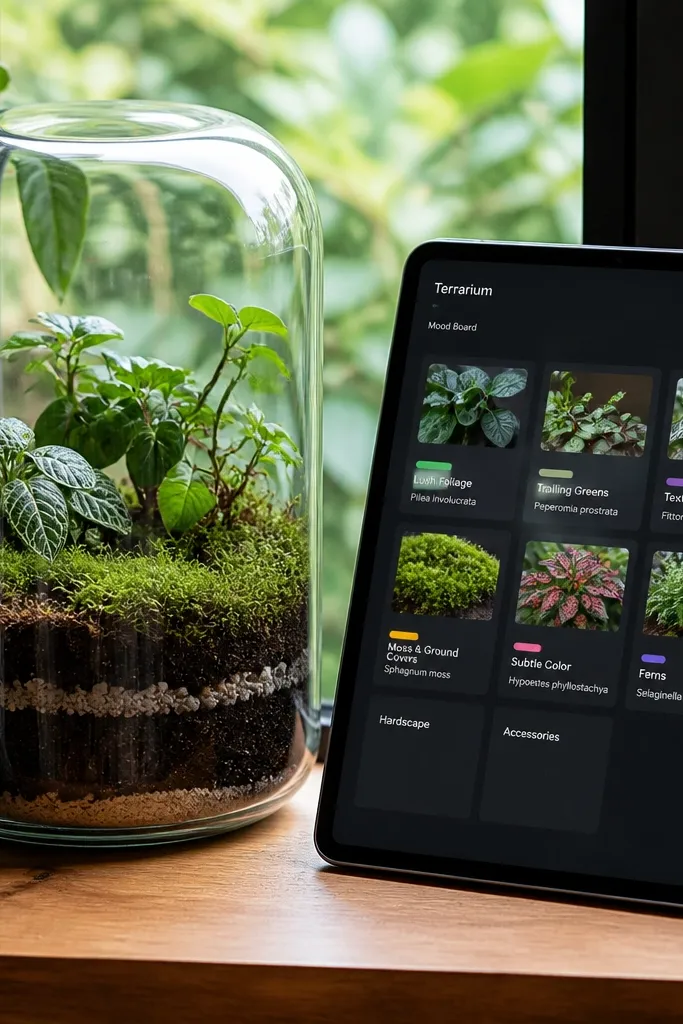
If you love the look of terrariums, this template gives your notes a similar controlled vibe. It’s a board for ideas with plant tags that visually keep the page cohesive. Each card is short: title, one sentence, and one plant association. The calm comes from limiting the color system — you use plant categories as the only tag colors, and you keep backgrounds muted so the cards look like they belong in the same glass box.
Editor's noteUse 4 color families max. More colors means more visual noise.
Create a database called Terrarium Cards with properties: Title (title), One-liner (text), Plant link (relation to Room Plants), Color family (select with 4 options like moss, clay, leaf, night), and Status (select: draft, keep, archive). Set the main board view to Gallery and show One-liner and Color family. Add a filter so the gallery shows only Status not equal to “archive.” Create a second view called “Moss only” by filtering Color family equals moss and link it as a small sidebar section.
Skip thisDon’t let card text wrap into 4 lines — keep One-liner to one sentence.
6. Plant Shop Receipt Tracker with Clean Totals
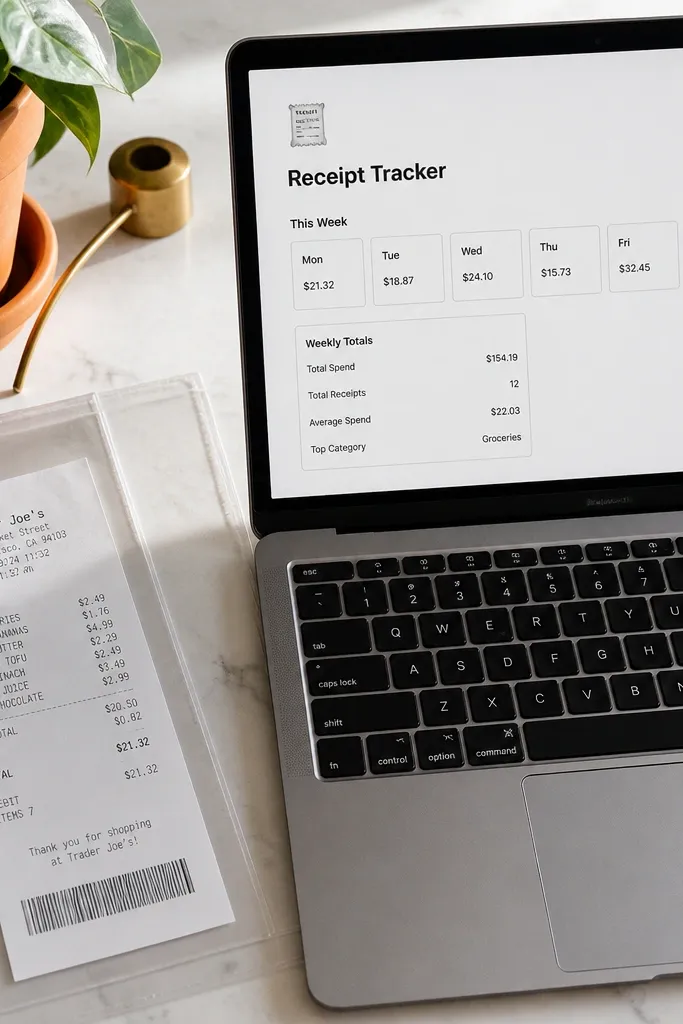
This template turns buying plants into a calm, trackable ritual instead of a messy pile of info. You log cost, date, and where the plant sits, then you get a clean totals box that shows your spend for the week. The look is minimalist: small cards, one number per card, and a simple “where it lives” tag. Plants anchor the data, so the page still looks like decor, not accounting.
Create a database called Plant Receipts with properties: Plant (relation), Store (text), Date (date), Cost (number), Pot style (select: ceramic/terracotta/plastic), and Location (text). Add a Gallery view grouped by Location with card cover set to a property you keep short (Pot style works well). On your dashboard, add a linked view filtered to Date within last 7 days and sort by Date descending. Create a rollup property on Location pages for total cost using Cost rollup, then display it at the top of each Location page.
Keep Cost formatted as a number with currency display turned on for clean totals.
Don’t add receipt scans inside cards if you want a calm look — keep them in a separate page.
7. Herb Window Journal with Batch Plant Notes
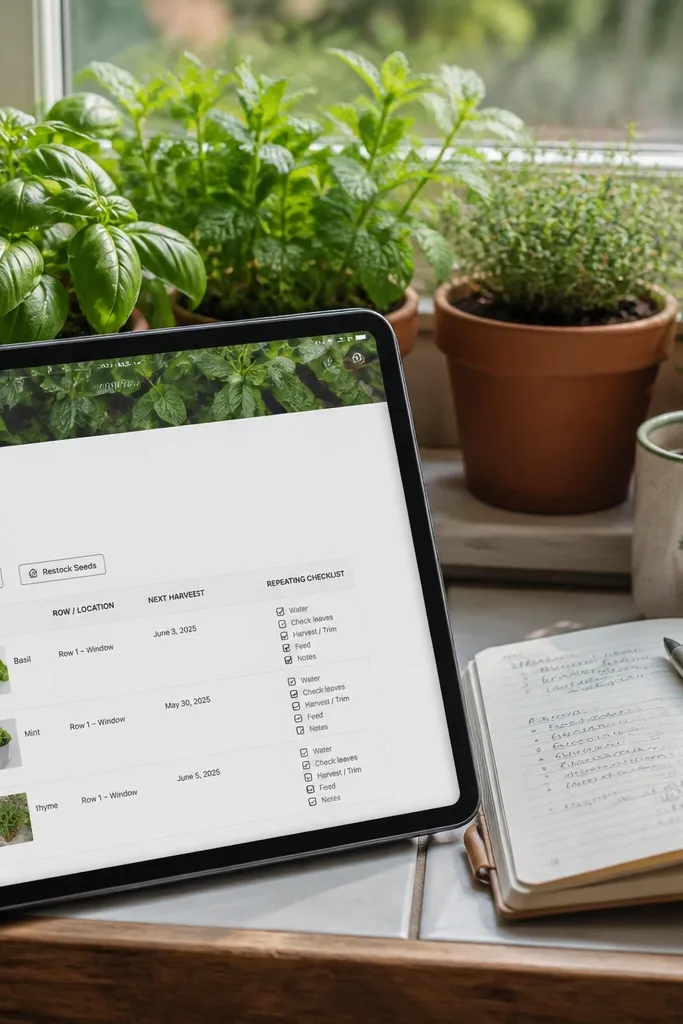
This is for people who grow herbs and want their notes to match harvest cycles. The template uses rows of herbs with batch actions like “harvest” and “restock seeds,” so your journaling stays short and useful. Each herb page has a single repeating checklist so you don’t rewrite the same care notes every time. It feels calm because the journal is predictable — same sections, same order, and plant visuals that stay consistent.
Editor's noteUse one Action select list for everything. It keeps the journal tidy and searchable.
Create a database called Herb Plants with properties: Herb name (title), Next harvest (date), Light (select), Notes (text), and Status (select). Create another database called Window Sessions with properties: Session date (date), Herb (relation), Action (select: harvest/restart/rotate), and Steps (checkboxes). Add a linked view on the dashboard called “Herbs due” filtered to Next harvest within 14 days, displayed as Gallery with Next harvest date visible. On each Herb Plants page, add a linked Window Sessions view filtered to Herb equals this page and show only Action and Session date.
Skip thisSkip freeform paragraphs in the Steps field — your page will look messy.
8. Minimal Plant Propagation Tracker with Clear Stages
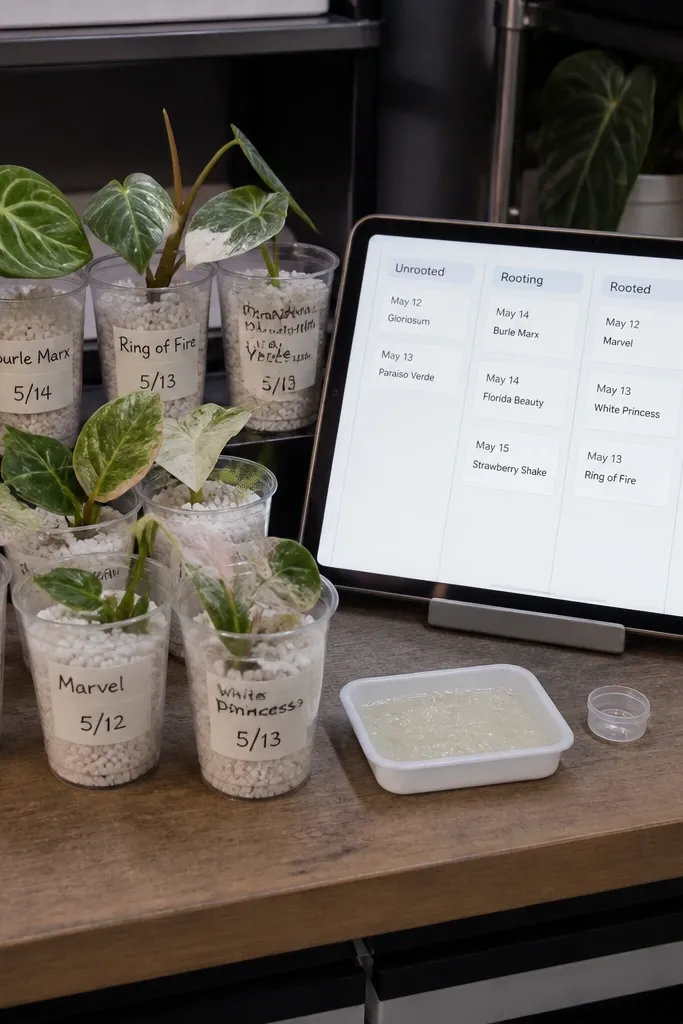
Propagation can get chaotic fast, so this template gives each cutting a clean stage system. You’ll have a board view that looks like a progress wall: each stage has its own column-like grouping, and cards show only the date moved to the stage. Plants are front and center, but the notes stay small. This feels calm because you see movement over time, not a pile of text.
Editor's noteKeep Stage select values short. Long labels make cards look crowded.
Create a database called Cuttings with properties: Cutting name (title), Parent plant (relation), Stage (select: water, rooting, potting, acclimate), Start date (date), Next action date (date), and Container (select: jar, cup, tray). Use a Board view grouped by Stage and show Start date and Next action date on cards. Add a Calendar view filtered to Next action date within next 30 days. Finally, create a linked view on your dashboard called “Due today” filtered to Next action date is today and Stage not equal to acclimate.
Skip thisDon’t store photos and long notes in the Cuttings database if you want minimalist visuals.
9. Plant + Light Sensor Checklist Page
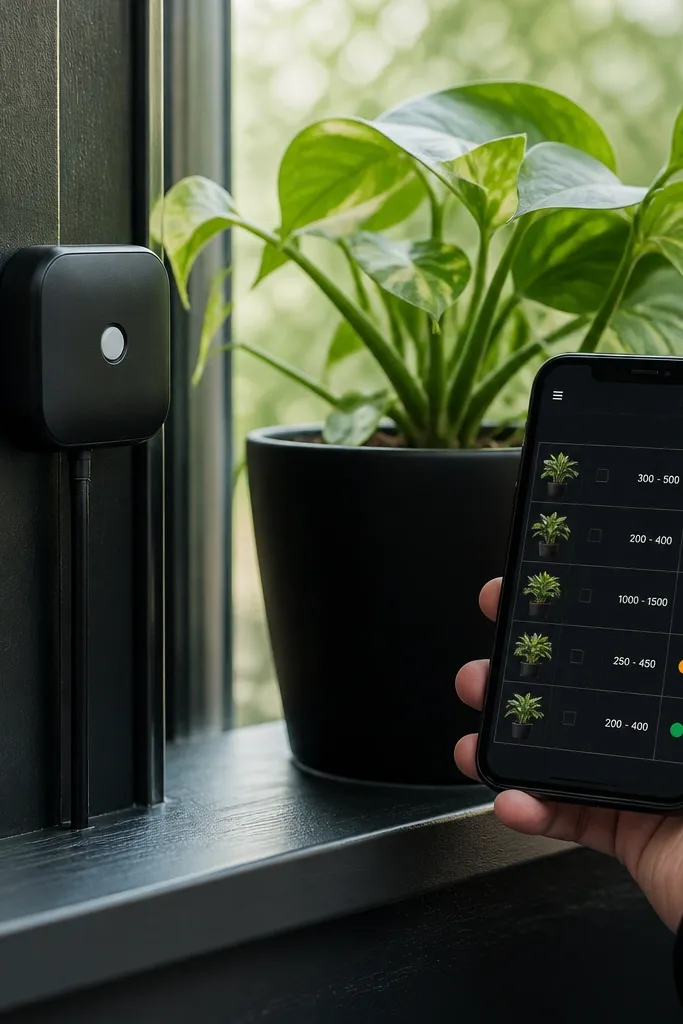
This template is for people who want plants to feel like a system. You track light readings and relate them to specific plants, then you get a checklist that tells you what to adjust. The design stays aesthetic because each plant row is short: plant name, reading target, and a single status dot you can map to a select. It’s calm because you’re not writing essays; you’re following a routine.
Editor's noteUse Result select with exactly three options so your status stays visually simple.
Create a database called Light Readings with properties: Date (date), Plant (relation), Reading (number), Target (select: low/med/high), and Result (select: ok, move closer, move away). Add a linked view called “This week readings” filtered to Date within last 7 days. On each Room Plants page, add a linked view of Light Readings filtered to Plant equals this page, sorted by Date descending. Create a dashboard checklist section with a linked view filtered to Result equals move closer or move away and display only Date and Result.
Skip thisDon’t track multiple sensor metrics in one page — one reading system keeps it calm.
10. Calm Entry Planter Map for Rooms
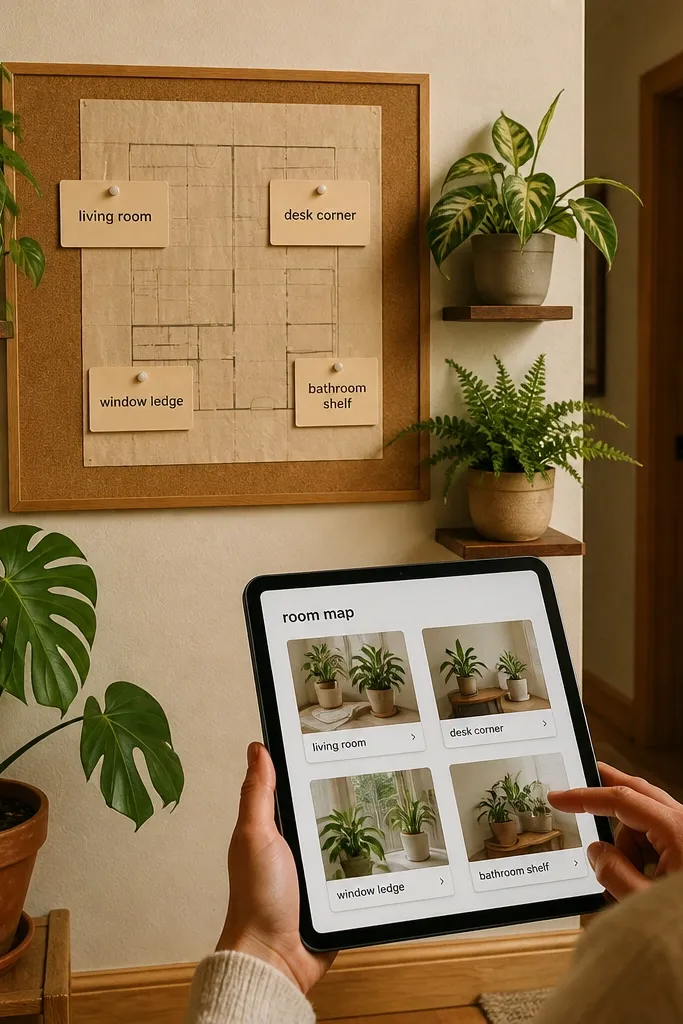
Instead of one plant list, this template organizes plants by room so your brain stops mixing everything together. You get a room map style layout: labels for living room, desk corner, window ledge, and bathroom shelf. Each label opens a page that shows only plants in that room. It’s calm because it matches how you actually move through your home — you’re not scrolling through a single mega list.
Create a database called Rooms with properties: Room name (title), Lighting type (select), and Notes (text). Create a database called Room Plants with a relation to Rooms plus Next watering and Status. Build a Rooms page and add a linked Room Plants view filtered to Rooms equals this page, set to Gallery with Next watering date. Add a dashboard view called “Rooms in focus” filtered to Rooms where Lighting type is not empty, displayed as a grid of Room cards. Keep each Room page to one screen by showing only Status and Next watering on the linked view.
Choose one lighting type per room. Consistency makes the map look clean.
Don’t put all rooms in a single long list — it kills the calm effect.
11. Plant-Inspired Menu Planner with Grocery Lists

This template uses plants as theme anchors for meal planning, but keeps the setup minimal. Each week has a small plant theme selector and a grocery list that stays attached to the menu. The aesthetic comes from repeating the same layout every week and using short meal entries that don’t wrap. It feels calm because you’re not bouncing between recipe pages and lists — everything sits in one weekly board with plant-forward headings.
Create a database called Weekly Menus with properties: Week start (date), Plant theme (select: basil/mint/leafy/terracotta), Menu item 1-5 (text), and Notes (text). Create another database called Grocery Items with properties: Item (title), Category (select), Used in menu (relation to Weekly Menus), and Quantity (text). Add a dashboard page with a weekly calendar view of Weekly Menus. On each Weekly Menu page, add a linked Grocery Items view filtered to Used in menu equals this page, set to List with compact cards. Add checkboxes next to items using a checkbox property like Purchased.
Keep Menu item fields to five. Anything more turns the board into a wall of text.
Don’t add recipes to the menu page if you want it to stay minimalist.
12. Living Room Reset Checklist with Storage Zones
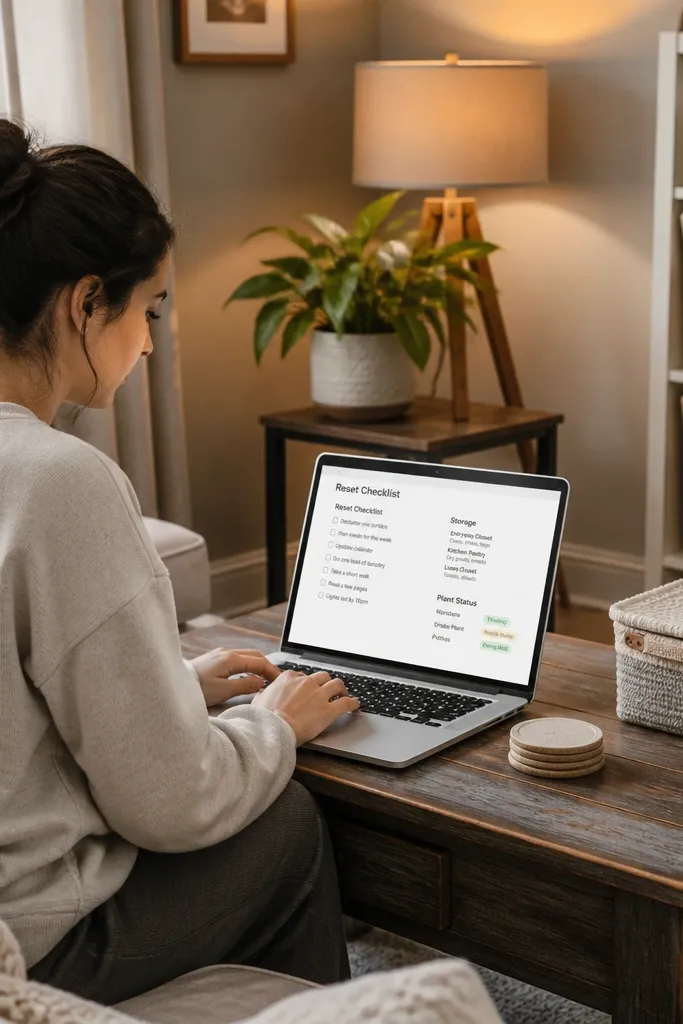
This template makes “reset day” look good and run fast. You get storage zones tied to the items you put away, plus plant status badges so you remember to check leaves and soil when you do the room reset. The page is calm because it’s structured like a routine: one checkbox list, one storage section, one plant check section. No sprawling notes. It’s also photogenic because the sections have clear borders and consistent icons.
Create a database called Reset Zones with properties: Zone name (title), Items to store (text), and Time estimate (select: 5-10, 10-20). Create a database called Reset Tasks with properties: Task (title), Zone (relation), Room plant (relation to Room Plants), Due date (date), and Done (checkbox). Build a dashboard view called “This reset” filtered to Due date is within next 3 days and display Task and Zone. Then create a second view on the same dashboard filtered to Room plant not empty and Done unchecked, so plant checks stand out.
Use short zone names like “Coffee shelf” or “TV tray.” Long names make the layout busy.
Don’t combine storage tasks and plant care notes in one checkbox line.
13. Plant Notes by Season with Simple Lighting Targets

Seasonal care notes can look messy when they’re stored as paragraphs. This template keeps them clean by making each season a page with a small set of lighting targets and a few plant cards. You see what changes in spring versus winter without scrolling through old notes. The calm look comes from limiting each season to a consistent structure and using a small lighting target label on every plant card.
Editor's noteKeep Routine notes short and repeat the same sentence structure each season so the cards stay readable.
Create a database called Seasonal Care with properties: Season (select: spring/summer/fall/winter), Plant (relation to Room Plants), Lighting target (select: low/med/high), Routine notes (text), and Start date (date). Make a board view grouped by Season and show Plant and Lighting target on cards. Create a dashboard section with a linked view filtered to Season equals current season and show only Routine notes summary (keep it under 2 sentences). On each Room Plants page, add a linked Seasonal Care view filtered to Plant equals this page and sorted by Start date descending.
Skip thisDon’t store multiple seasons in one big page without sections.
14. Terracotta Pot Project Tracker with Milestones
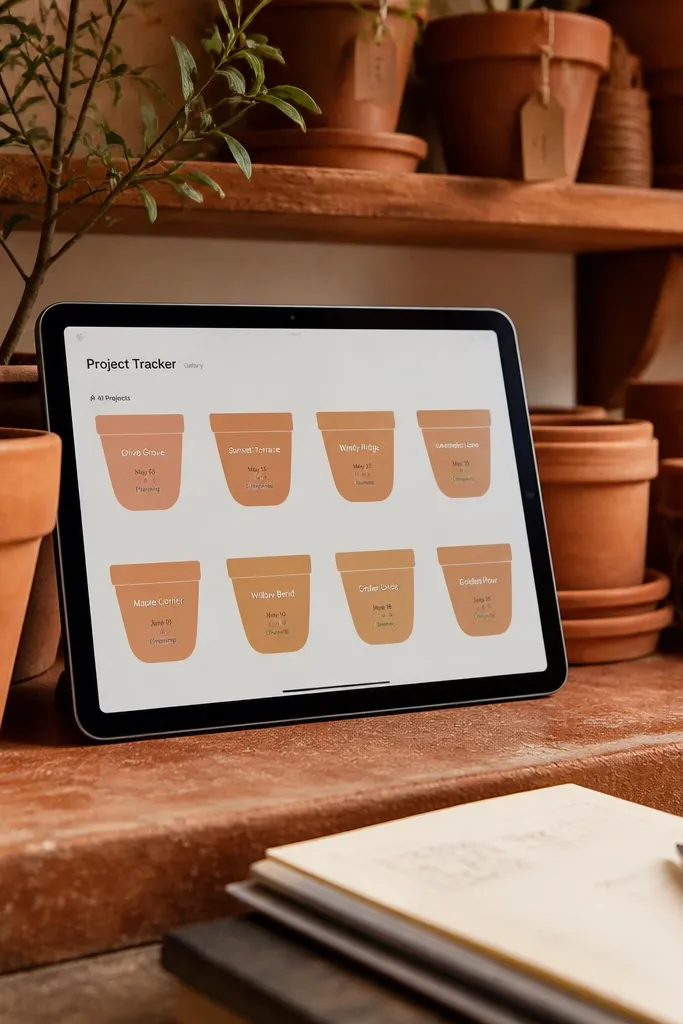
This is a minimalist project tracker that uses plant pot aesthetics as the visual metaphor. Each project card is a “pot” with a milestone date, and the stages are simple enough to keep the board calm. Plants are linked so you can tie projects to a plant theme or a specific shelf. The design stays photogenic because each card has one main date and one stage label, not a pile of text.
Editor's noteLimit Stage values to 4. More stages make the board feel heavy.
Create a database called Projects with properties: Project name (title), Stage (select: sprout, grow, settle, finish), Milestone date (date), Plant tie (relation to Room Plants), and Notes (text). Use a Board view grouped by Stage and set card layout to show Milestone date and Plant tie. Add a dashboard view filtered to Stage not equal finish, sorted by Milestone date. For the milestone look, create another linked view called “This month” filtered to Milestone date within next 30 days.
Skip thisDon’t add long Notes to the board view — keep them on the project page.
15. Plant-Lit Reading Nook Page (Books + Watering)

Reading nooks feel calm because they blend routine and environment. This template copies that by pairing a mini reading list with a plant watering check that lives in the same page. The plant cards are tiny and functional, not decorative overload. You’ll see your “reading next” list, then a small plant panel with next watering date and a single checkbox for light check. It’s visually balanced and easy to screenshot because there are only two main blocks.
Editor's noteUse one Book next field per day instead of separate reading sessions — it keeps the layout clean.
Create a database called Reading Nook with properties: Date (date), Book next (title), Notes (text), and Plant check (checkbox). Link it to Room Plants by adding a relation property called Plant (relation). On the Reading Nook page, show a linked view of Room Plants filtered to Status not equal archived, set to Gallery with Next watering date. Add a linked view of Reading Nook filtered to Today and display Book next and Plant check. Keep the reading notes field on the page template limited to one line.
Skip thisDon’t turn this into a full library catalog — keep it for what you’re reading now.
16. Minimal Plant Wardrobe for Pots + Tools
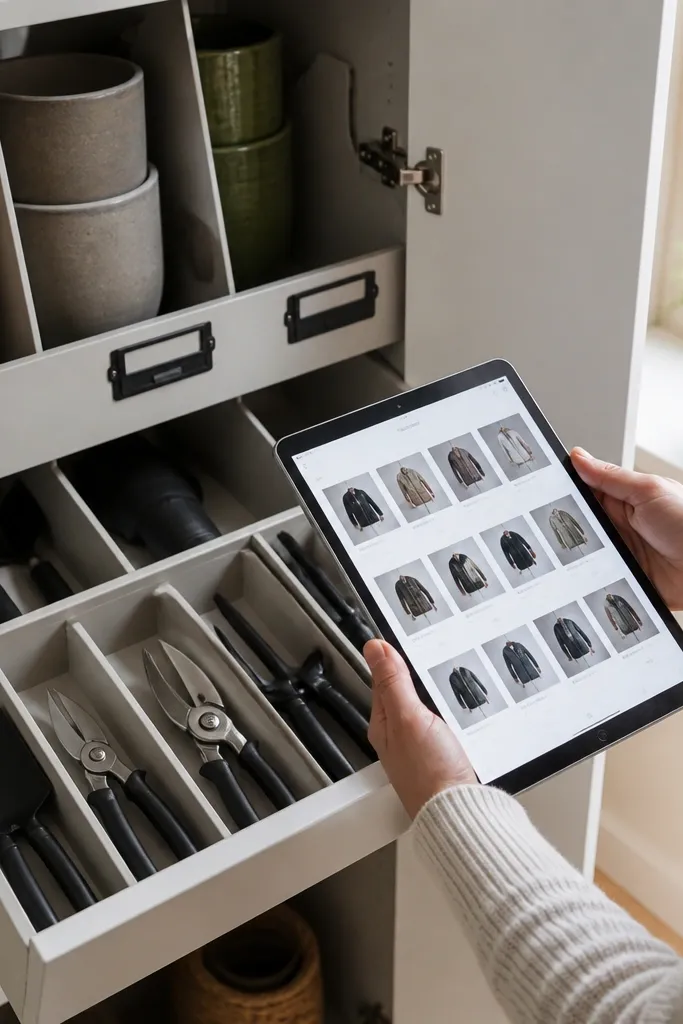
A lot of plant setups look messy because pots and tools are scattered. This template organizes them like a wardrobe: pot types, tool drawer, and a small plant link to match the right supplies. The look is calm because you use a grid of categories with short labels and one image-like cover per category (you can use emoji or simple icons). It’s also practical since you can see what you need when you repot.
Editor's noteUse a simple Quantity format like “2” or “1 set” so cards stay short.
Create a database called Wardrobe Categories with properties: Category name (title), Category type (select: pots/tools), and Notes (text). Create a database called Wardrobe Items with properties: Item name (title), Category (relation to Wardrobe Categories), Fits plant (relation to Room Plants), Quantity (text), and Last used (date). On the dashboard, create a Gallery view of Wardrobe Categories showing Category type only. On each category page, add a linked Wardrobe Items view filtered to Category equals this page. Add a “Repot reminders” view filtered to Wardrobe Items where Last used within 60 days and Fits plant not empty.
Skip thisDon’t mix tool notes into pot cards. Keep categories strict.
17. Kitchen Window Plant Tracker with Ingredient Links
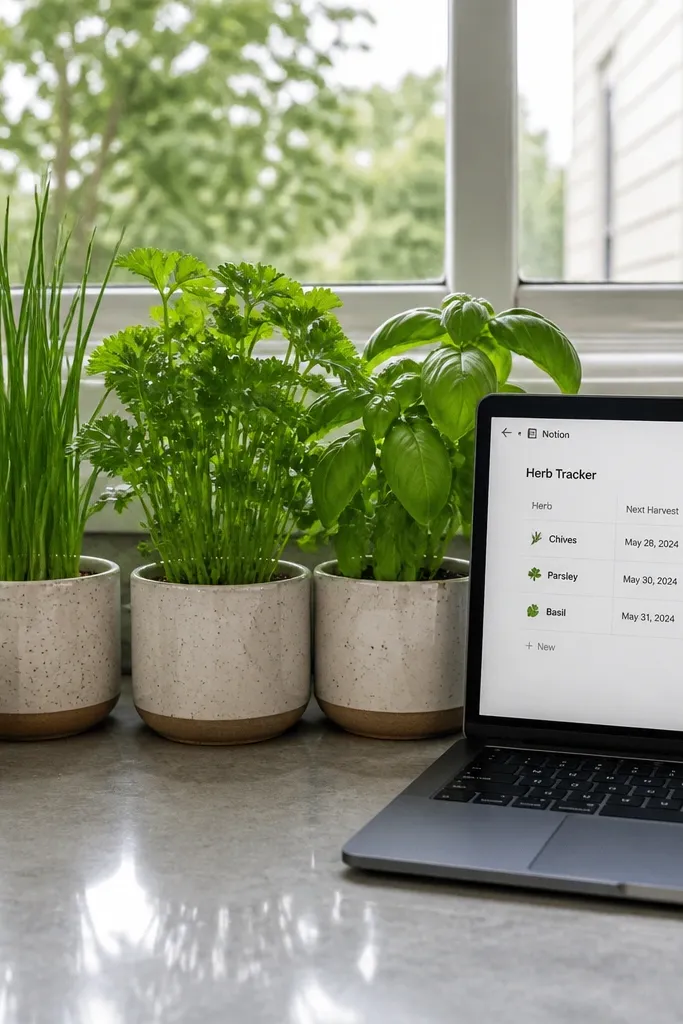
This template is for people who want herbs and kitchen prep to feel connected. You track herbs like plants, but you also link them to ingredient uses so your plant notes help your cooking. The aesthetic is clean because you show only a few fields: herb name, next harvest date, and one linked “ingredient use” item. It feels calm because you’re not juggling separate systems — the same page helps you harvest and cook.
Create a database called Kitchen Herbs with properties: Herb name (title), Next harvest (date), Status (select), and Ingredient use (text). Create a database called Recipe Uses with properties: Use (title), Herb (relation to Kitchen Herbs), Date added (date), and Notes (text). On your dashboard, add a linked view of Kitchen Herbs filtered to Status not archived and displayed as Gallery showing Next harvest. On each Kitchen Herb page, add a linked Recipe Uses view filtered to Herb equals this page and set it to List. Add a small “Due soon” section filtered to Next harvest within 10 days.
Keep Ingredient use text to 3-6 words like “pasta topping” or “tea.” It keeps cards minimal.
Don’t add full recipe instructions here — store them elsewhere.
18. Bathroom Shelf Calm Board with Low-Light Plants

Bathrooms are humid, and low-light plants can thrive there, but only if you track the routine. This template keeps it simple: a shelf board for low-light plants and a humid check that you do as part of your day. The visuals stay calm because the shelf board uses short plant names, a single next-check date, and a checkbox for humidity. It’s also practical for anyone who forgets plants when they’re not in direct view.
Create a database called Bathroom Plants with properties: Plant (title), Next check (date), Humidity check (checkbox), Light type (select fixed to low), and Status (select). Add a dashboard linked view set to Gallery filtered to Light type equals low. Create a second view called “Today’s checks” filtered to Next check is today and Humidity check is unchecked. On each Bathroom Plant page, add a linked view of recent checks using a database called Shelf Check Log with Date, Plant relation, and Result select (ok/adjust).
Use the same checkbox label everywhere: “Humidity check.” It trains your eye to find it fast.
Don’t include bright-light plants in the bathroom board — it breaks the theme.
19. Entryway Storage Labels + Plant Care Links
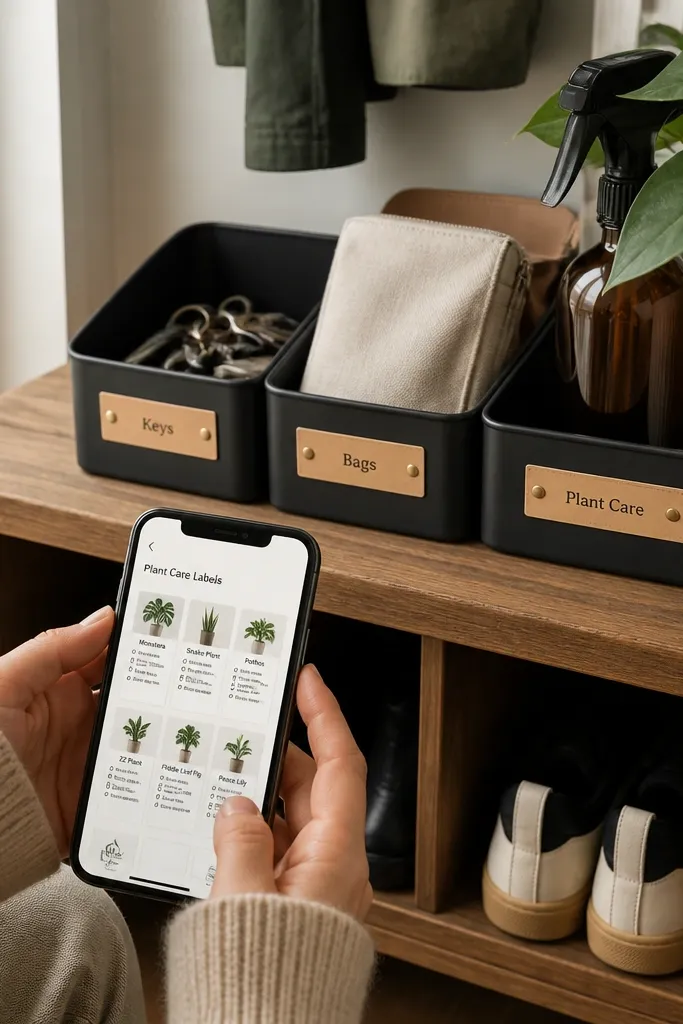
This template turns entryway storage into something you can maintain without thinking. You set up a label grid for the things you grab weekly — keys, bags, plant care items — and link each label to a plant care checklist. The calm look comes from repeating the same grid layout and keeping each label to one short line. It’s photogenic because the page reads like a tidy organizer board, not a list of links.
Editor's noteKeep Label names under 18 characters so they don’t wrap in the grid.
Create a database called Storage Labels with properties: Label name (title), Zone (select: entry/wall shelf/coat area), and Linked Plant (relation to Room Plants). Create a database called Care Micro-Tasks with properties: Task (title), Plant (relation), Action (select: water/rotate/clean leaves), and Frequency (select). On the Storage Labels dashboard, add a Gallery view of Storage Labels filtered to Zone equals entry and show Linked Plant and Label name. On each Storage Label page, add a linked view of Care Micro-Tasks filtered to Plant equals Linked Plant. Add a simple “weekly actions” view filtered to Frequency equals weekly.
Skip thisDon’t add multiple plants per label. One link makes the page calm.
20. Minimal Plant Inventory with Photo-Free Cards
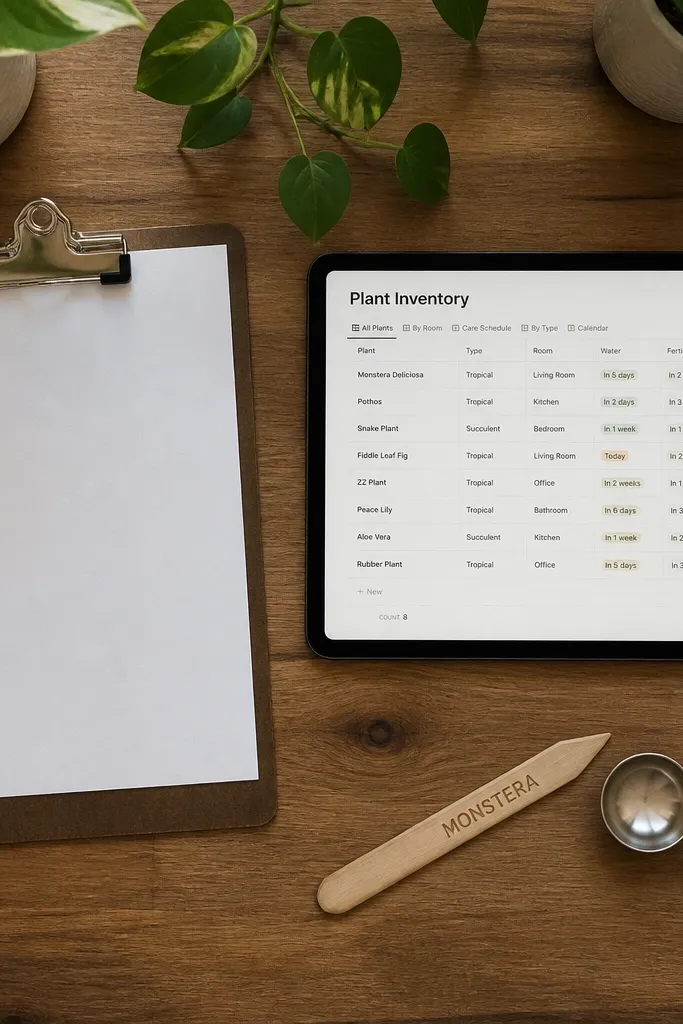
If you’re going for calm, photo-heavy templates often backfire. This plant inventory is photo-free on purpose: you use typography, status tags, and dates to keep the grid clean. Each card is a tight set of fields so your brain can scan quickly. Plants still look aesthetic because the cards are consistent and the color system is limited to status. It’s the right template when you want calm more than you want decoration.
Editor's noteUse one font size for all cards and keep status tags to 3 colors max.
Create a Room Plants database with properties: Plant name (title), Status (select: happy/needs light/needs water), Next watering (date), Location (text), and Notes (text). Build a Gallery view for the main inventory and configure it to show Plant name, Status, and Next watering only. Add a filter for Status not equal archived. On the dashboard, add another linked view filtered to Status equals needs light and sort by Next watering ascending. Keep Notes hidden in the view and only show it on the plant detail page.
Skip thisDon’t turn this into a diary. Keep it inventory-first.
21. Plant Light Rotation Planner with Rotation Calendar
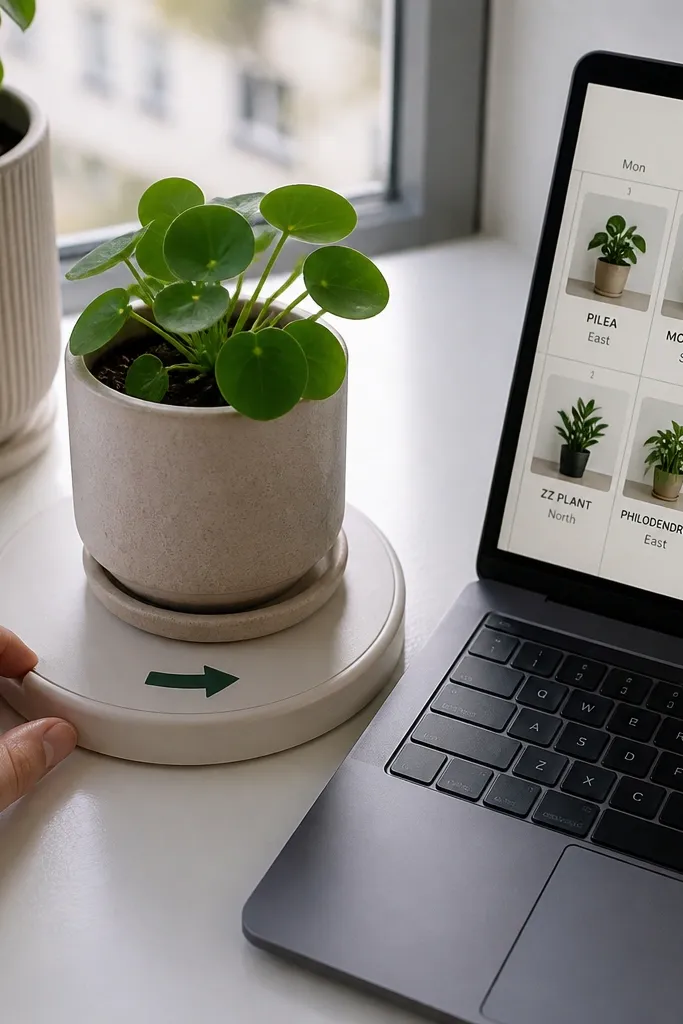
Rotating plants is a small task that prevents a lot of messy problems, and this template makes it visible. You track rotation dates and the target window direction, so you don’t guess later. The look stays minimalist because each calendar tile shows only the plant name and one short direction label. This is calm because it turns a vague habit into a scheduled routine with clear next actions.
Create a database called Rotation Plans with properties: Plant (relation), Rotation date (date), Window side (select: left/right/center), Reason (select: even growth/leaning/turning), and Done (checkbox). Add a calendar view grouped by Rotation date and show Plant and Window side on the tiles. Create a dashboard linked view filtered to Rotation date within next 14 days and sort by date ascending. Add a “Due today” view filtered to Rotation date is today and Done unchecked. On each Room Plants page, add a linked Rotation Plans view filtered to Plant equals this page.
Use one select for Window side, not free text. Free text creates messy labels fast.
Skip writing long reasons. Use one select value.
22. Candle + Plant Night Routine Page
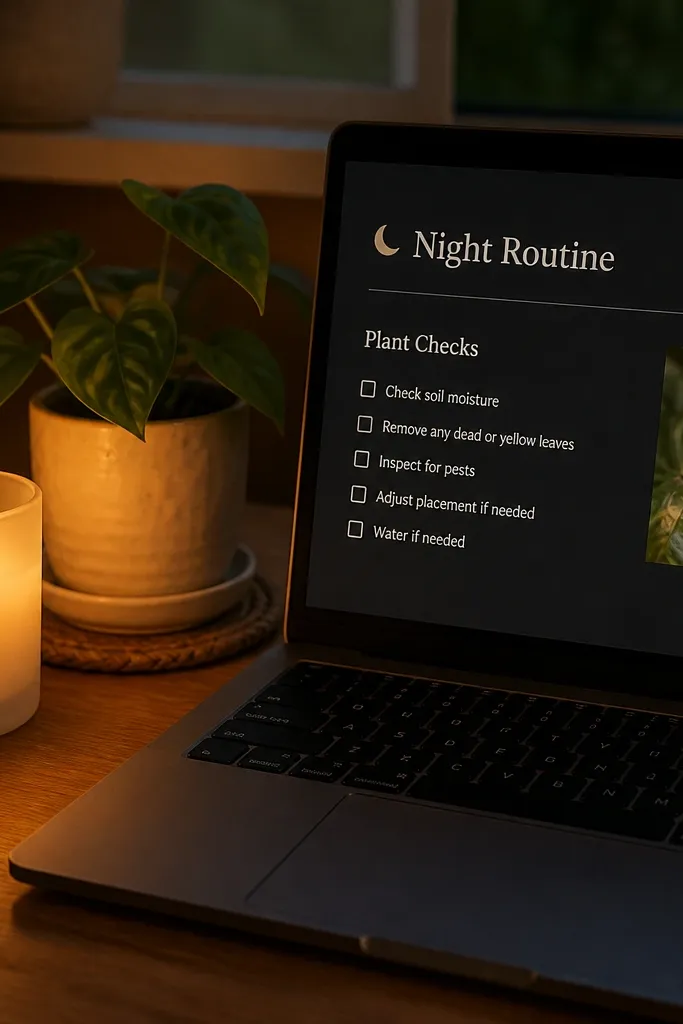
Night routines look calm when the page has one flow and no clutter. This template pairs a candle-style night checklist with plant checks, so your “wind down” feels intentional. You’ll track a short set of actions like wipe leaves, check soil, and rotate one plant if needed. Lighting cues are baked in with a simple “warm light” checkbox and a time field you keep short. The aesthetic stays minimalist because the checklist is the only content on the page.
Editor's notePick one default plant for the routine and change it only when needed. The page stays consistent.
Create a database called Night Routine with properties: Date (date), Warm light on (checkbox), Plant (relation to Room Plants), Leaf wipe (checkbox), Soil check (checkbox), Rotate (checkbox), and Notes (text). Add a dashboard linked view filtered to Date is today and show only the checkbox fields. Create a second view called “Last 7 nights” filtered to Date within last 7 days and show Date and Plant. On a Night Routine page template, place the checkboxes in one column and remove any extra properties from the view.
Skip thisDon’t add multiple timers and metrics. One warm light checkbox is enough.
23. Plant-Themed Quotes Cards with Care Prompts
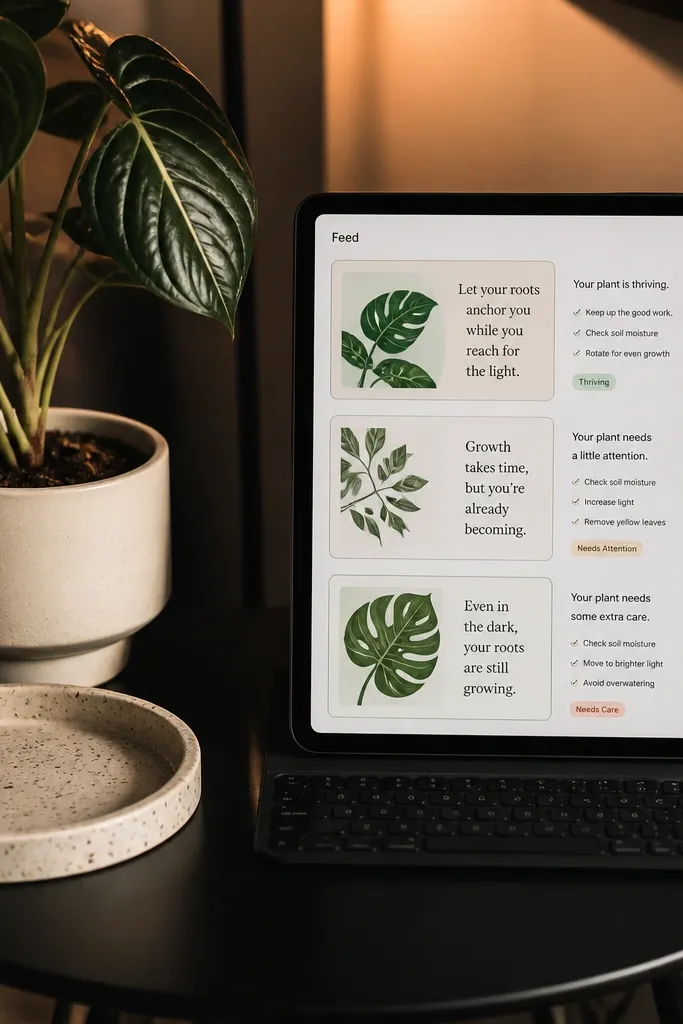
This template is a calm feed for your brain when you’re working too fast. Each card is a short quote paired with a care prompt linked to a plant, so the page feels like decor but still tells you what to do. The look is clean because quotes are short and aligned, and the tags are only plant status values. It’s photogenic because you can screenshot the feed and it reads like a minimalist magazine spread.
Editor's noteKeep quotes to under 70 characters so the cards don’t expand and break the grid.
Create a database called Calm Cards with properties: Quote (title or text), Plant (relation to Room Plants), Care prompt (select: water/clean leaves/rotate/check soil), Status tag (select: happy/needs light/needs water), and Date created (date). Set the main view to Gallery and show Quote, Plant, and Care prompt only. Add a filter so Status tag not equal archived and sort by Date created descending. Create a linked view called “Today’s prompt” filtered to Status tag equals needs light and show only one card by using a limit setting in the view.
Skip thisDon’t add long author lines or extra metadata on the cards.
24. Minimal Plant Storage Lighting Log
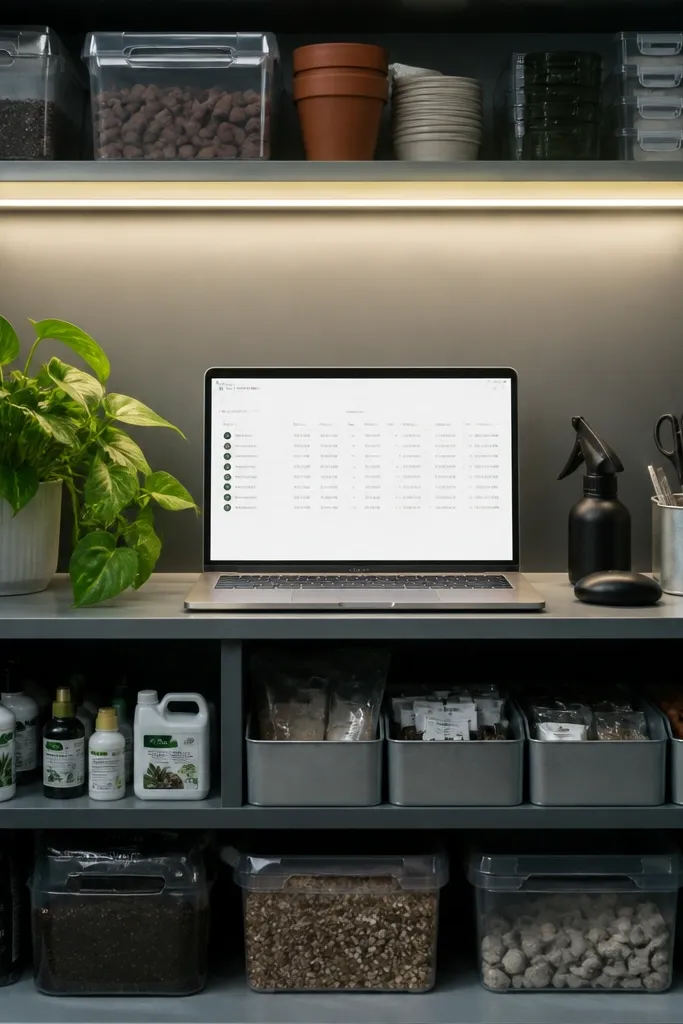
This template is for the quiet kind of organization where you want everything to feel predictable. You log storage cabinet lighting checks and connect them to plant locations, so you know whether a shelf is actually working. It’s calm because the log is short and repeatable: one entry per check, with a simple result. The visual style is minimalist because each entry has only a date, a shelf location, and a status select.
Create a database called Storage Shelves with properties: Shelf name (title), Location (text), Light level (select: low/med/high). Create a database called Shelf Lighting Log with properties: Date (date), Shelf (relation), Result (select: ok/adjust), and Notes (text). Build a dashboard with a Gallery view of Storage Shelves showing Light level. On each Shelf page, add a linked Shelf Lighting Log view filtered to Shelf equals this page sorted by Date descending. Add a dashboard view filtered to Result equals adjust and date within last 30 days.
Use Result select with only two options to keep the log visually calm.
Don’t turn Notes into paragraphs. Keep them to one sentence max.
25. Gallery-First Plant Care Inbox
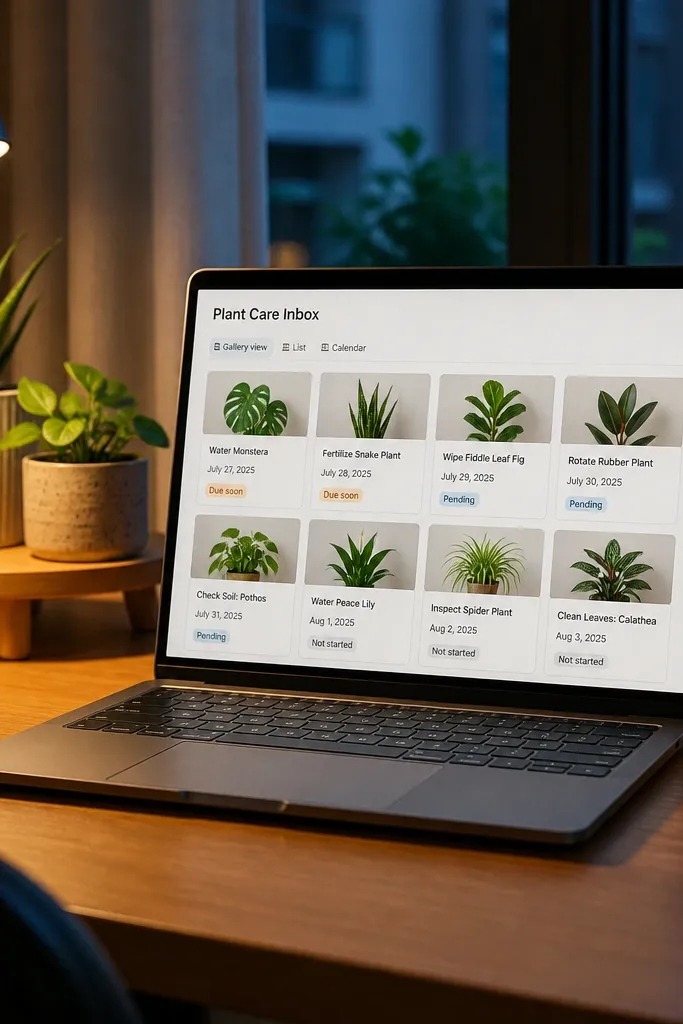
This template makes plant care feel like an inbox you can clear without thinking. You get a gallery of tasks that each belong to a plant, with due dates and status tags that keep the page calm. The aesthetic is clean because cards are uniform and you show only what’s needed to act. It’s also practical: you click a task card to see the plant link and the short checklist, then you mark it done.
Editor's noteUse Action type select to keep card text short and consistent.
Create a database called Plant Care Inbox with properties: Task (title), Plant (relation), Due (date), Action type (select: water/rotate/clean/check soil), and Done (checkbox). Add a Gallery view named “Inbox” filtered to Done unchecked and sort by Due ascending. Add a second view called “Cleared today” filtered to Done checked and Due is today. On your dashboard, place the Inbox view at the top and add a linked view of Room Plants filtered to Status not equal archived, shown as Gallery with Next watering date.
Skip thisDon’t add extra fields to the gallery view. Keep it action-first.