
1. Creamy Entryway Reset Dashboard
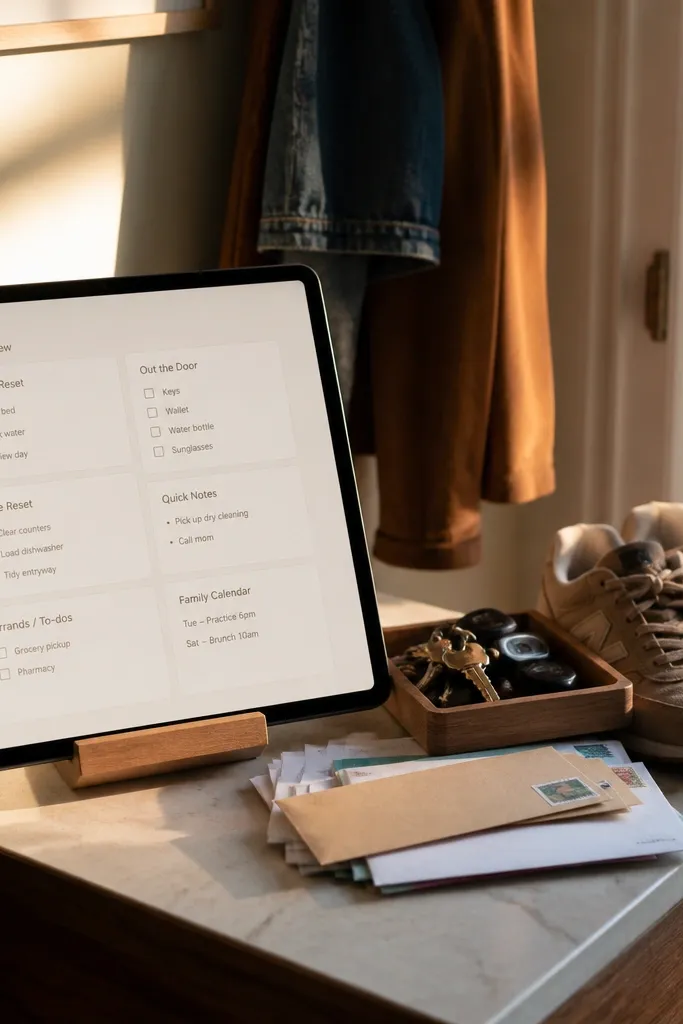
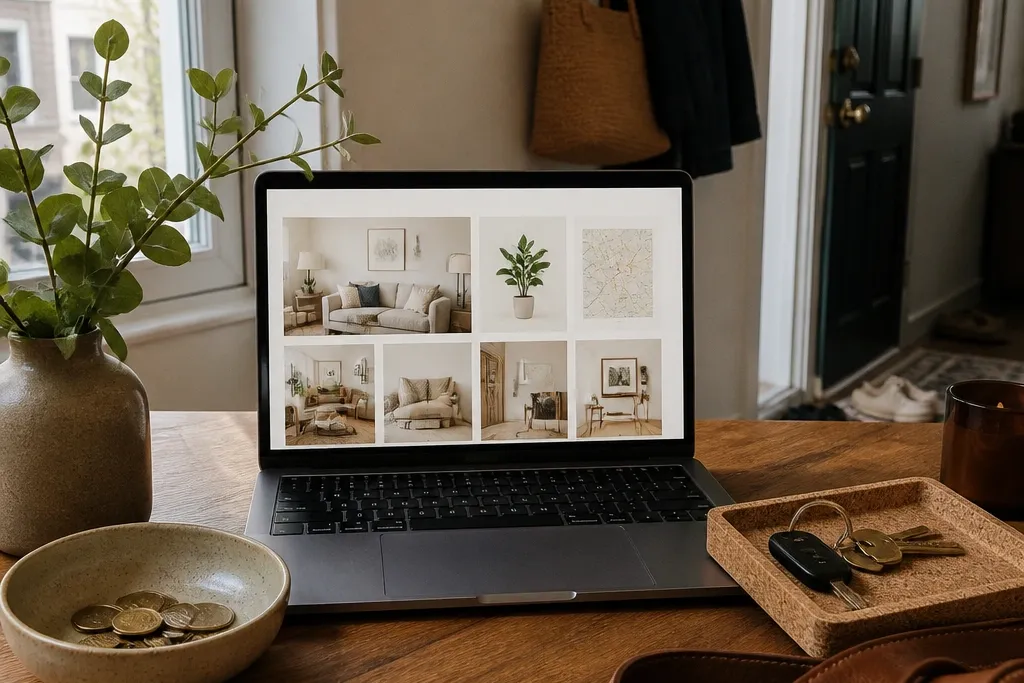
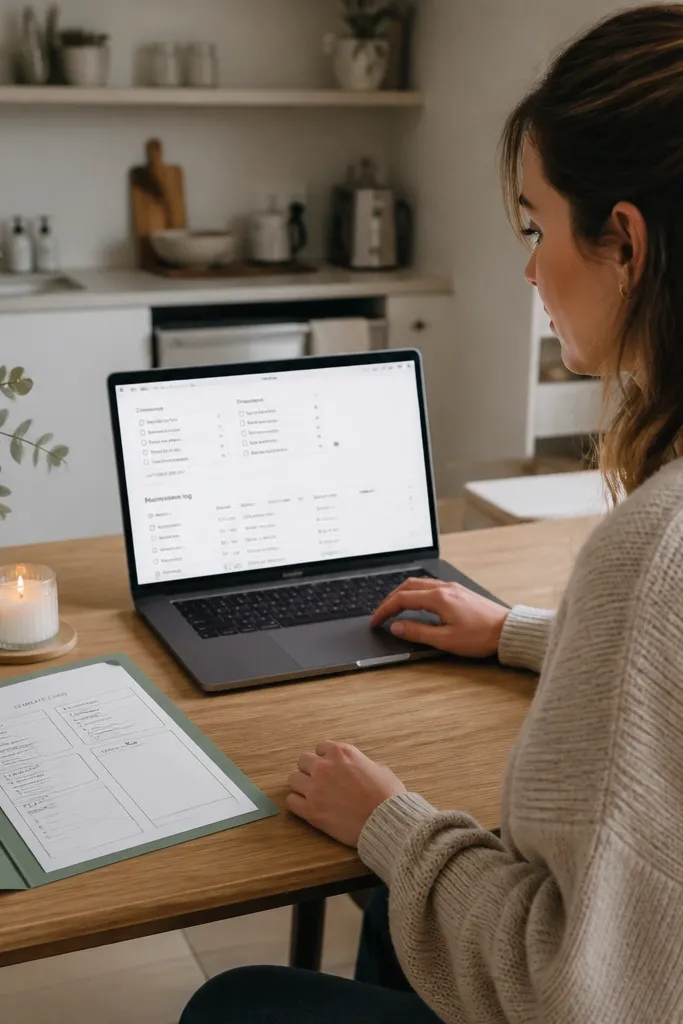
This template turns the chaos of an entryway into a daily 2-minute routine, and it looks good doing it. You get a dashboard that tracks the “drop zone” basics: keys, mail, bags, and shoes — the stuff that makes renters feel disorganized fast. The cozy part is the visual rhythm: a warm cover, a compact checklist, and a small “today” panel that stays at the top. It’s also practical: you can reuse the same structure in any apartment because it doesn’t depend on wall measurements or built-ins.
Editor's noteUse a fixed set of Item values (Keys, Mail, Wallet, Bags) so the dashboard stays clean after you copy it to a new place.
Start by creating a page called Home Dashboard and add three linked sub-pages: Keys + Mail, Shoes + Bags, and Entryway Weekly. In Keys + Mail, add a simple database named Daily Reset with properties Date, Item, and Done (checkbox). In Entryway Weekly, add a database with Frequency (select like Daily/Weekly), Task, and Notes. Finally, style it: use a cream cover, set the checkbox list to a consistent indentation, and pin the “Next 3 tasks” view at the top.
Skip thisDon’t build a massive database with 50 entryway items — it kills the quick reset habit.
2. Cozy Kitchen Recipe Wall With Weekly Rotation
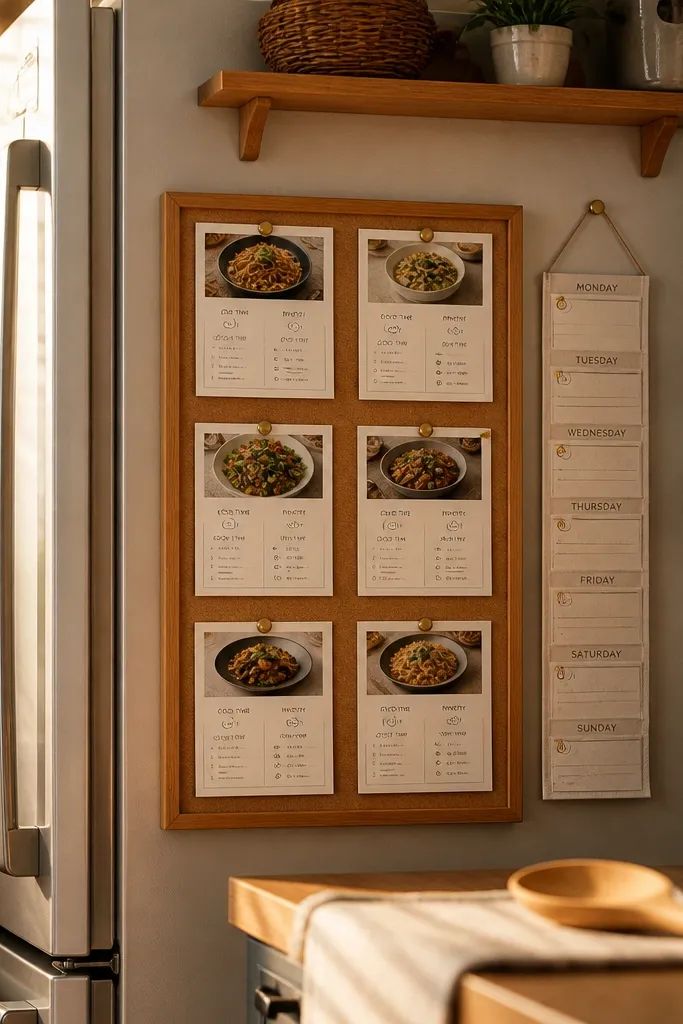
This template gives you a recipe “wall” that feels like home decor, not a recipe dump. You store recipes as cards with a cover, cooking time, and pantry ingredients, then you pin a Weekly Rotation strip so you can see what you’re making without hunting. It’s renter-friendly because it works whether you have a tiny kitchen or a full pantry — you just adjust the ingredient tags. The look comes from consistent card sizes and a repeating color scheme for meal types like Pasta Night, Sheet Pan, and Soup.
Editor's notePick 6-8 Meal Type values and keep them consistent so the card colors stay cohesive.
Create a database called Recipes with properties: Name (title), Meal Type (select), Time (number), Ingredients (multi-select), and Link (URL). Add a second database called Weekly Rotation with properties: Week Start (date), Recipe (relation to Recipes), and Status (select: Planned, Cooked, Skipped). Set up a view called Recipe Wall that shows cards with Recipe covers and a view called This Week that filters Weekly Rotation where Week Start is today’s week. Duplicate the whole page when you move and keep the ingredients tags — it saves you rebuilding the system.
Skip thisSkip free-text ingredient fields — they make the weekly filter messy.
3. Soft-Touch Living Room Chore Tracker
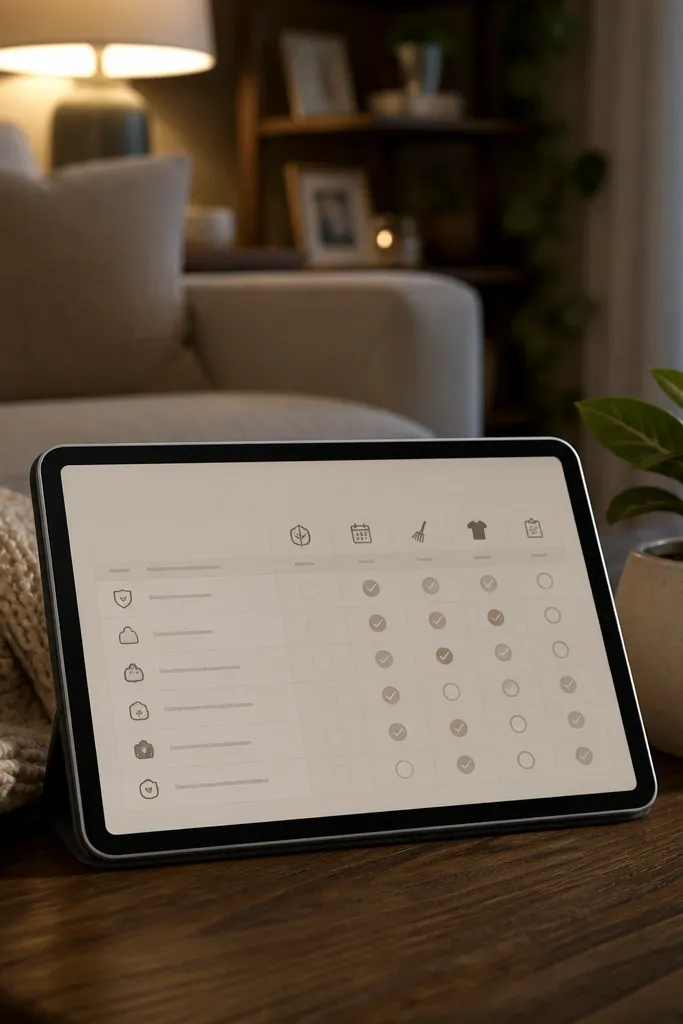
This is a chore template designed to feel gentle, not punishing. You break living room tasks into “reset,” “maintenance,” and “appearance” so you’re never staring at a wall of chores. It looks cozy because each task line is short, the icons match the vibe, and the page has a warm, low-contrast cover. The setup is practical for renters: it focuses on what you can control without drilling, like dusting surfaces, wiping screens, and rotating throws.
Make a database called Living Room Tasks with properties: Task (title), Category (select: Reset/Maintenance/Appearance), Frequency (select), and Done (checkbox). Add a view called This Month that filters Frequency is Monthly or Weekly and sorts by Category. Create a dashboard widget section on the page called Monthly Finish using a linked view that shows only tasks not checked. Finally, add a “What needs doing” text block at the top with a manual note — it keeps the page readable when your phone is at 15% battery.
Keep tasks under 5 words (like “Dust TV stand”) so the list stays scannable.
Don’t mix deep-clean projects with daily resets in the same list — it ruins the cozy feel.
4. Bathroom Supply Caddy + Restock Calendar
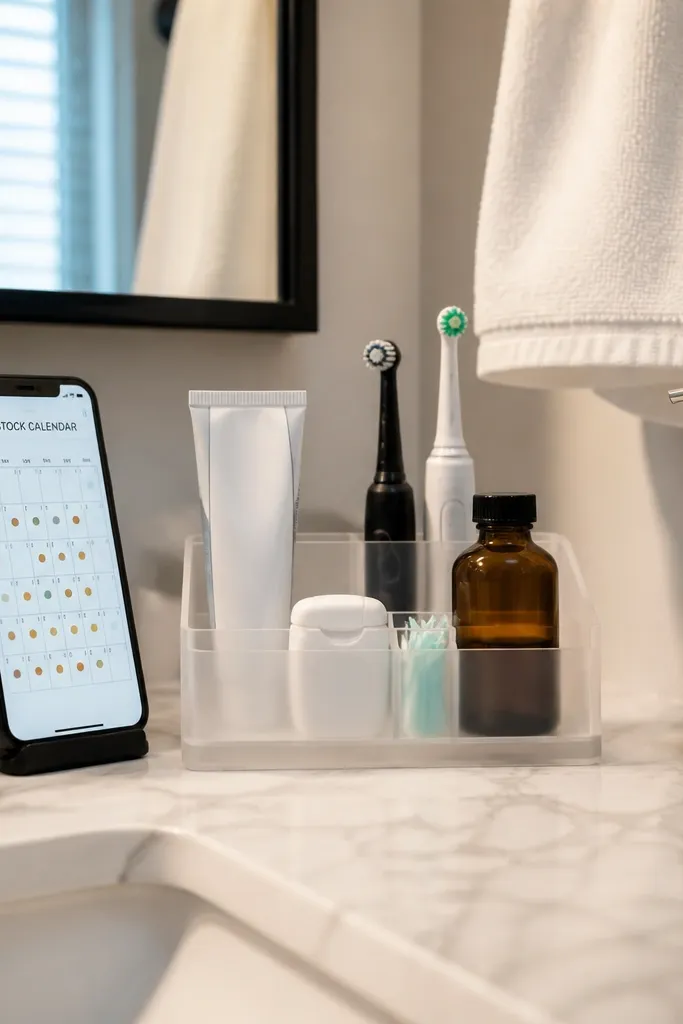
If you’ve ever run out of toothpaste mid-week, this template stops the scramble and looks tidy while it does. You track supplies with “last bought” dates and a restock interval, then you get a calendar view that shows what needs attention soon. It’s renter-friendly because you can keep it minimal: only items you actually use, and only the ones that run out fast. The photogenic part is the product card layout with consistent icons and warm cover art.
Create a database called Bathroom Supplies with properties: Product (title), Store (select), Last Bought (date), Run Out In Days (number), and Status (select: In Stock, Low, Order). Add a formula property called Restock Date that calculates Last Bought + Run Out In Days. Create two views: a Calendar view filtered to Restock Date is within the next 30 days, and a Stock Cards view sorted by Status. Add a linked page called Shopping Run where you paste the list from the Low view and check items off.
Set Run Out In Days using real usage (like 21 for toothpaste if you’re a two-brush-per-day person) so the calendar stays accurate.
Don’t include every possible backup item — it turns the system into clutter.
5. Laundry Days Mood Board + Rules Page
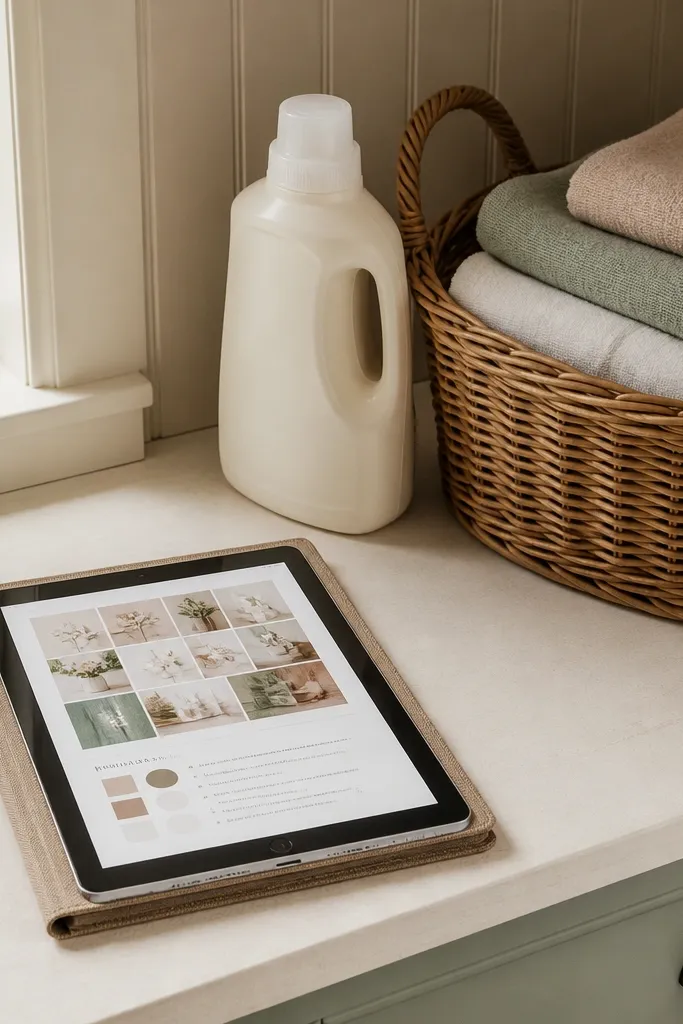
Laundry is where renters feel the most friction, so this template makes it visual and repeatable. You keep a “rules” page that lists what goes together, what you never mix, and how you dry items — then you pair it with a mood board section that makes the page feel like cozy home. The look is clean: one warm cover, short rule lines, and a weekly schedule view that shows what’s next. It’s useful because you reduce decision fatigue, and you stop guessing settings for delicates and darks.
Create a page called Laundry Rules and add a checklist database called Laundry Loads with properties: Load Name (title), Items (text), Water Temp (select), Drying Method (select), and Notes (text). Create a second database called Laundry Schedule with properties: Week Start (date), Load (relation to Laundry Loads), and Status (select: Planned, Washed, Folded). Add a view called Next Up that filters Schedule where Status is Planned and Week Start is this week. Finish the page by adding a small “Mood” section with 3-5 cover images you like and link them to the Loads via manual text labels.
Write your drying methods in plain labels like Air Dry, Hanger Dry, and Tumble Low so you don’t overthink it later.
Don’t put detergent brands in the main rules — focus on settings and categories.
6. Receipt Folder With Beige Monthly Wrap-Up
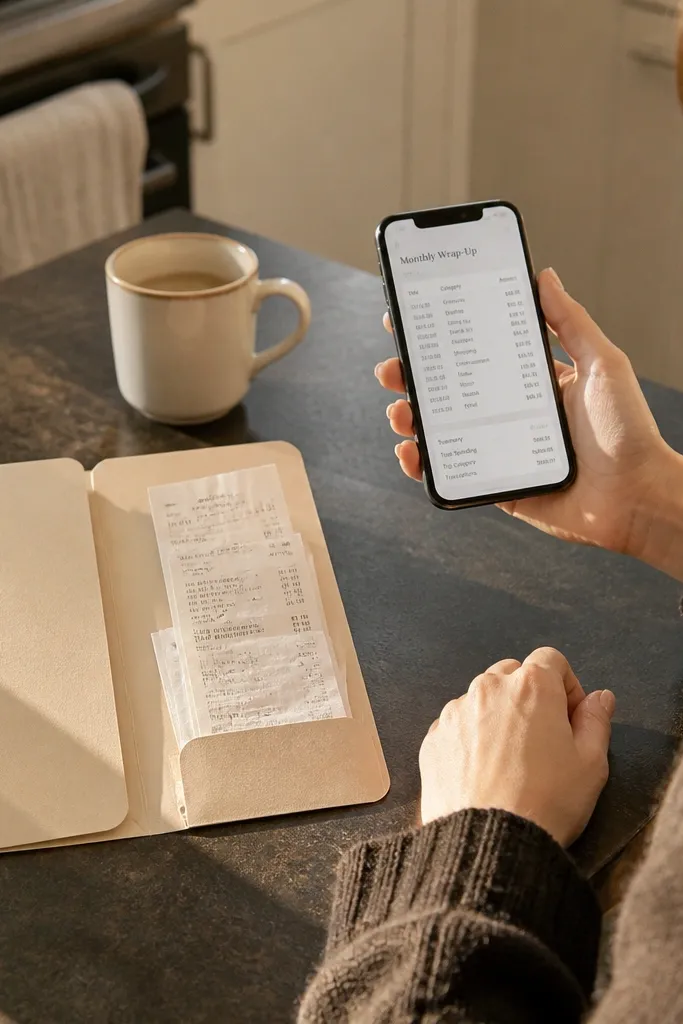
This template makes money admin feel less annoying, and it looks like a tidy paper folder. You log receipts with date, category, and amount, then you get a monthly view that groups everything into clean sections. It’s renter-friendly because you can track rent-related costs, utilities, and moving expenses without digging through your camera roll. The aesthetic is simple: beige cover, category icons, and a monthly rollup panel that stays at the top.
Editor's noteUse one consistent currency and keep Amount numeric so your monthly totals stay accurate.
Create a database called Receipts with properties: Vendor (title), Date (date), Category (select: Rent, Utilities, Groceries, Home Supplies, Other), Amount (number), and Status (select: Saved, Filed). Add an Attachment field for the receipt file link (URL or file). Create a view called Monthly Totals that groups by Category and filters Date is this month. On the main page, add a linked view called This Month Receipts and a text block that lists what you still need to file.
Skip thisDon’t log receipts without a Category — the monthly view becomes useless.
7. Seasonal Decor Rotation Lookbook
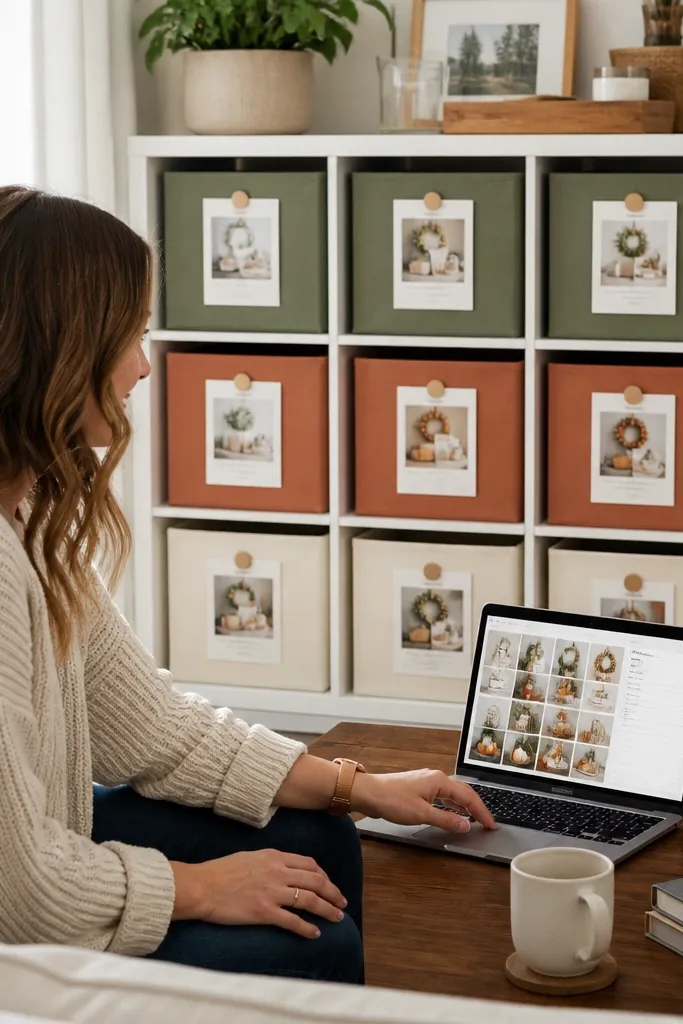
This template gives you a renter-approved way to rotate decor without buying new storage every season. You log decor items with where they live, what season they belong to, and how you style them, then you get a “next rotation” list. The look is photogenic because each item has a cover and a small styling note — it reads like a magazine, not a spreadsheet. It also fixes a real renter problem: you forget what you own once it’s boxed.
Create a database called Decor Items with properties: Item (title), Season (select: Spring/Summer/Fall/Winter), Room (select), Storage Location (text), and Styling Note (text). Add a relation to a database called Outfits (optional) if you want multi-item sets, but you can keep it simple. Create a view called This Season that filters Season equals the current season and sorts by Room. Create a second view called Pack List that filters Storage Location is not “In Use” and shows only items you need to pull out next.
Store your Storage Location in consistent labels like “Under Bed — Bedroom” so the pack list is readable.
Don’t write long paragraphs in Styling Note — keep it to one sentence.
8. Cozy Reading Nook Library Cards
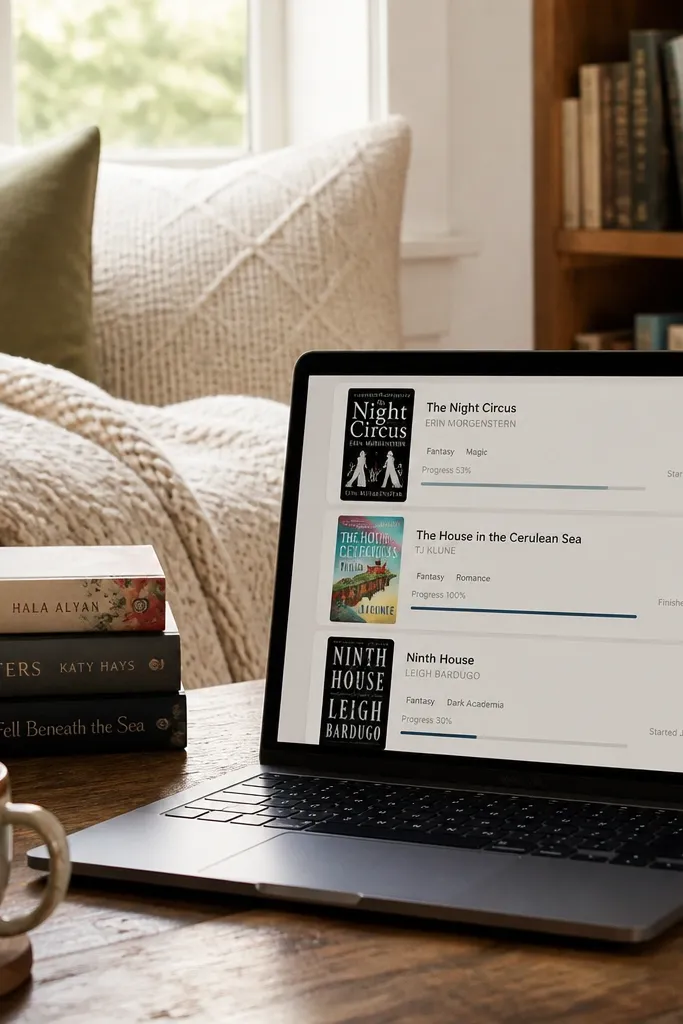
This template turns your reading list into a visual shelf you can scroll like a cozy corner. Each book has a cover image, author, genre tags, and a simple progress status so you know what you’re actually reading. It’s renter-friendly because it works whether your books are physical, Kindle, or borrowed — you just track the format and a quick note. The aesthetic comes from card layout and consistent genre icon colors that match the vibe of the page.
Editor's noteSet Progress increments like 10, 20, 30 so updates stay quick on a phone.
Create a database called Books with properties: Title (title), Author (text), Genre (select), Format (select: Paperback/Kindle/Library), Status (select: Want to Read/Reading/Finished), and Progress (number 0-100). Create a view called Cozy Shelf that shows cards and filters out Finished books if you want a clean look. Add another view called Currently Reading that filters Status equals Reading and sorts by Progress descending. On the main page, add a small “Mood” section with three genre chips you love and link them to filtered views via buttons.
Skip thisDon’t add star ratings and complex review fields — they clutter the cozy shelf.
9. Window Light Planner for House Plants
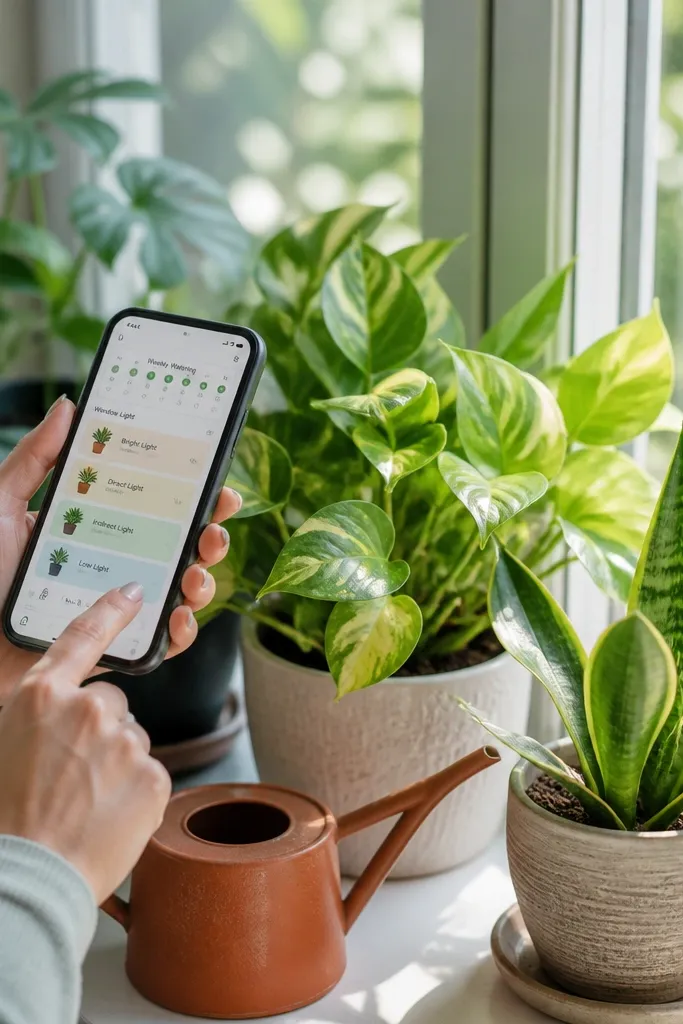
Plants look cozy, but renters often kill them by guessing light and watering schedules. This template fixes that by forcing you to log light level and watering cadence in a way you can see at a glance. You track each plant’s light zone (bright/direct/indirect/low) and create a weekly watering view. It’s renter-friendly because it doesn’t require permanent placement — you can note “moves to living room at night” if you do that. The look is clean: warm covers, simple tags, and a watering list that feels like a routine.
Create a database called Plants with properties: Plant (title), Room (select), Light Level (select: Direct/Indirect/Bright Shade/Low), Water Frequency Days (number), and Last Watered (date). Add a formula property called Next Watered Date = Last Watered + Water Frequency Days. Create a view called This Week Watering that filters Next Watered Date is within the next 7 days and groups by Room. On each plant page, add a small checklist called Care Notes with items like Wipe Leaves and Rotate Pot.
Use Light Level values consistently — change them only when the plant placement truly changes.
Don’t track everything in one mega notes field — keep watering and light separate.
10. Closet Capsule Map With Color-First Outfits
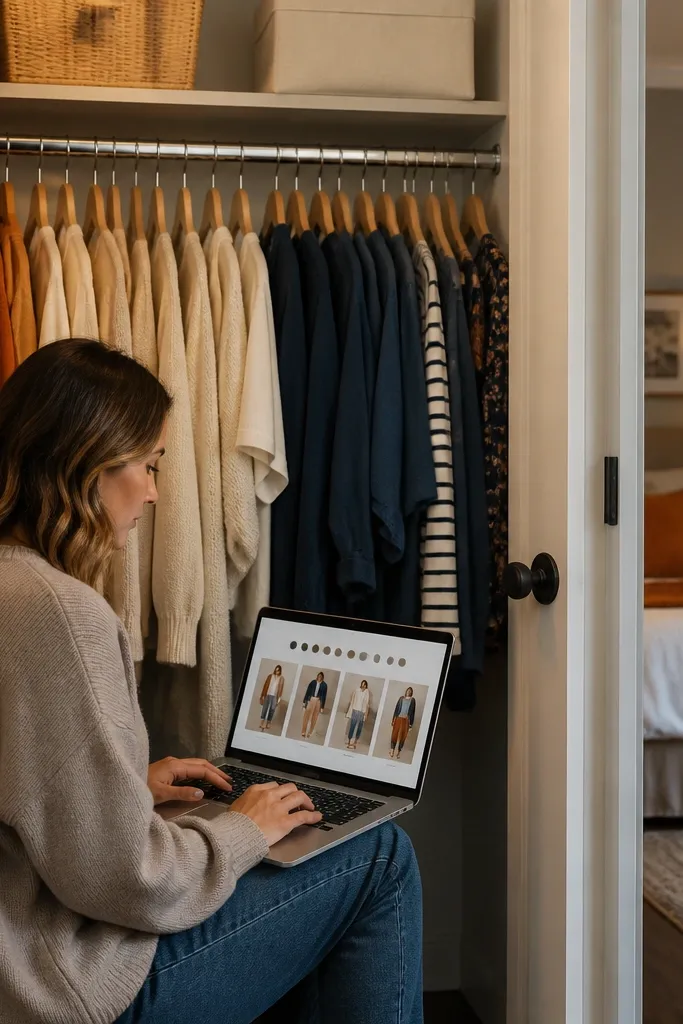
This template helps renters build outfits without a huge wardrobe — and it looks like a fashion board. You list clothing pieces with color tags, then you create Outfit Cards that pull from those pieces. The page feels cozy because it uses a warm palette and consistent typography, and each outfit card has a “vibe” note. It’s renter-friendly because it encourages capsule thinking: fewer pieces, easier maintenance, and less clutter in small closets.
Editor's noteLimit your Color select list to 10-12 names so the board stays visually consistent.
Create a database called Clothing Pieces with properties: Piece (title), Color (select), Category (select: Tops/Bottoms/Dresses/Shoes/Outerwear), and Keep (checkbox). Create a database called Outfit Cards with properties: Outfit Name (title), Season (select), Pieces (relation to Clothing Pieces), and Vibe (text). Add a view called Capsule Colors that groups Clothing Pieces by Color and filters Keep is checked. Add a view called Outfit Builder that shows Outfit Cards and lets you update Pieces when you rotate your capsule.
Skip thisDon’t create 40 clothing categories — keep it to 5-6 so the outfit cards stay readable.
11. Renter-Friendly Cleaning Checklist by Zone
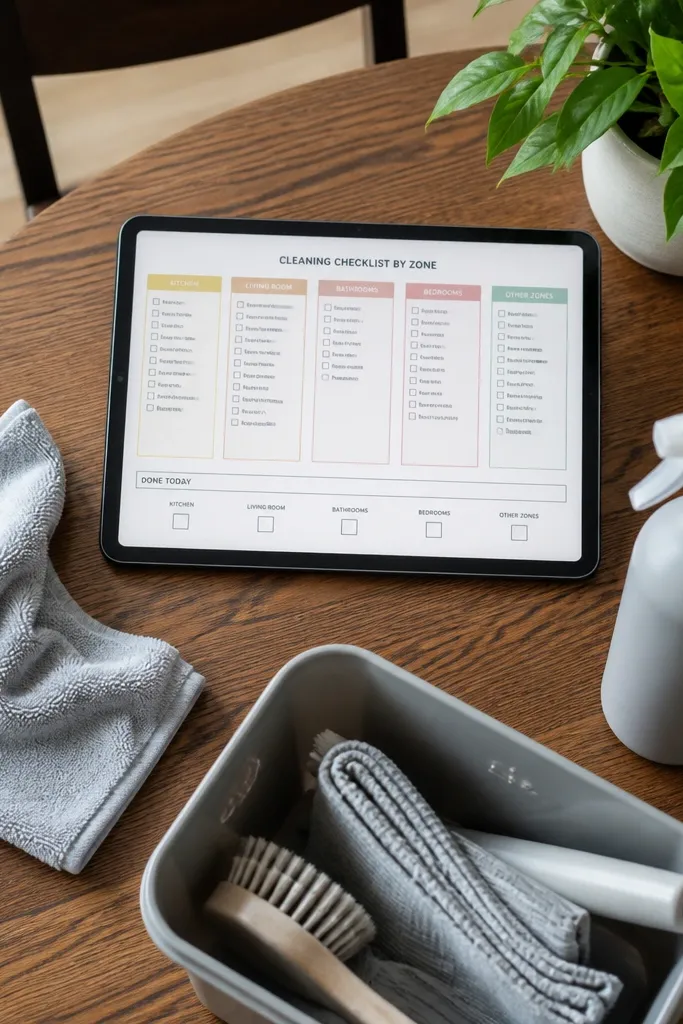
This is the cleaning template that looks structured and gets used, even when your schedule is chaotic. You break chores into zones like Kitchen, Bathroom, Floors, and Surfaces, then you assign frequency so you’re not doing everything every weekend. The cozy look is the clean zone layout plus a “done today” mini strip that makes the page feel rewarding. It’s renter-friendly because it focuses on portable tasks — you can clean without changing the space.
Create a database called Cleaning Tasks with properties: Task (title), Zone (select: Kitchen/Bathroom/Floors/Surfaces/Windows), Frequency (select: Daily/Weekly/Monthly), and Effort (select: Quick/Medium). Create a view called This Weekend that filters Frequency is Weekly and sorts by Zone. Create a second view called Monthly Deep that filters Frequency is Monthly. On the main page, add two linked views side by side: This Weekend Tasks and Monthly Deep Tasks, then add a checkbox list called “Done Today” using a filtered view of tasks where Status equals Done (checkbox).
Use Effort tags to pick tasks by energy level instead of guessing.
Avoid writing vague tasks like “clean bathroom” — break it into “wipe sink” and “scrub toilet bowl.”
12. Cozy Home Maintenance Log With Photo Notes
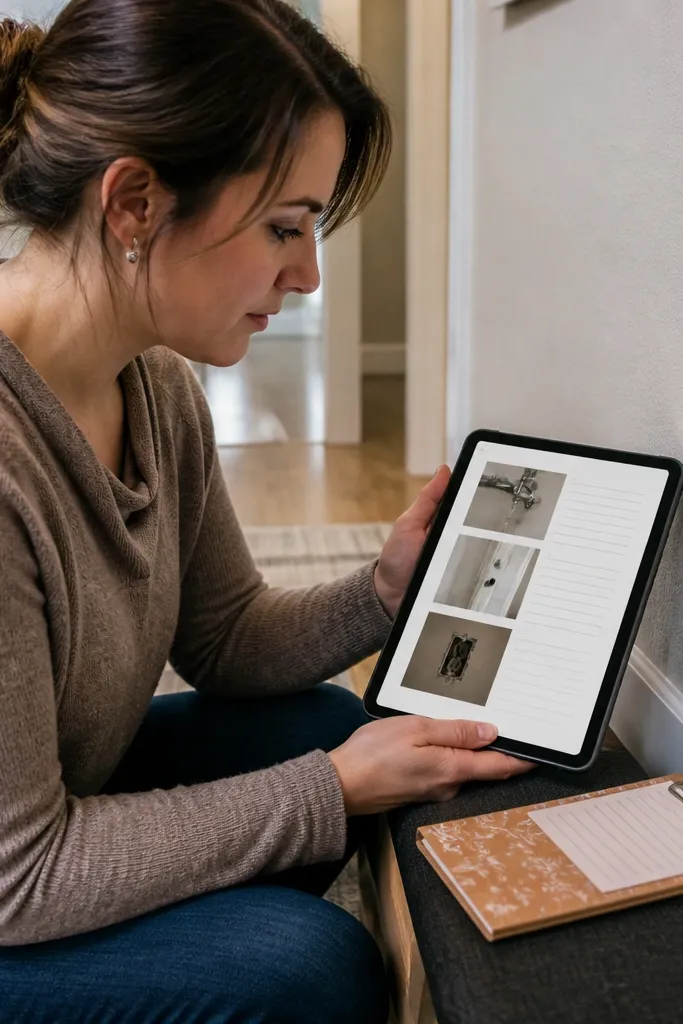
Renters forget small repairs until they become annoying, so this template keeps everything in one cozy place. You log issues like “leaky faucet,” “door sticks,” and “outlet cover missing,” then you track status and attach photos for reference. It’s renter-friendly because it’s built for communication: you can copy the details into an email to your landlord or the maintenance portal. The look is tidy: each item is a card with a cover icon and a short status line.
Editor's noteWrite your Issue titles in a consistent format like “Kitchen — faucet drip” so the Open Issues view stays scannable.
Create a database called Maintenance Requests with properties: Issue (title), Room (select), Priority (select: Low/Medium/High), Date Reported (date), Status (select: Reported/Scheduled/Fixed), and Cost (number optional). Add a Notes field for what you observed and a Photos field as an attachment or URL. Make a view called Open Issues filtered where Status is not Fixed and sorted by Priority then Date Reported. Create a view called Fixed Recently filtered where Status equals Fixed and sorted descending by Date Reported for easy reference.
Skip thisDon’t skip attachments — a photo saves you from re-explaining the problem later.
13. Cozy Budget Moodboard With Envelope Views
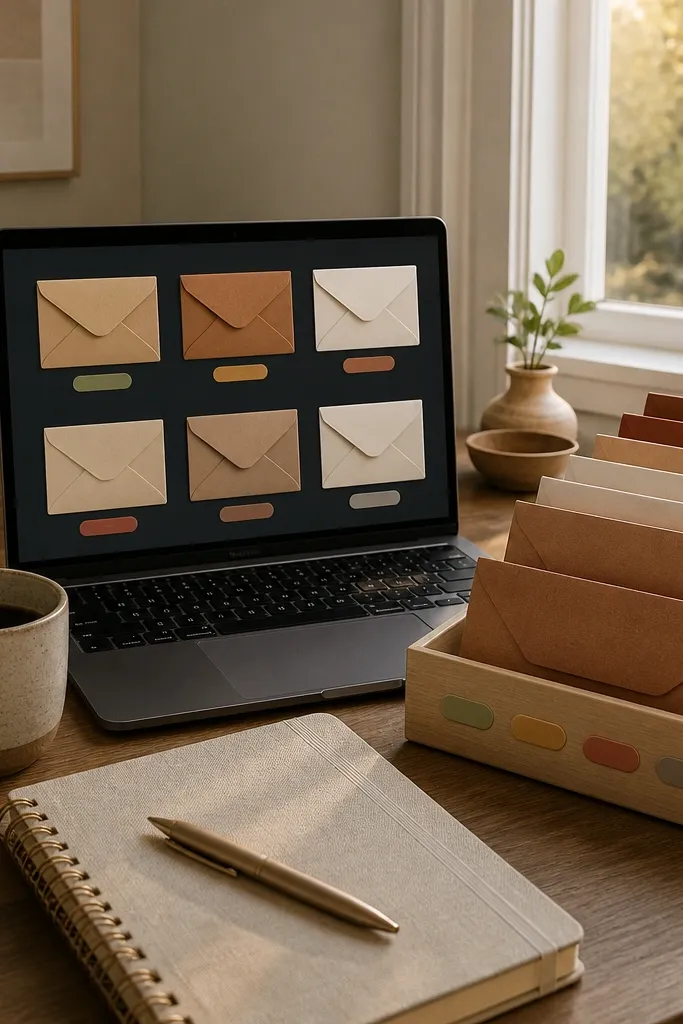
This template makes budgeting feel less like math and more like a cozy plan. You use an envelope-style view where each category has a warm label and a simple “spent vs planned” status. It’s renter-friendly because it keeps your essentials clear: rent, utilities, groceries, and transport. The aesthetic comes from consistent category colors and a dashboard that shows only the categories that matter right now. You get visual calm, which helps you actually use the budget.
Create a database called Budget Categories with properties: Category (title), Color (select), Monthly Planned (number), and Monthly Spent (number). Create a view called Dashboard that shows categories as cards and sorts by Color. Create a second database called Transactions with properties: Vendor (title), Date (date), Category (relation to Budget Categories), Amount (number), and Type (select: Income/Expense). Link Transactions to roll up Monthly Spent using a rollup property filtered to this month and Type equals Expense. Update Monthly Planned once per month and let Spent calculate from transactions.
Keep categories to 6-10 max so the dashboard stays readable.
Don’t track every tiny purchase in a separate sheet — you’ll stop updating it.
14. Kitchen Pantry Photo Index With "Use First" Tags
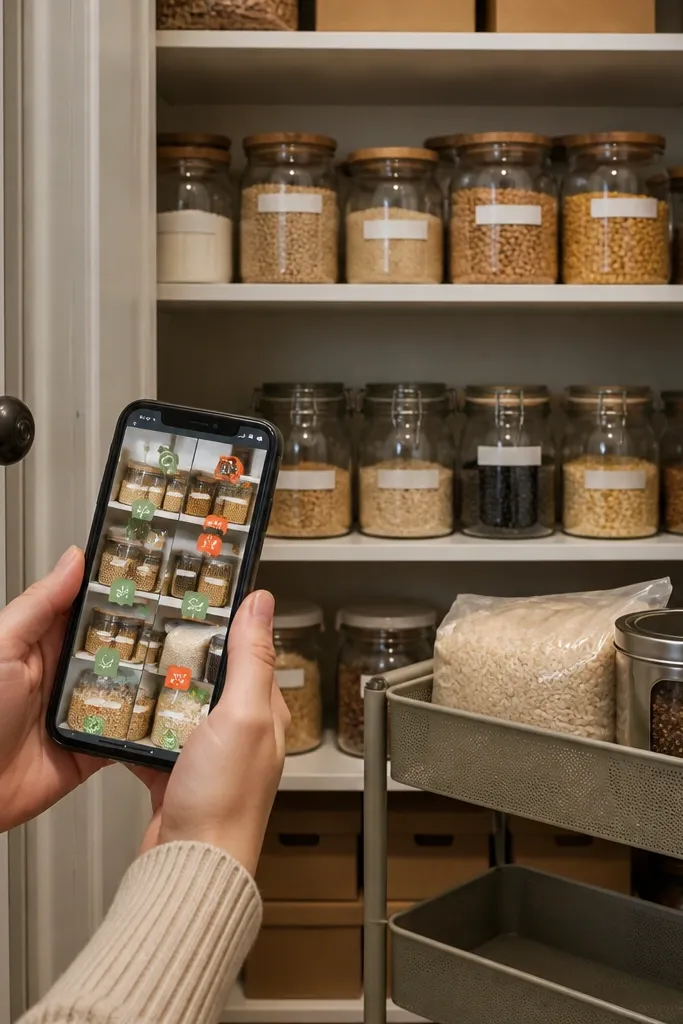
This template solves the “I forgot I had it” problem while looking like a neat pantry wall. You log pantry items with photo covers, expiration or purchase date, and a “use first” tag for anything that’s close. It’s renter-friendly because you can track what fits in your shelves, not what fits on a full-size pantry. The cozy look comes from consistent card design and warm cover colors for each category like Snacks, Baking, and Breakfast.
Create a database called Pantry Items with properties: Item (title), Category (select), Purchase Date (date), Days Until Use First (number), and Use First (checkbox). Add a formula property called Use First Date = Purchase Date + Days Until Use First. Create a view called Use First that filters Use First is checked or Use First Date is within the next 14 days. Add a view called Pantry Cards that shows cards and includes a photo attachment field for each item. When you move, copy the pantry database and keep the photo covers — it makes the new place feel organized faster.
Use photo covers for each item, but keep the photo simple — one front label shot is enough.
Skip expiration dates if you hate them — use “days until use first” instead.
15. Bedroom Night Routine With Candle-Glow Timer
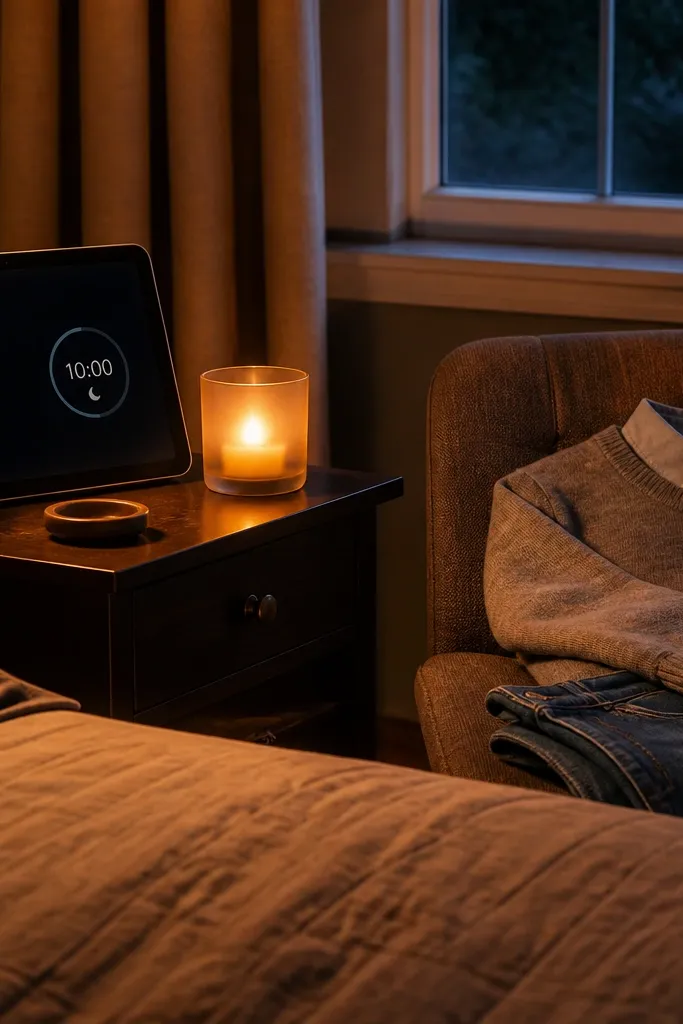
This template turns bedtime into a predictable ritual you can see in seconds. You build a night routine checklist with steps like “brush teeth,” “set out clothes,” and “charge devices,” then you add a short “wind-down” notes area for what you want tomorrow to feel like. It’s renter-friendly because it doesn’t rely on built-in nightstands or outlets — you just list what you do. The cozy look is the warm cover, the minimal list, and the way the “done” state stays visually satisfying on a small screen.
Editor's noteKeep your steps to 6-10 total so the checklist feels doable even on bad days.
Create a database called Night Steps with properties: Step (title), Time of Night (select: Before Shower/After Shower/10 Minutes Out), and Done (checkbox). Create a page called Tonight that shows a filtered view of Night Steps where Done is unchecked. Add a second database called Device Charging with properties: Device (title), Location (text), and Status (select: On/Done). Place two linked views at the top: Tonight Steps and Device Charging. Style it with a warm cover image and keep the page width narrow so it looks like a little ritual card.
Skip thisDon’t add “perfect day” goals to the same page — keep it to actions you can complete.
16. Renter-Friendly Mail Station With Color-Coded Labels
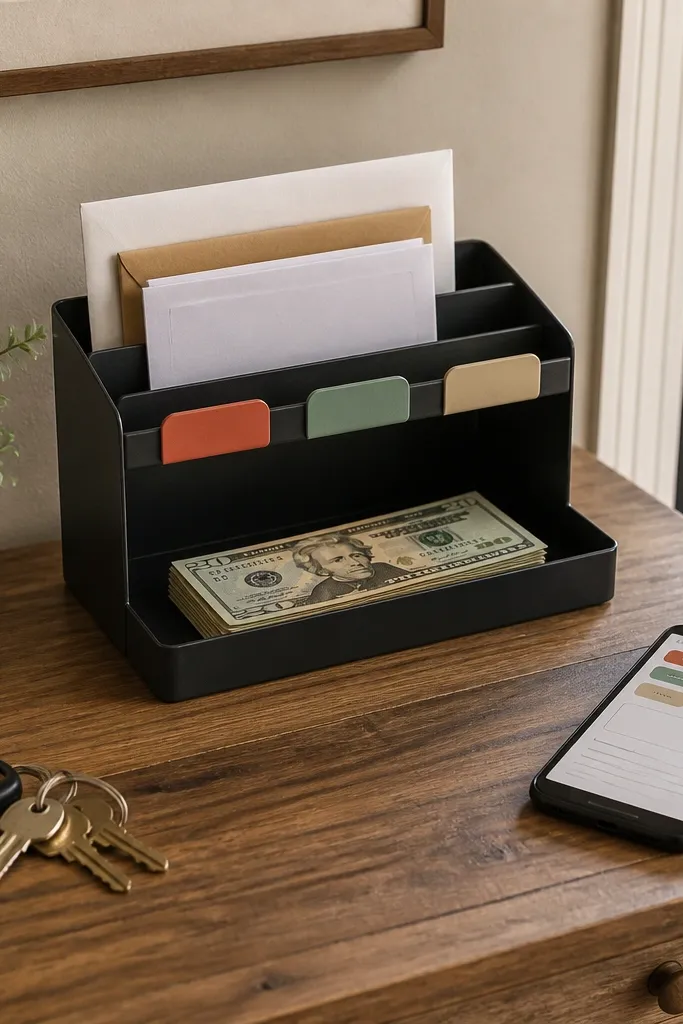
Mail is one of the fastest ways a rental starts feeling messy, and this template fixes that with a simple system. You track what comes in, what needs action, and what you can file immediately. The look is clean and cozy because each mail item has a status chip and a short note field — it reads like a little desk organizer. It’s renter-friendly because you can use it with any mailbox setup and you can export the info if you need it for a new lease.
Editor's noteUse the same Category list every time so you don’t reinvent labels when you move.
Create a database called Mail Items with properties: Letter/Package (title), Date Received (date), Status (select: Action Needed/File/Shred), and Category (select: Rent/Utilities/Bank/Personal/Other). Add a Notes field for what you need to do. Create a view called Action Needed that filters Status equals Action Needed and sorts by Date Received. Create a view called File Now that filters Status equals File and sorts by Category. On the top of the page, add a small “Today’s Stack” section that shows Action Needed limited to 5 items.
Skip thisDon’t track mail by sender only — track by action type so it’s useful.
17. Cozy Wall Art Project Planner With Print Specs
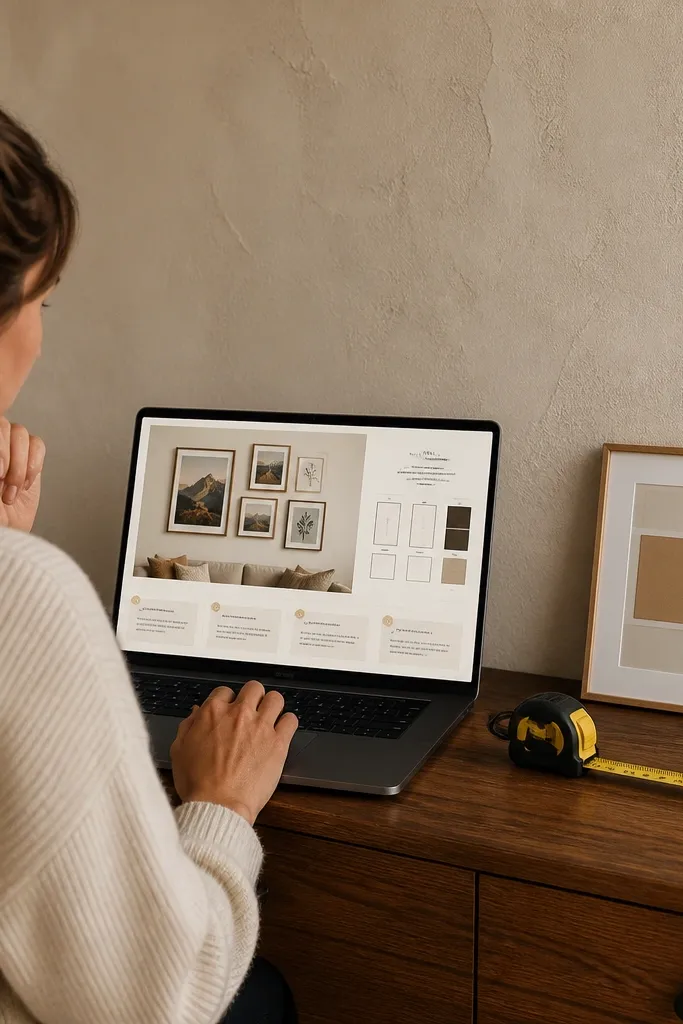
This template helps renters plan wall art without the guesswork that leads to wasted prints. You store print sizes, frame sizes, and placement notes, then you track the project steps from download to final hang. The look is good because each art piece has a cover and short spec lines that read like a design brief. It’s renter-friendly because you can plan for adhesive-friendly methods and keep everything organized when you swap walls between apartments.
Editor's noteWrite the mounting method in the Wall Art record — it saves you from buying the wrong hardware twice.
Create a database called Wall Art with properties: Piece Name (title), Print Size (select like 8x10/11x14/16x20), Frame Type (select), Mounting Method (select: Adhesive Strips/Command/No-Drill Frame), and Status (select: Planned/Printed/Framed/Installed). Add a relation to a database called Projects if you want multiple rooms, or keep it single-room for simplicity. Create a view called Ready to Print that filters Status equals Planned and sorts by Print Size. Add a view called Install Checklist filtered where Status is Framed and sorts by mounting method. Put those two views on the main page so you always know the next step.
Skip thisDon’t skip print spec fields — “looks right on screen” leads to blurry prints.
18. Organized Balcony Patio Plan With Plant + Light Notes

Balconies are cozy but they change with sun and wind, so this template keeps your patio realistic. You plan container plants and note light hours, watering needs, and what you do during windy weeks. It’s renter-friendly because you’re tracking movable pots and simple care routines, not building permanent fixtures. The aesthetic is photogenic: warm cover, plant cards with icons, and a weekly care list that looks like a small routine board.
Editor's noteUse Light Hours as a number you update seasonally — it keeps your watering schedule from drifting.
Create a database called Patio Pots with properties: Plant (title), Container Size (select: Small/Medium/Large), Light Hours (number), Water Frequency Days (number), and Notes (text). Add a formula property called Next Water = Last Watered + Water Frequency Days by including Last Watered (date). Create a view called Weekly Patio Care that filters Next Water is within the next 7 days and sorts by Light Hours descending. Create a second view called Wind Week that filters Notes contains “wind” using a manual text tag and shows those items first. On the main page, add a “Care Calendar” section that links to Weekly Patio Care.
Skip thisDon’t let Notes turn into a diary — keep them to one line like “Move to shade at 3pm.”
19. Cozy Seasonal Cooking Prep Checklist
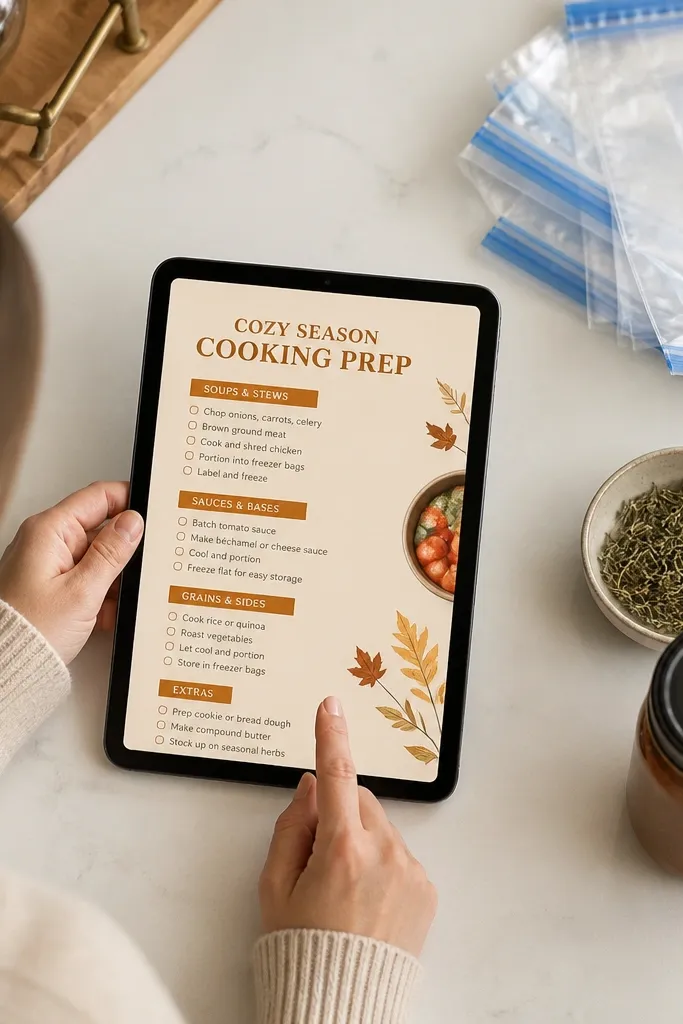
This template helps you prep for seasonal cooking without turning it into a huge weekend project. You plan what you’ll cook in fall or winter, then you build a prep checklist that includes staples, freezer bags, and quick sauces. The look is cozy because it uses monthly sections with warm headers and short task lines. It’s renter-friendly because it’s designed around small storage: freezer space, shelf staples, and quick restocking from a list you can reuse.
Create a database called Seasonal Plans with properties: Season (select), Month (select), Theme (text), and Status (select). Create a database called Prep Tasks with properties: Task (title), Season (relation to Seasonal Plans), Storage Type (select: Fridge/Freezer/Shelf), and Time (select: 15 min/30 min/60 min). Create views: a “This Month Prep” view filtered to the current month’s plan and sorted by Time, and a “Freezer Focus” view filtered where Storage Type equals Freezer. On the main page, add linked views for both so you can plan based on what space you have.
Keep tasks timed like 15/30/60 — it prevents you from overcommitting when you’re tired.
Don’t create vague tasks like “prep food” — write the exact item category like “marinara sauce jars.”
20. Home Photo Archive With Room Stories

This template turns your apartment into a documented story you can reuse when you move. You archive photos by room, add short notes about what changed, and keep a timeline of updates like new curtains or a new rug. It’s renter-friendly because it helps you remember what you liked and what didn’t, without digging through hundreds of pictures. The cozy look comes from room-based covers and short notes that read like a journal caption — clean and readable.
Editor's noteUse a consistent Room list (Bedroom, Living Room, Kitchen, Bathroom, Hallway) so the archive stays organized.
Create a database called Home Photos with properties: Room (select), Date (date), Project (text), and Why I Kept It (text). Add a photo attachment field so each record has a cover-like image. Create a view called By Room that groups by Room and shows only the most recent 10 items. Create a view called Move Notes that filters records where Why I Kept It contains “move” or “recreate.” Put a linked view called By Room on the dashboard and keep Move Notes as a separate panel for quick reference.
Skip thisDon’t upload photos without room tags — it turns into an unsearchable blob.