

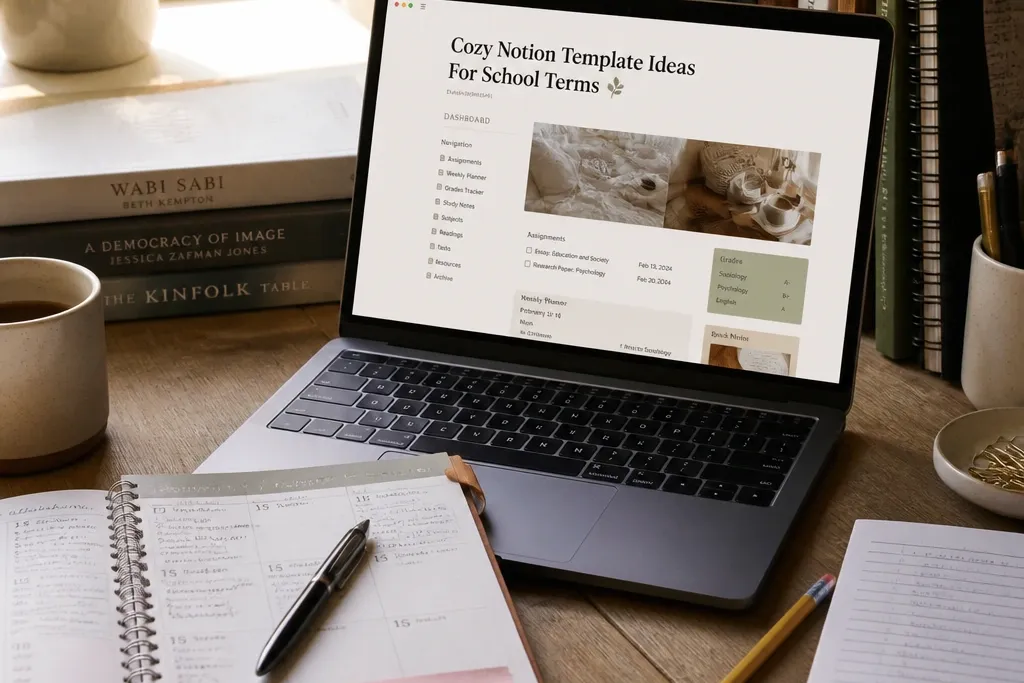
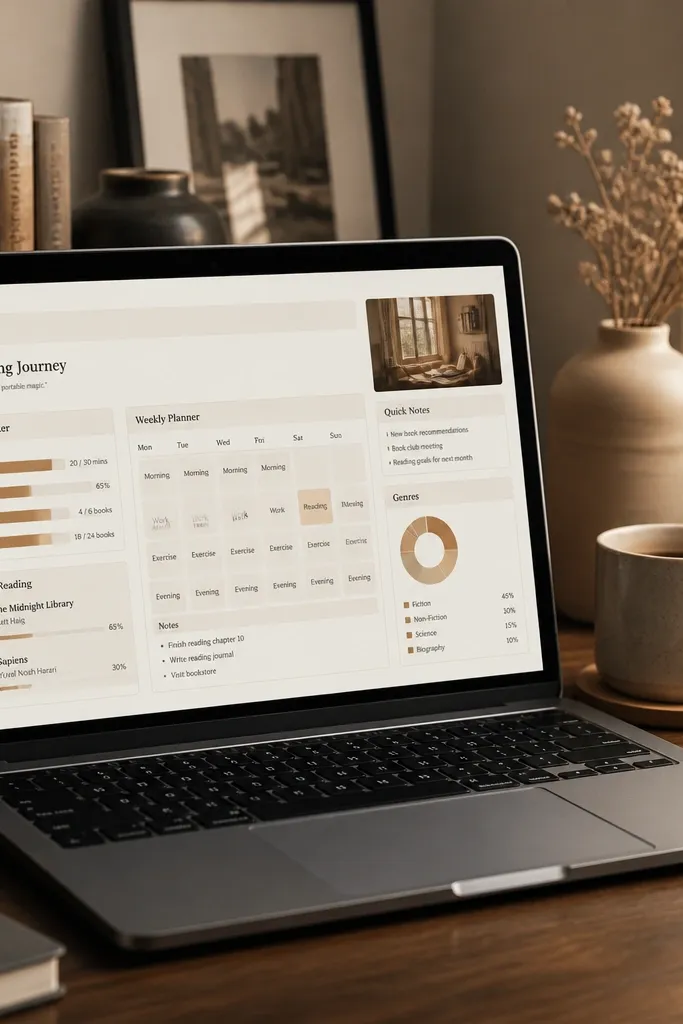
1. Cinnamon Term Cover Page with One-Click Links
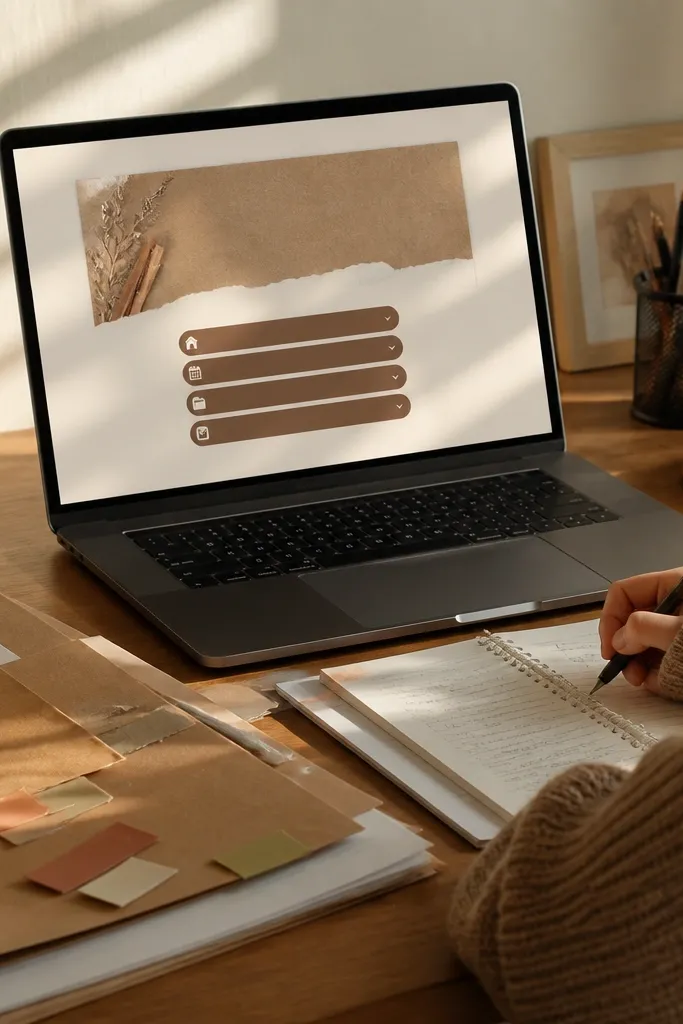
This template is a clean starting page for a school term. It gives you a cozy landing spot that tells you exactly where to go: assignments, weekly plan, and grades. The trick is keeping it mostly visual, with three to five linked buttons that jump to the right database views. Choose a warm cover image (kraft paper, light tan, soft orange) so the whole workspace feels calmer when you open Notion. It works best for anyone who starts the day by checking one page instead of hunting across the sidebar.
Start by creating a new page and setting a warm cover image. Add a top row of 3 linked buttons pointing to your Assignments database view, your Weekly Plan page, and your Grades dashboard page. Then add a small “Today” section with a synced view filtered to due dates within the next 24 hours. Finally, format the buttons with consistent width and spacing so the page looks like a dashboard, not a collection of links.
Use the same cover style for every term page so your brain recognizes “this is week planning time” instantly.
Don’t add more than five buttons on the cover page or it stops feeling cozy and starts feeling busy.
2. Weekly Time-Block Dashboard with Cozy Sidebar
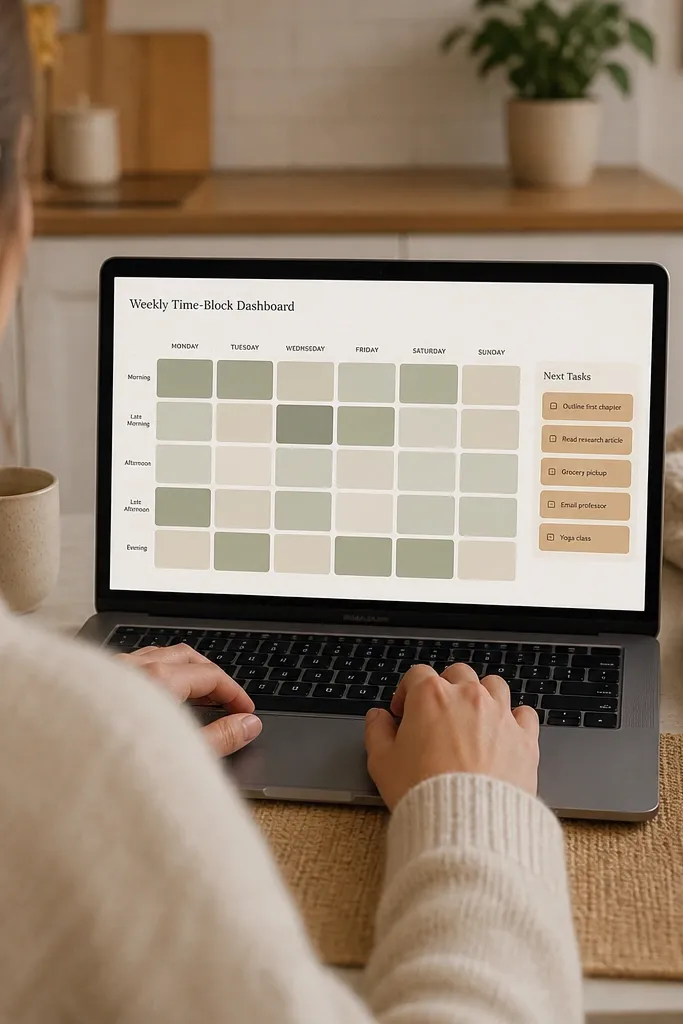
This is the template for people who need structure to focus. The main area shows a weekly time-block plan, while a small sidebar keeps your next tasks visible. It looks good because the grid stays consistent and you only show a few rows per day. For cozy Notion Template Ideas for school, this layout reduces the “I’ll do it later” drift because your assignments sit next to the time you want to work. It’s great for students who do better when the day has a schedule, even a simple one.
Create a Weekly Plan page and set up a 7-column table view using a database or a simple board-to-table approach. Add a “Day” property for each time-block entry and label blocks like Morning Study, After School, and Evening Review. On the left, create a small linked view of your Assignments database filtered to the current date, sorted by due time. Keep the time-block labels short and repeat the same block names each week so the page stays visually uniform.
Use 3-4 standard study block names for the whole term so you don’t redesign your layout every Monday.
Don’t show every assignment in the weekly grid or it turns into a wall of text.
3. Assignments Database with "Status Fog" Tags
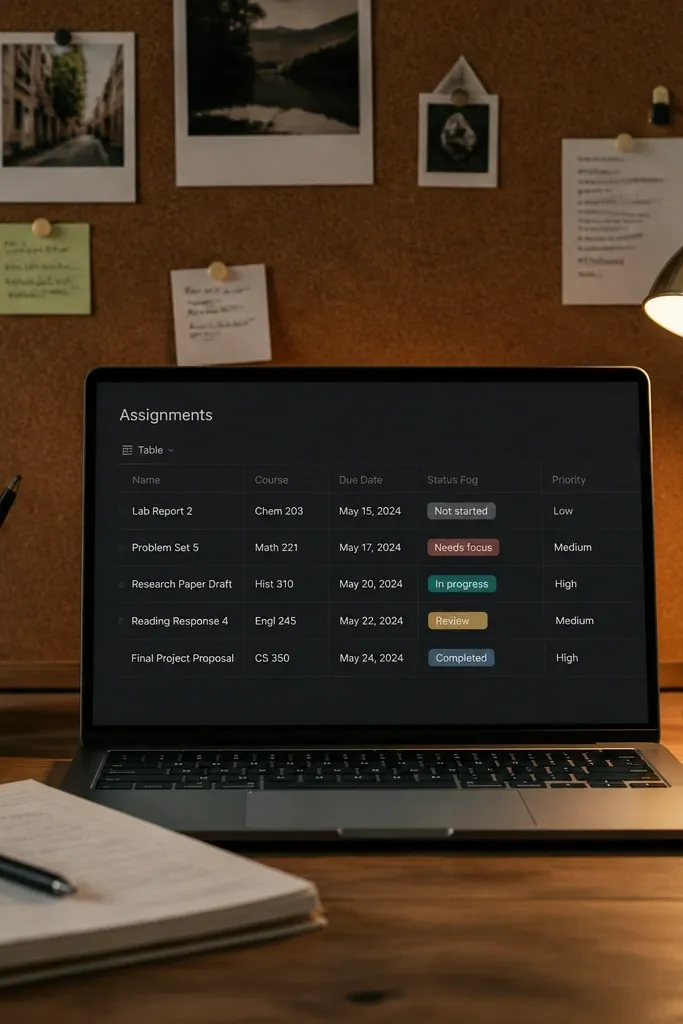
This template makes your workload readable at a glance. You get an assignments database with a Status property that uses a small set of colored tags, so your page looks calm instead of chaotic. The “Status Fog” part is the visual rule: each status label has a consistent color and stays the same across every view. That consistency is what makes it feel cozy while still giving you clear progress. It’s perfect if you’re tired of seeing everything in one list with no sense of where you stand.
Create an Assignments database with properties: Class (select), Due date (date), Status (select), and Priority (select). Define Status values as Not started, In progress, Submitted, and Graded. Build separate views: By class, Due soon, and This week, each filtered by Status and sorted by Due date. Format the view so only the properties you care about show in the list: Class, Due date, and Status.
Editor's notePick muted tag colors for Status (soft blue, warm gray, muted green) so the page stays cozy even when you have many tasks.
Skip thisDon’t add 10 status options. Four statuses keep the system usable.
4. Reading Log with Page-Count Progress Bars
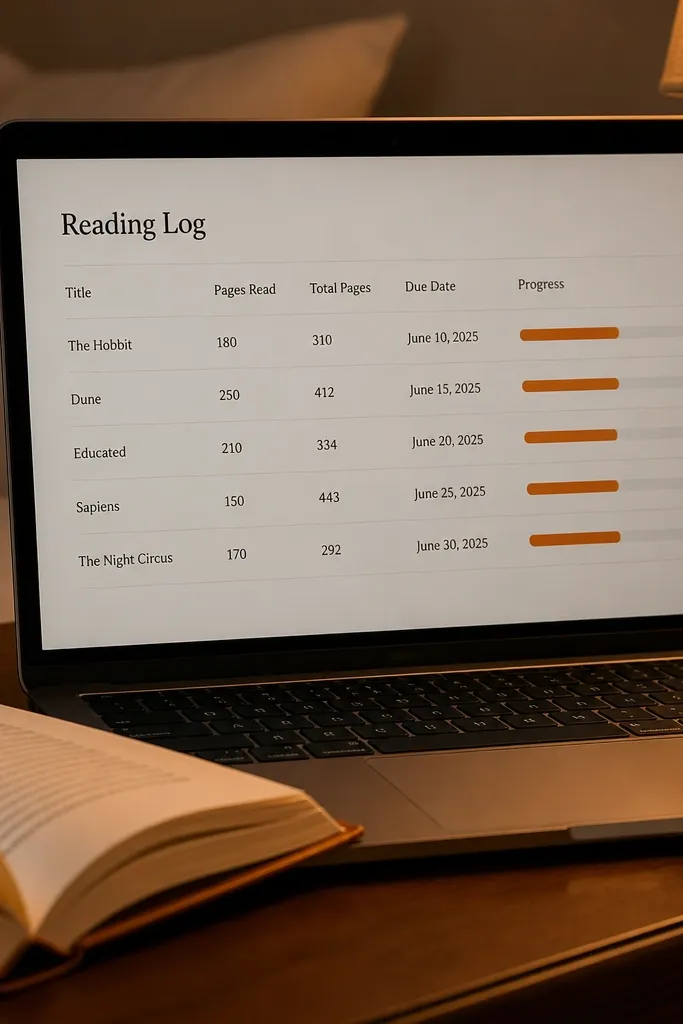
This template is for classes that assign readings, essays, or chapters. It makes progress visible with a page-count system that turns “I should read” into “I’m 60% done.” The look is clean because each row stays consistent: title, pages read, total pages, and due date. Cozy comes from soft cover styling and short text fields, not huge paragraphs. It’s a strong fit for literature, history, biology labs, and any course where you track chunks of material.
Create a Reading Log database with properties: Title (text), Total pages (number), Pages read (number), Due date (date), and Status (select). Add a formula property called Progress % that calculates Pages read divided by Total pages and formats it as a percentage. Add a view filtered to the current week and sorted by Due date. Use a simple “Now reading” page that shows only Status equals In progress so your homepage stays uncluttered.
Editor's noteKeep the Pages read entry to whole numbers. Fractions look messy and create extra work for no benefit.
Skip thisDon’t track progress in notes inside the page. Store it in Pages read so views stay accurate.
5. Class Dashboard with Three Views per Subject
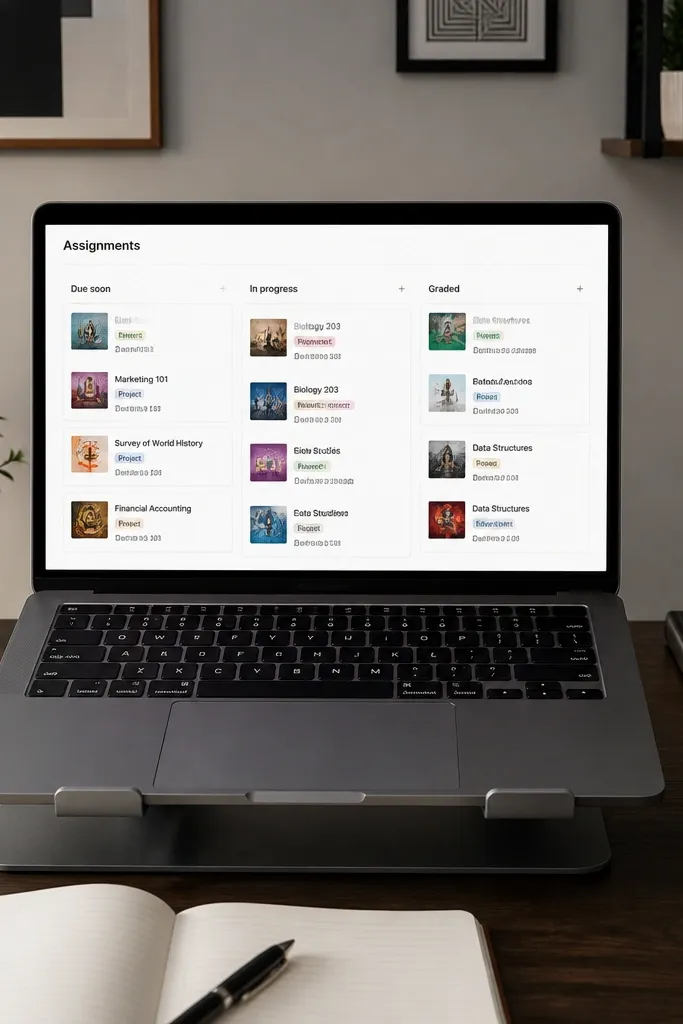
This template keeps each class feeling contained. You get a subject page with three embedded views that pull from the same assignments database: Due soon, In progress, and Graded. It looks good because the layout stays identical for every subject, so your workspace feels organized and predictable. This is the kind of cozy that comes from knowing exactly where to check for each class. It’s ideal for students handling multiple subjects at once who don’t want one giant assignments list.
Set up one Class page template. Add three synced views of your Assignments database, each filtered by Class equal to that subject and Status equal to one of your categories. Place the views in a stacked layout with small headings above each one. Create a “Class” select property in the assignments database so the filters work cleanly. Duplicate the class page template for each subject and swap the subject filter value.
Editor's noteKeep the “Due soon” view small by filtering to assignments due within 7 days.
Skip thisDon’t make the class page a general notes dump. Put notes in separate pages linked to assignments.
6. Term Checklist Board with Weekly Sorting
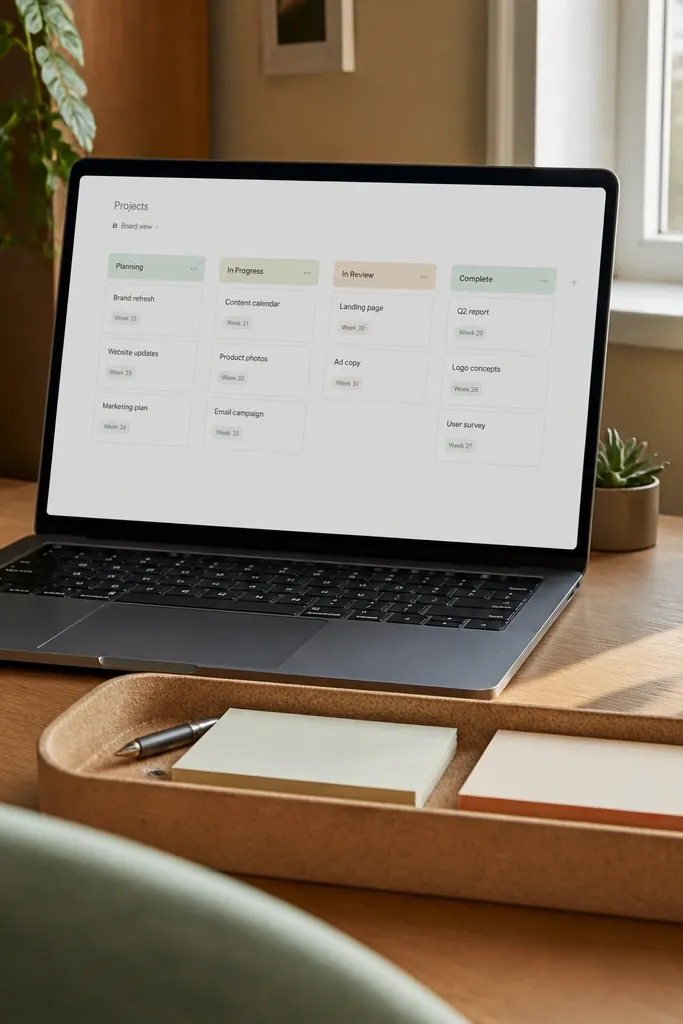
This one turns a term into a series of checkable steps. You get a board view where each task sits in a status column, and a Week property helps you group tasks by time. It looks cozy because the board columns are simple and the cards stay short. For school terms, this prevents the “I planned everything at the start and forgot” problem. It’s best for long-running projects like research papers, lab reports, group presentations, and exam prep.
Create a database called Term Tasks with properties: Task (title), Status (select), Week (number), and Class (select). Build a board view grouped by Status. Add a second view grouped by Week using a list or table view, filtered to the current class if you want. Write tasks as specific actions, like “Outline thesis paragraph” or “Create 10-slide draft,” not “Work on project.”
Keep each task to one deliverable. If it needs multiple deliverables, split it into two cards.
Don’t mix tiny tasks with huge project milestones on the same board without splitting them into separate views.
7. Exam Prep Planner with Topic Subtasks
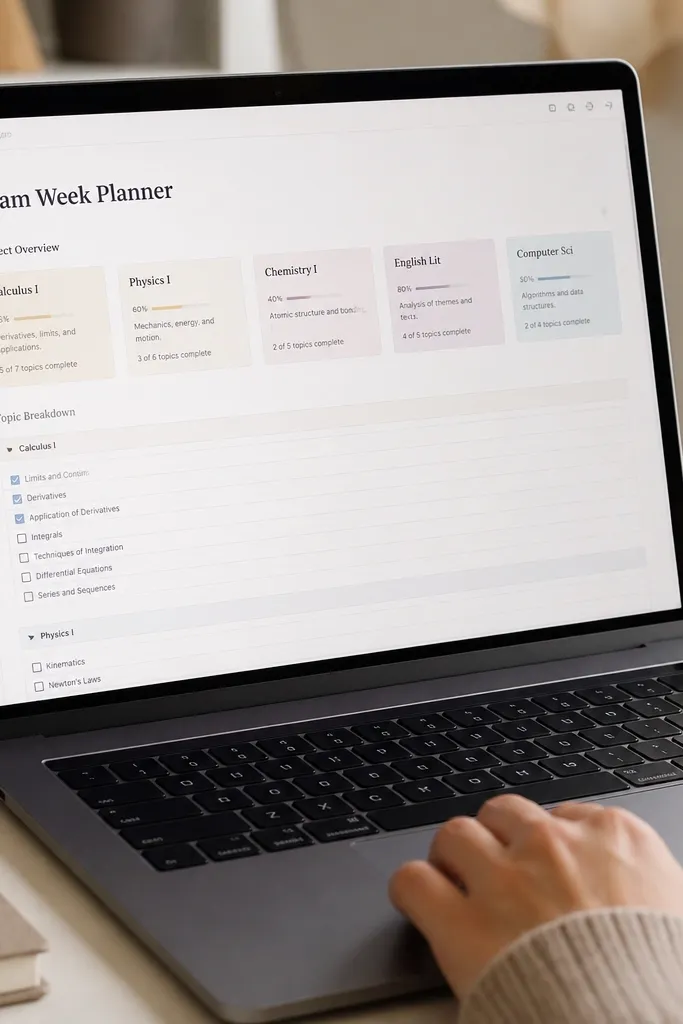
This template is built for exam weeks where you need clarity fast. It organizes exam topics and breaks them into subtopics you can check off. The look stays tidy because each topic is a card with a short description and a progress indicator. Cozy shows up in the calm color coding and the limited number of visible sections. It’s perfect for students who study better with a topic map and a clear checklist instead of vague “review chapter.”
Create an Exam Topics database with properties: Topic (title), Exam date (date), Subject (select), and Status (select). Add a second database for Subtopics with a relation back to Topic and a checkbox-style Status. Build a topic table view filtered to the current exam date range and sorted by Status then Topic name. On the exam page, embed a relation view that shows subtopics for the currently selected topic.
Editor's noteKeep your topic list to 8-14 items. More than that turns into a never-ending list.
Skip thisDon’t write subtopics as paragraphs. Use short labels you can actually check quickly.
8. Homework Capture Page with Auto-Sorted Views
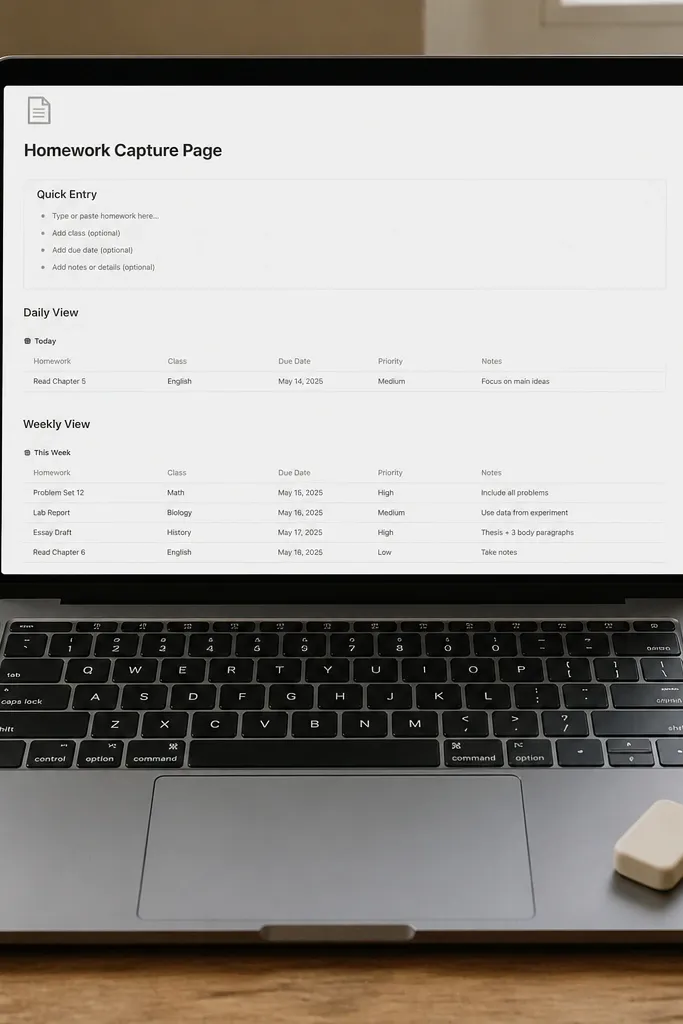
This template is for the moment you get homework and need to record it without thinking. You set up one capture page with a quick entry area, then it automatically shows up in your daily and weekly views. It looks good because the page is mostly empty until you add tasks. That emptiness feels cozy instead of cluttered. It’s especially helpful for students who forget to log assignments until they’re already drowning.
Create a Homework database with properties: Assignment (title), Class (select), Due date (date), Status (select), and Notes (text). On a separate Homework Capture page, embed a view filtered to Status not equal to Submitted. Add two additional views: Today (Due date is today) and Overdue (Due date before today and Status not equal to Submitted). Keep the capture page focused by hiding everything except the quick entry and the two small views.
Use a simple Status default of Not started so new entries appear correctly right away.
Don’t create separate databases for homework and reading. One assignments-style database keeps it consistent.
9. Due Date Calendar with Soft Color Rules
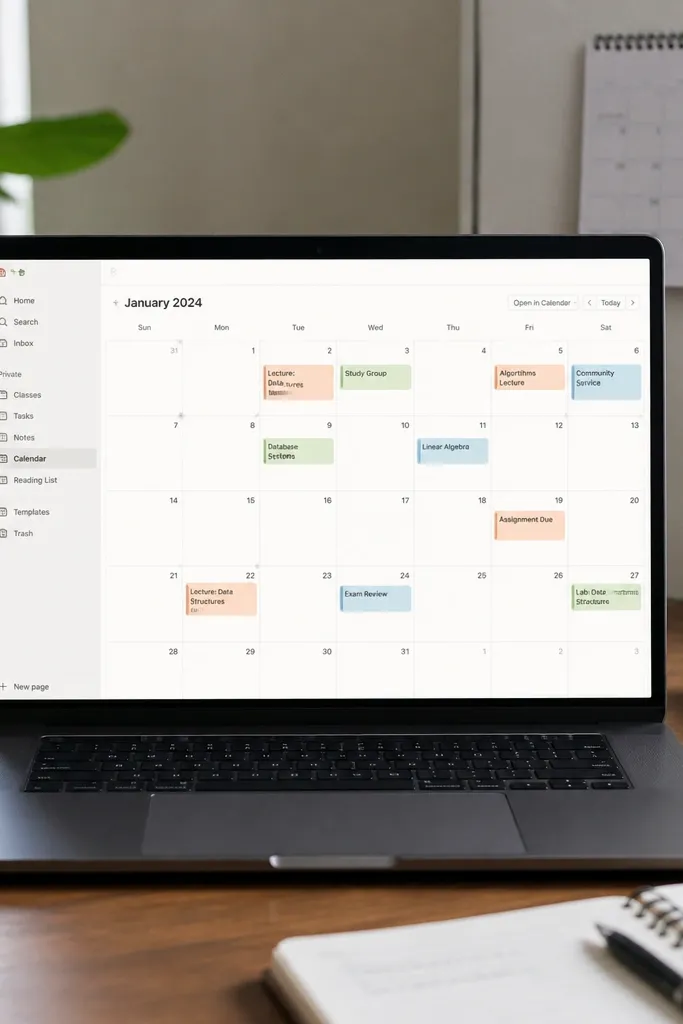
A calendar view makes deadlines feel manageable because you see time passing. This template is a clean month view with soft color coding by class, so the page stays cozy even when the month is packed. You can scan for heavy weeks and plan catch-up sessions before everything stacks up. It’s best for students who miss due dates because they don’t check list views. The aesthetic is simple: muted colors, minimal text, and clear dot markers.
Embed your Assignments database as a calendar view. Set the calendar to group by Class and color by Class using a consistent set of muted colors. Add filters for Status not equal to Graded if you only want upcoming work. Put the calendar on a page with a small legend showing class colors and what they mean. Add a second filtered view for “Submitted” in a narrow list below if you want a progress check.
Editor's noteReduce noise by hiding properties in the calendar view. You only need due date and class color.
Skip thisDon’t show every assignment detail on the calendar. That defeats the scanning purpose.
10. Monthly Term Tracker with "Next Action" Rollups
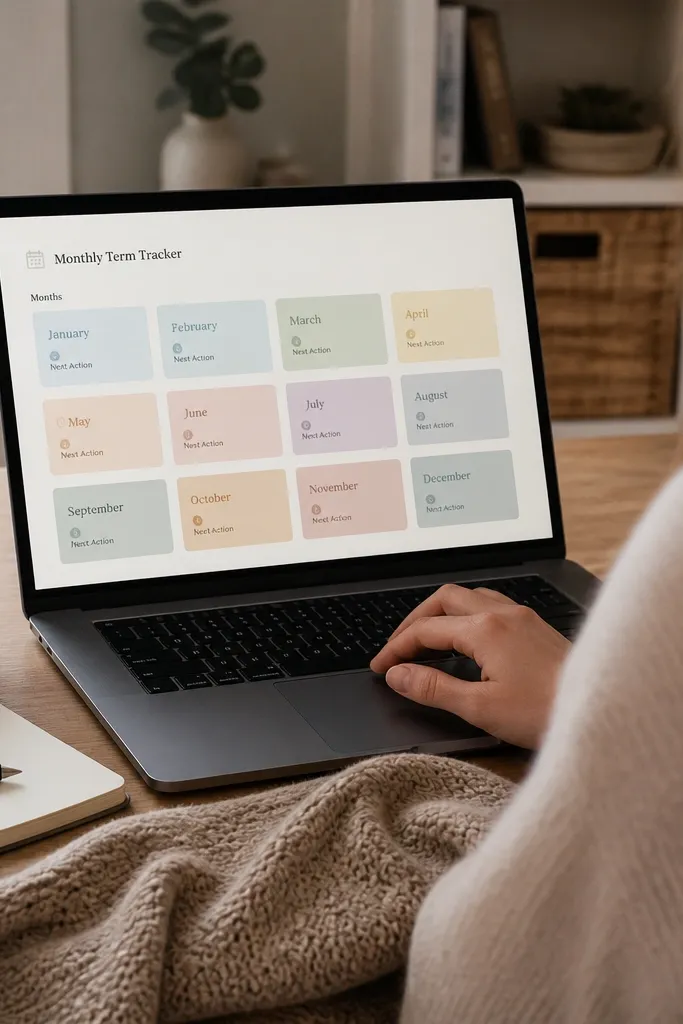
This template turns a term into a monthly roadmap. Each month card shows your next action pulled from related assignments, so you always know what to do first. The look is clean because you’re not listing everything — you’re showing one line per month. Cozy comes from the calm spacing and the single focus per month. It’s a great fit if you plan ahead but still get stuck when you don’t know where to start.
Create a database called Months with properties: Month (title), Term (select), and Month start (date). Add a relation from Months to Assignments, then create a formula or rollup property that selects the closest due assignment date. Build a view grouped by Month and show only Month, Next due date, and the assignment title via rollup. Place this view on a Monthly Term page with a short “Next action” callout above it.
Editor's noteUse a single Term select value for the whole year so your rollups stay consistent.
Skip thisDon’t try to roll up five different things at once. One next action line is enough.
11. Project Timeline Page with Milestone Cards
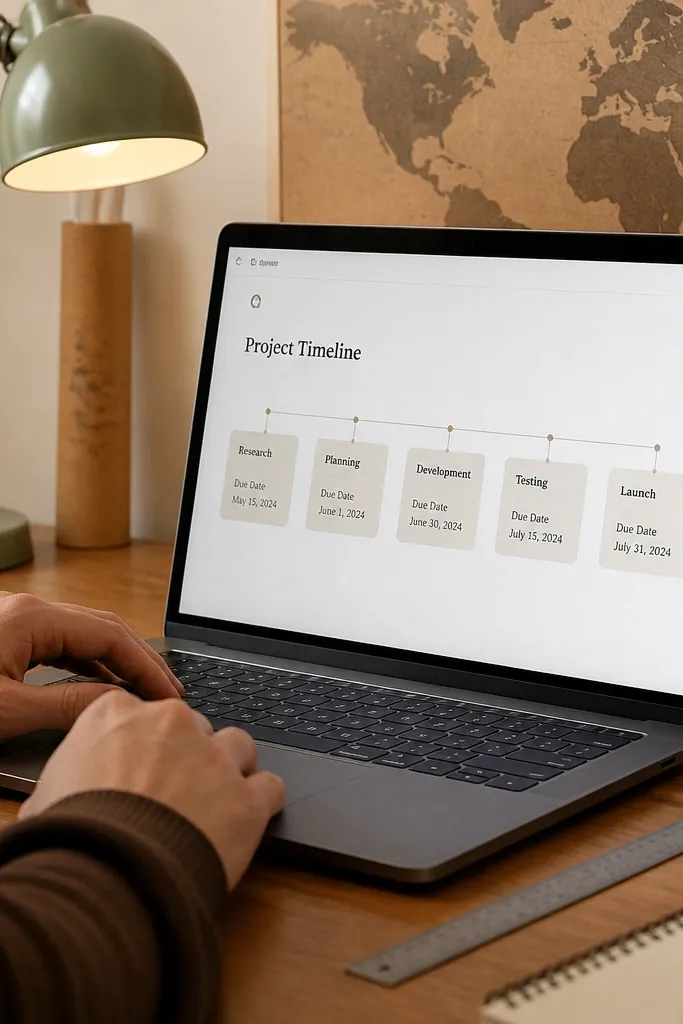
This template helps you plan projects without turning them into a spreadsheet. You get milestone cards laid out along a timeline so you can see what’s due when. It looks cozy because the cards are consistent in size and spacing, and the timeline line gives structure without clutter. Use it for research projects, art portfolios, group work, and lab sequences. It gives you a clear plan for progress even if your school week gets messy.
Create a Project database with properties: Project (title), Start date (date), End date (date), Status (select), and Milestones (relation). Create a Milestones database with properties: Milestone (title), Due date (date), Project (relation), and Status (select). On a Project page, embed a view of Milestones filtered to that project and sorted by Due date. Format the milestones as cards by using a board or a list view with due date shown, then place the view under a short project header.
Editor's noteWrite milestones as deliverables, not study tasks. Examples: “Draft introduction” or “Final bibliography.”
Skip thisDon’t include vague milestones like “Practice.” Put a concrete output on each card.
12. Study Session Notes with Auto-Linked Assignment Context
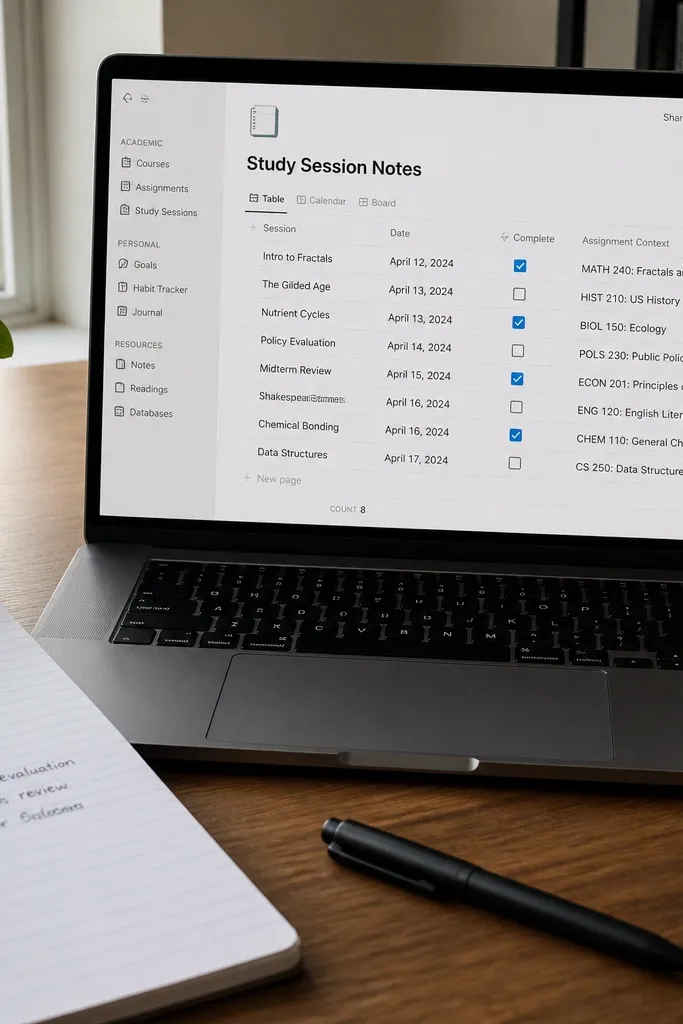
This template keeps your study notes connected to what you’re working on. You get a session list that links back to a specific assignment, so your notes don’t become random pages you never revisit. The look stays tidy because each session has a short title, a date, and a checkbox-style status. Cozy is in the repeatable format: same structure every time you study. It’s ideal for students who re-read notes later and need them organized by assignment.
Create a Study Sessions database with properties: Session topic (title), Date (date), Assignment (relation to Assignments), and Status (select). On each assignment page, embed a relation view filtered to that assignment. Add another view called “Next session” filtered to Status not equal to Completed and sorted by Date. Keep the session properties minimal and use short session titles like “Worksheet review” or “Practice problems set A.”
Use a consistent Status set for sessions: Planned, Done, and Dropped. It keeps your history clean.
Don’t bury notes in the assignment page body. Put notes in the Study Sessions database so you can filter later.
13. Today Page with Three Panels and Zero Scrolling
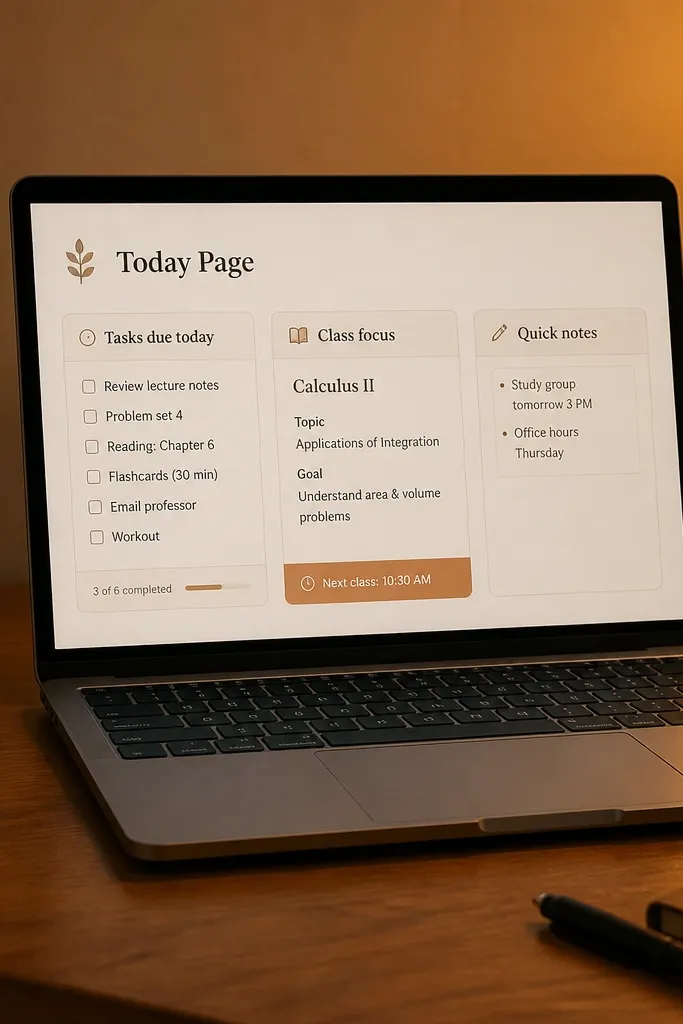
This is the page you open when you’re short on time. It has three panels: tasks due today, one class focus, and a small quick notes box. The look is cozy because it avoids long lists and keeps each panel small and readable. You get a clear start to the day without scrolling through everything you forgot to plan. It’s perfect for busy schedules, part-time work, or students who get overwhelmed easily.
Create a page called Today and add three embedded views. First, embed Assignments filtered to Due date is today and Status not equal to Submitted. Second, embed a view filtered to Status equals In progress and sorted by Due date, then limit it to top 5. Third, add a simple text block or a small database view for Quick Notes with Date and Category. Keep the panel heights small and use short headings above each panel.
Limit the Today tasks view to 8 rows so the page stays calm even on heavy days.
Don’t add a full weekly plan to the Today page. That kills the point.
14. Grade Tracker with Color-Coded Targets
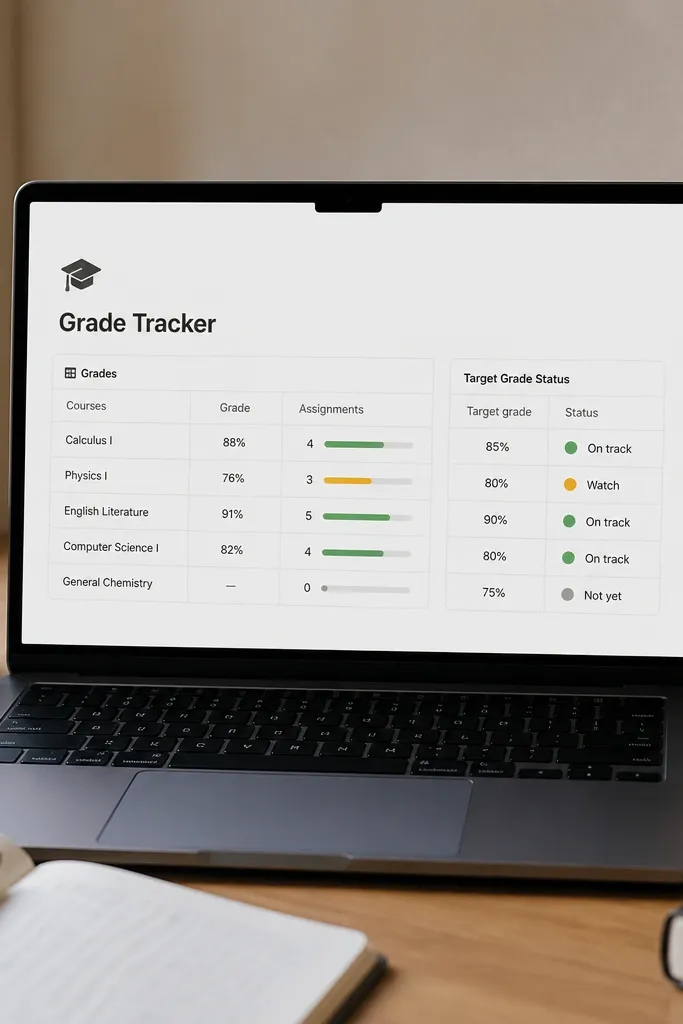
This template gives you a clear picture of where you stand and what you need next. It uses a grades database that links to assignments, then shows a target grade you set for the term. The look is neat because you only show a handful of columns and you use color coding for target status. Cozy comes from the calm, consistent table — no giant charts, just readable numbers. It’s best for students who want motivation through clarity, not through vague “I think I’m doing okay.”
Create a Grades database with properties: Assignment (relation to Assignments), Score (number), Total (number), Percent (formula), and Target (select like At target, Needs work, Ahead). Create a formula Percent = Score / Total. Add a view called Term Grades filtered to assignments in the current term and grouped by Class. On the Grades page, set the view to show only Assignment, Percent, and Target so it stays clean.
Set Target rules using a simple formula threshold for percent and keep it consistent across classes.
Don’t track grades by typing them into random note fields. Use a database so you can filter and sort.
15. Assignment Template with "Next Step" Field
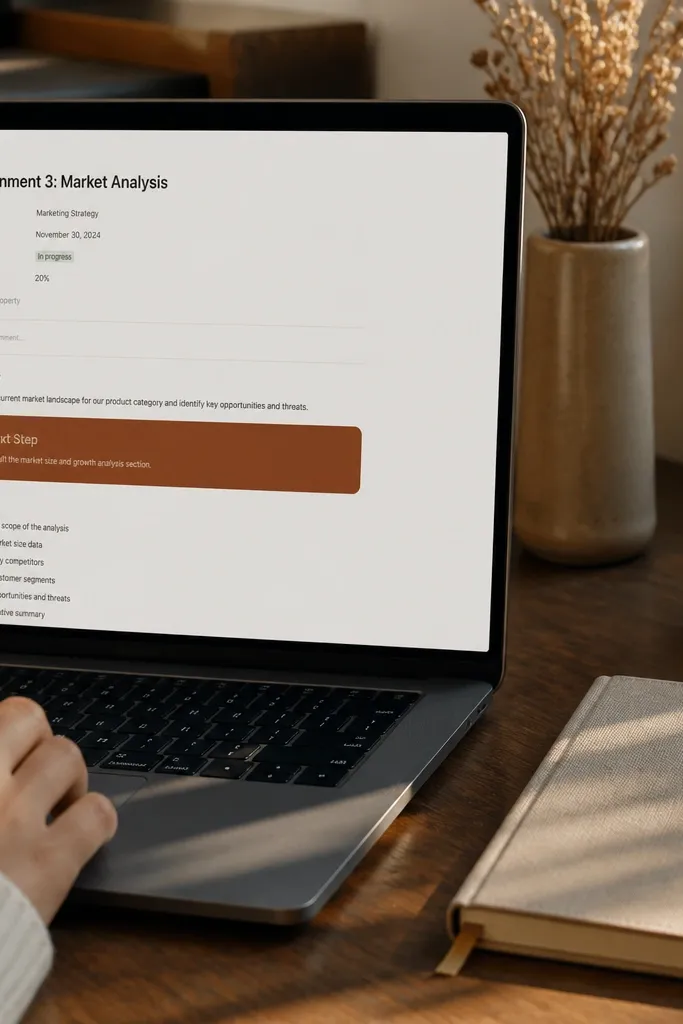
This template fixes the most common school planning failure: writing assignments down without deciding what “start” means. Each assignment page has a prominent Next Step field plus a small checklist. The look is photogenic because the Next Step box is visually distinct, and the checklist stays short. It’s cozy because it reduces decision fatigue — you see one action immediately. This works for essays, problem sets, lab write-ups, and anything that has multiple steps.
Create an Assignment template page inside your Assignments database. Add properties for Next Step (text) and Checklist (multi-select or a related checklist database). In the page body, add a callout block for Next Step and a checklist section below it. Then add a relation view showing checklist items filtered to that assignment. Keep the template fields simple: Next Step and 3-6 checklist items maximum.
Editor's noteWrite Next Step as a verb phrase that takes under 15 minutes, like “Open the worksheet and list questions.”
Skip thisDon’t fill the checklist with every step you can think of. Keep it to the next few actions.
16. Moodboard-Style Homework Aesthetic Page
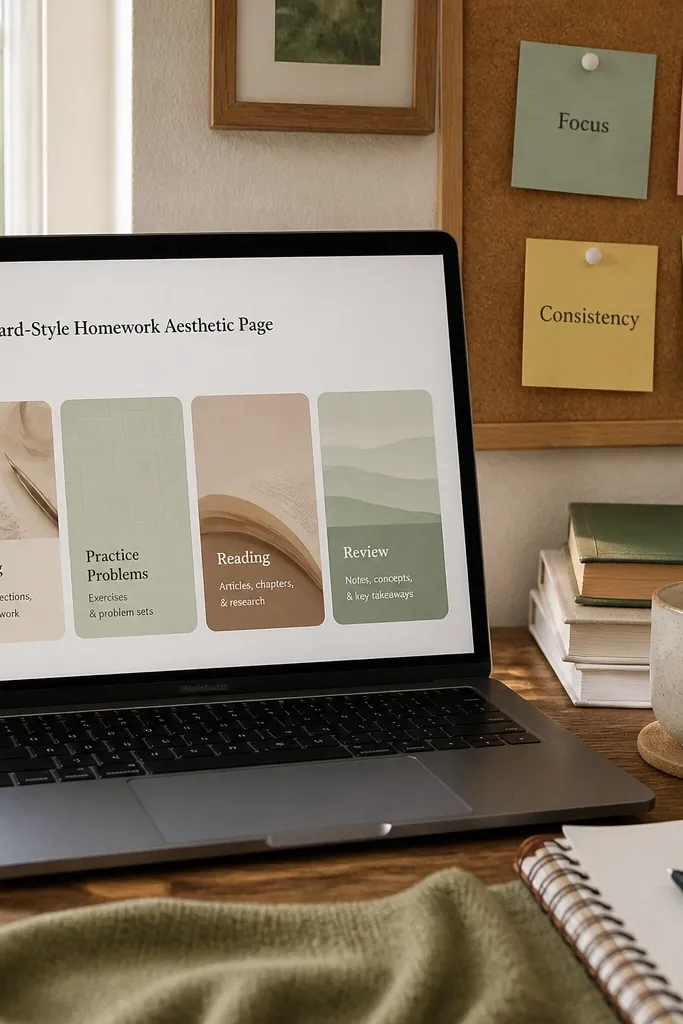
This is a cozy template for students who respond to visual motivation. Instead of a plain list, you get category cards like Writing, Practice Problems, Reading, and Review, each linking to a filtered view of assignments. It looks good because each card can use a different cover style and short labels, while the page stays organized. The benefit is psychological: you choose a category, then you see only relevant tasks. It’s great for students who procrastinate when they see everything at once.
Create a page and add a grid of 4 category cards using linked views. For each card, embed your Assignments database filtered by Class or by a Category property you add to assignments. Add a Category select property to assignments like Writing, Practice, Reading, and Review. Then set each card to show only the top 5 tasks sorted by Due date. Keep the card titles short and consistent so the page feels like a moodboard with structure.
Editor's noteUse muted cover images per card, not bright patterns. Bright visuals make the page feel noisy.
Skip thisDon’t make the cards show full assignment details. Keep them to titles and due dates.
17. Habit Tracker for Study Routines with Weekly Reset
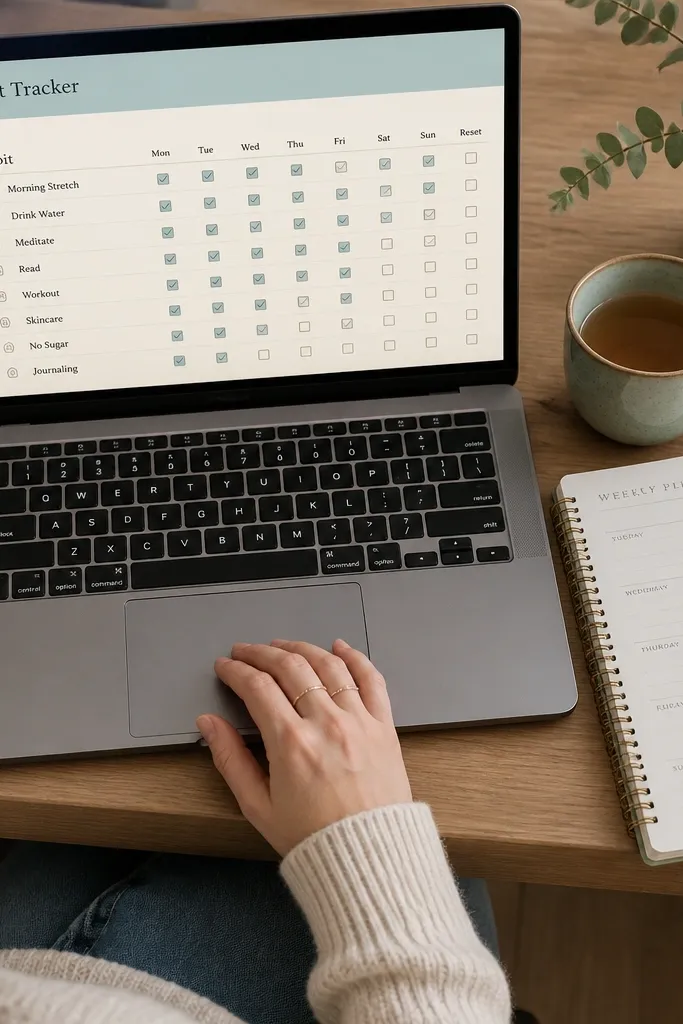
This template adds routine without making you manage a complicated system. It’s built around a habit database with a weekly reset so you always see what you planned for the current week. The look is cozy because checkboxes are clean and the layout stays consistent. It’s useful for students who need discipline support for studying, like starting on time, doing practice problems, or reviewing notes. When your habits are visible, you feel momentum.
Create a Habits database with properties: Habit (title), Week start (date), Status (select like Done/Skipped), and Notes (text). Add habits like Start homework within 20 minutes, Review lecture notes, and Practice problems. Create a view filtered to the current week and grouped by Habit. On your Weekly Plan page, embed the habit view so you see it next to your tasks.
Editor's noteKeep your habit list to 4-6 routines. More than that makes it feel like homework.
Skip thisDon’t combine habits and assignments in one database. Separate them so filters stay simple.
18. Cozy Exam Countdown with "Days Left" Meter
This template gives you a calm countdown to keep exam pressure in check. It shows days left and a small list of exam topics you can review in order. The look is cozy because the countdown is one big visual element and the rest of the page stays short. This helps students who either ignore the exam until it’s too late or panic early. It’s a good fit for midterms and finals planning.
Create an Exam Countdown page and add a property formula in your Exam Topics database called Days left = dateDiff(Exam date, now). Display it in a table view with only Topic and Days left. Add a filter to show topics with Status not equal to Mastered. Then embed the filtered topics view on the countdown page and sort by Days left ascending. Finish by adding a “Today review” list where you choose 1-3 topics to focus on.
Pick one review order and stick to it. Sorting by days left keeps the plan consistent.
Don’t add every topic to the countdown list if it’s huge. Keep it to topics that still need work.
19. Research Paper Workflow with Draft Stages
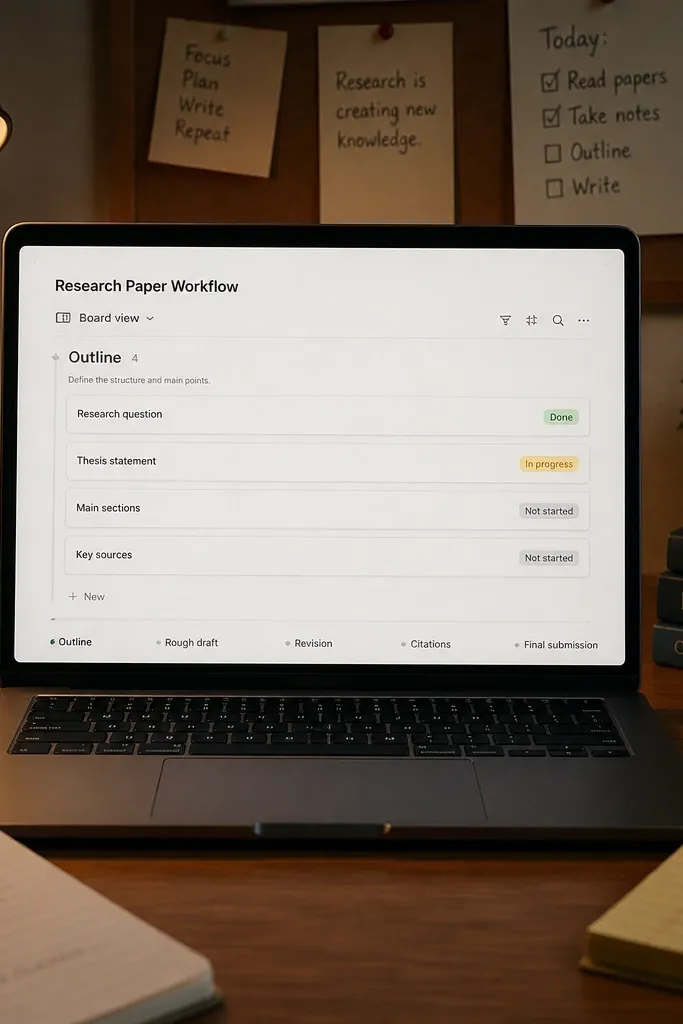
This template makes long writing assignments feel manageable. You set up stages like Outline, Rough draft, Revision, Citations, and Final submission, then track progress stage by stage. The look is clean because you see only one stage at a time in a board view. Cozy comes from the steady, step-by-step flow, not from complicated dashboards. This is perfect for essays and research papers where students get stuck at the blank page or forget citation steps.
Create a Research Stages database with properties: Paper (title), Stage (select), Due date (date), Status (select), and Notes (text). Set Stage values to Outline, Draft 1, Revision, Citations, Final. Build a board view grouped by Stage and filter to the current paper. On the paper page, embed the board view and add a small “What’s next” text block that you update based on the first stage with Status not equal to Done.
Editor's noteMake Citations its own stage. Students skip it and scramble at the end.
Skip thisDon’t mix citations into the revision stage. Separate it so it gets attention.
20. Art Portfolio Tracker with Screenshot-Ready Entries
This template is for art, design, and creative classes where you need to track pieces over time. Each entry is built for visual review: title, medium, date, and a small set of notes about what you learned. The look is cozy because every entry card is short and consistent, and the page reads like a gallery checklist. It’s also practical because it helps you remember which pieces are finished and which ones need iteration. Use it for sketchbooks, photography assignments, and any portfolio that grows across a term.
Create a Portfolio Pieces database with properties: Piece (title), Medium (select), Date (date), Status (select), and Reflection (text). Add a simple cover image per piece using an image property or by adding an image block on the template page. Create a gallery view filtered to Status equals Finished for your portfolio overview. Then create a second view filtered to Status not equal to Finished for your “Work in progress” list. Keep reflection notes to 2-3 sentences max so the cards stay short.
Editor's noteAdd a Reflection prompt like “What changed after critique?” so your notes are consistent across pieces.
Skip thisDon’t write long artist statements inside the database row. Keep those in a separate page per piece.
21. Lab Report Checklist with Materials and Safety Notes

This template keeps lab work organized and reduces missing sections. It has a checklist for the lab report parts like Purpose, Hypothesis, Procedure, Results, and Conclusion, plus a safety notes box that stays visible. The look is cozy because checklists are compact and the safety box is a single block, not scattered text. It’s ideal for science classes where formatting requirements are strict and forgetting a section costs points. Students also benefit because the template nudges them to document properly while the lab is fresh.
Create a Lab Reports database with properties: Lab (title), Due date (date), Class (select), and Status (select). On the lab report page template, add a checklist section with Purpose, Hypothesis, Procedure, Data/Results, and Conclusion. Add a “Materials” text field and a “Safety notes” field. Then create a filtered view called “Ready to submit” where Status equals Not submitted but all checklist items are checked — if you use a checklist relation, link statuses accordingly. Keep the checklist visible at the top so it’s easy to mark as you write.
Editor's noteUse short, specific safety reminders like “Wear goggles” or “Label waste container” so you actually read them.
Skip thisDon’t hide the safety section at the bottom. Put it near the top so it gets checked.
22. Language Practice Tracker with Daily Phrase Cards
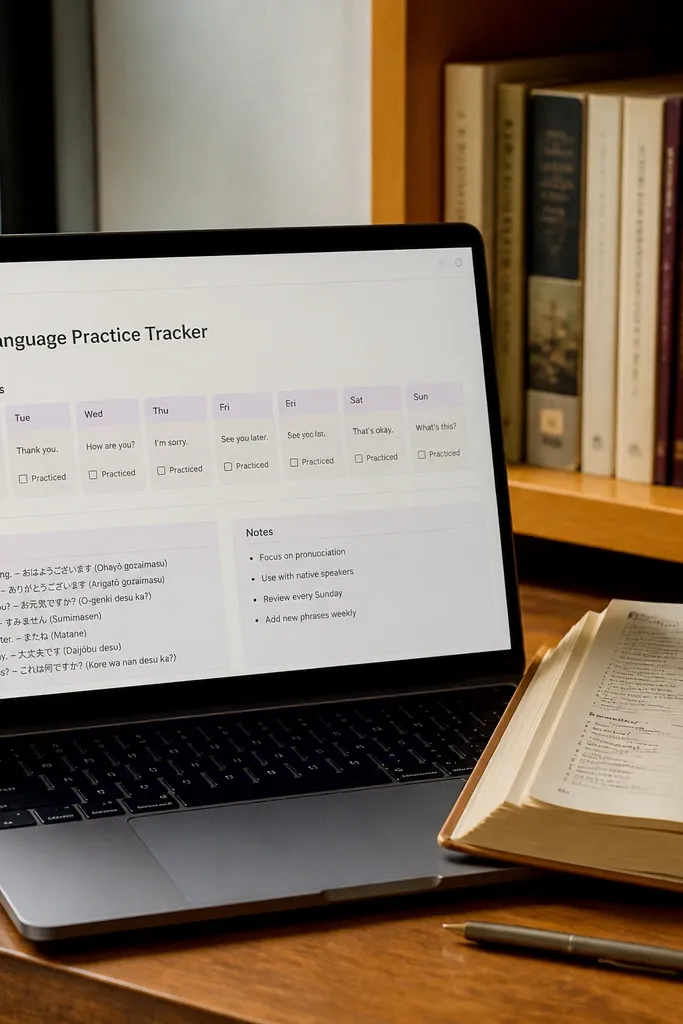
This template is for language classes and students who need daily practice. It uses small daily phrase cards that you can check off, plus a place to store translations and notes. The look stays cozy because each card is short and consistent, like flashcards. It’s also effective because language learning improves with repetition, and the template makes repetition automatic. Use it for vocab, grammar drills, and speaking practice across a term.
Create a Phrase Cards database with properties: Phrase (title), Translation (text), Date practiced (date), Status (select), and Skill (select like Speaking, Writing, Listening). Build a view filtered to the current week and sorted by Date practiced descending. Add a second view called “Learn next” filtered to Status equals Not learned. On your weekly plan page, embed the “Learn next” view so you choose a few phrases to focus on each day.
Editor's noteLimit phrases per day to 5-8. More than that turns into memorizing without retention.
Skip thisDon’t store full sentences as paragraphs. Keep phrases short so cards stay readable.
23. Attendance and Participation Notes with Weekly Snapshot
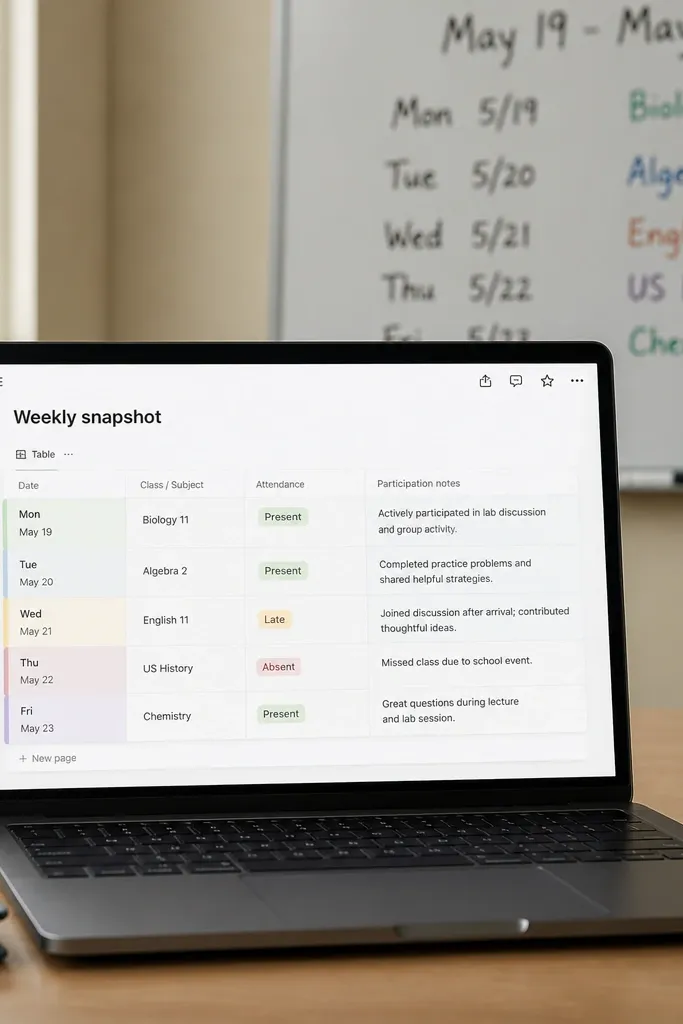
This template helps students who get marked down for participation or who need to document attendance. It has a weekly snapshot table with attendance status and a short participation note field. The look is cozy because the weekly view is compact and uses consistent row structure for each class. It’s also practical for catching patterns, like a week where you missed class or stopped contributing. This fits classes with participation grades, seminars, and labs where attendance matters.
Create an Attendance Notes database with properties: Class (select), Week (number or date range), Attendance (select: Present, Absent, Late), Participation note (text), and Status (select). Create a view grouped by Week and filtered to the current term. On a Weekly Snapshot page, embed the view and show only Class, Attendance, and Participation note. Add a small “Follow-up” section where you write one action if you were absent or late, like “Email missed notes.”
Editor's noteUse the same wording style for participation notes so you can scan quickly, like “Asked one question” or “Led discussion.”
Skip thisDon’t write essays in the participation note field. Keep it to one sentence.
24. Cozy Morning Checklist with "Start Time" Timer Field
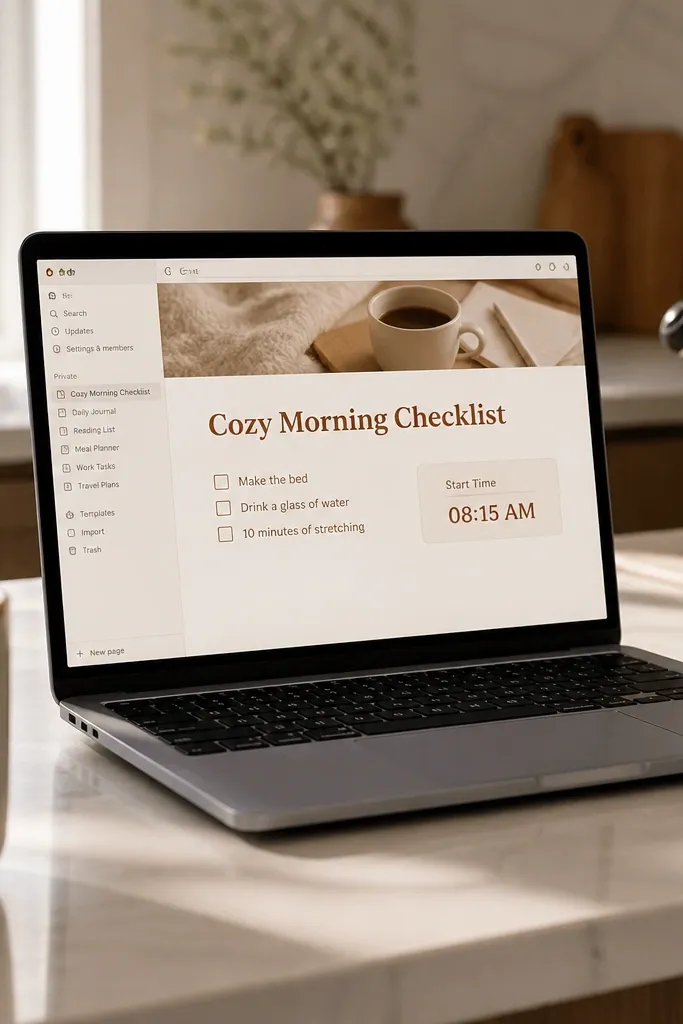
This template makes the morning routine concrete. You get a morning checklist with three tasks and a Start time field that nudges you into getting started. The look is cozy because it’s compact and focuses on only what you need today. It works for students who lose momentum after opening Notion and staring at lists. Instead, you pick three actions and start time gives a simple structure that feels motivating.
Create a Daily Routine database with properties: Date (date), Start time (time), Task 1 (text), Task 2 (text), Task 3 (text), and Done (checkbox or Status). Add a view filtered to today and set it to show only those fields. Create a simple checklist section on the page that mirrors Task 1-3 so you can check them off quickly. Keep the routine template to three tasks so it stays realistic.
Write Task 1 as the smallest possible academic action, like “Open assignment and read instructions.”
Don’t fill Task 1-3 with vague goals like “Study.” Use specific actions.
25. Semester Supply and Resources Organizer
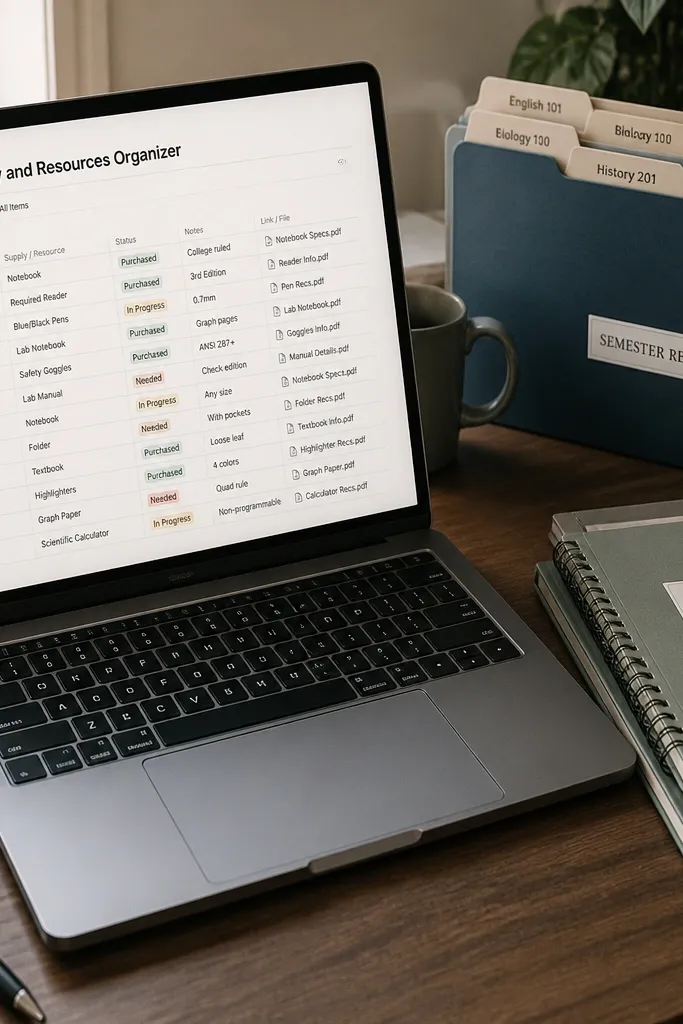
This template prevents the dumb chaos where you start an assignment and realize you’re missing materials. It tracks supplies, digital resources, and links to needed documents, organized by class and status. The look is cozy because it’s a clean checklist table with simple labels, not a messy folder system. It’s especially useful at the start of terms when you’re setting up notebooks, lab materials, and digital access. For school terms, being prepared reduces stress faster than any fancy planner view.
Create a Resources database with properties: Item (title), Category (select like Notebook, Lab, Software, Reference), Class (select), Status (select: Ready, Missing, Needs update), and Link (url). Build a table view grouped by Category and filtered to Status not equal to Ready to show what you still need. Add another view filtered to a specific class so you can set up quickly before the first week. On your term cover page, embed the “Missing” view so you see it immediately when you open Notion.
Use Status values Ready, Missing, Needs update. It covers both physical and digital problems.
Don’t mix unrelated items in one category. If it has a different purpose, give it its own category.