

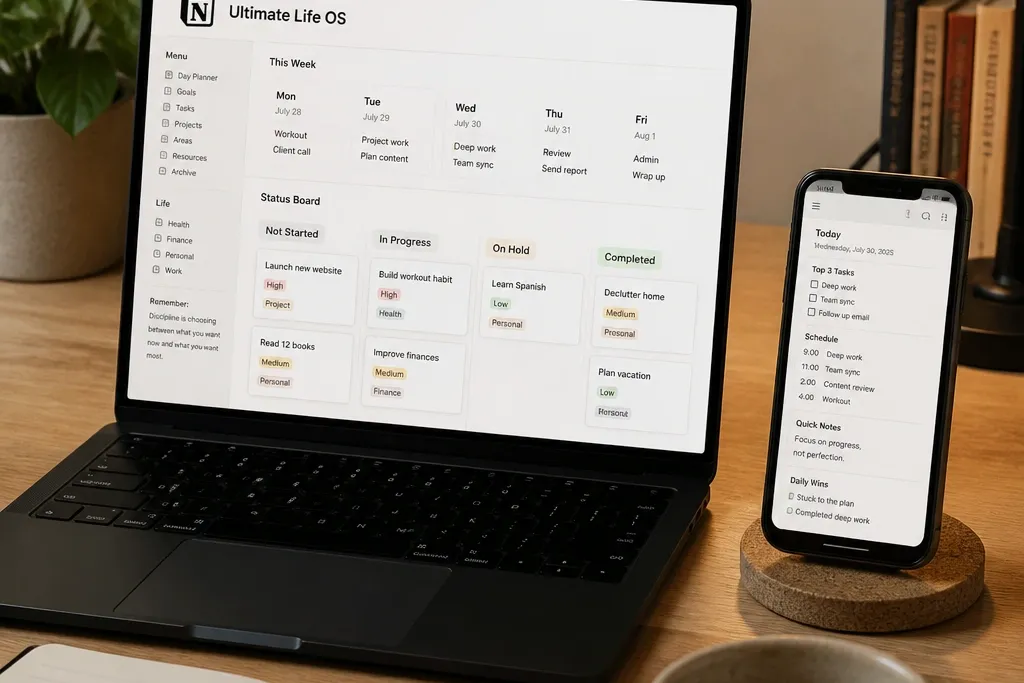
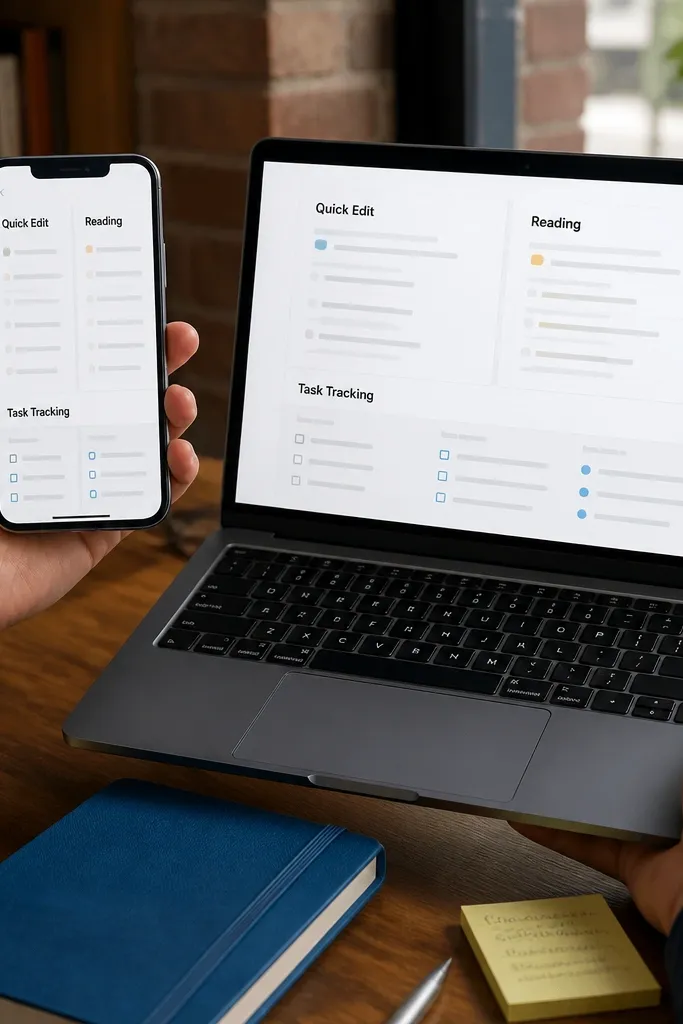
1. Daily Planner + To-Do With a Single Today Page
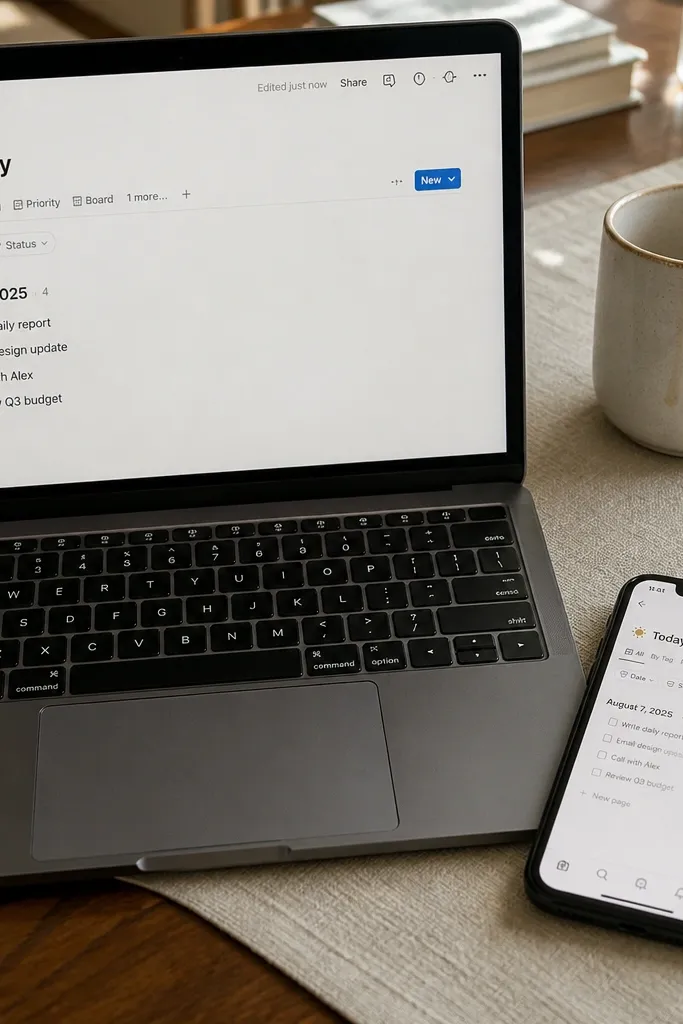
This is the template I recommend first for most beginners because it removes decision fatigue. You open one page called Today, you see the date, you check off tasks, and you write a short plan. The simplest versions use one tasks database and a “Today” filtered view, so you never wonder where to type. It works well on phone because the layout stays vertical: checkboxes and text fields are easy to tap, and you don’t fight horizontal boards. Expect to spend 10-20 minutes setting it up and then using it daily.
Start by installing the template and renaming the main tasks database to something obvious like Tasks. Then open the Today view and confirm it filters by a date field you can edit on mobile (usually a “Due” or “Date” property). Finally, add one quick section for “Top 3” and map it to the same task database using a priority property, so you don’t create a second list.
Set the tasks database property type to Date (not text) so the Today filter keeps working.
Avoid templates that ask you to maintain separate checklists for Today, Tomorrow, and Weekly.
2. Habit Tracker With Calendar Grid and Streak Counter
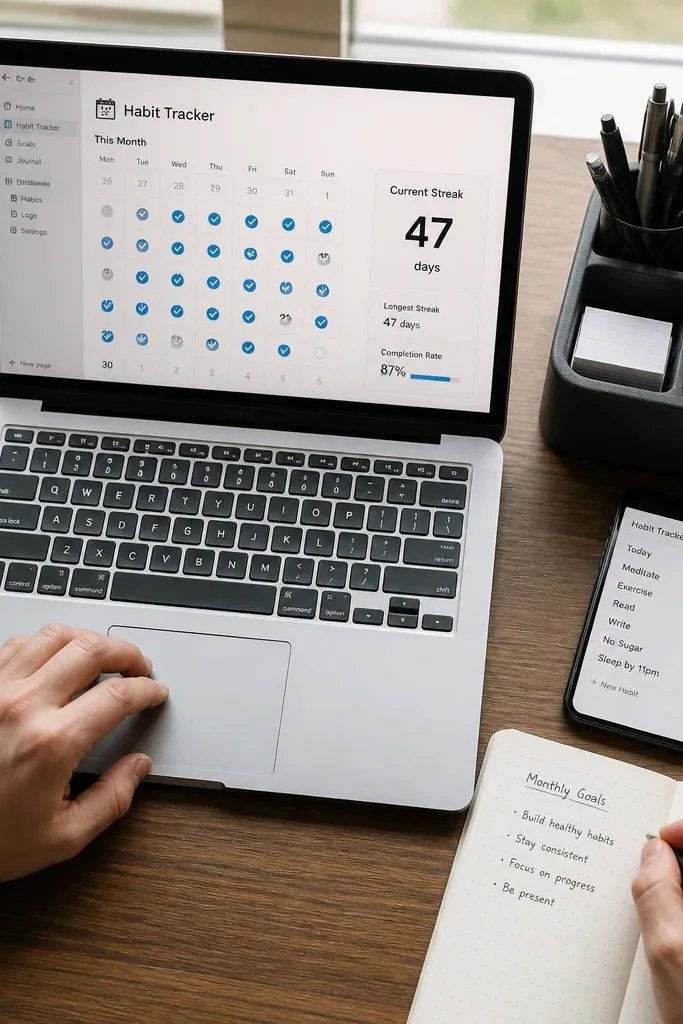
A habit tracker template is beginner-friendly when it tracks dates cleanly and shows progress without extra pages. The best layouts use one habits database and a related “check-in” database tied to dates, so you can mark a habit done on the day you actually did it. You get streaks that feel motivating because the calendar makes gaps obvious. On phone, the calendar view is the win — you tap the day, see completion, and move on. This template suits routines like workouts, reading, or water goals where consistency matters more than complex planning.
Start by adding your habits as rows in the Habits database and set each habit’s frequency (daily or specific days) in a select property. Then create or connect the check-in database so each completion has a date property you can fill quickly. Finally, verify the streak counter formula or view logic by testing one habit for a few consecutive days and checking that the streak updates.
Keep habit names short (1-3 words). Long names wrap on mobile and make the calendar harder to scan.
Skip any habit template that forces you to create a new page for every day.
3. Weekly Planner With One-Column Week View
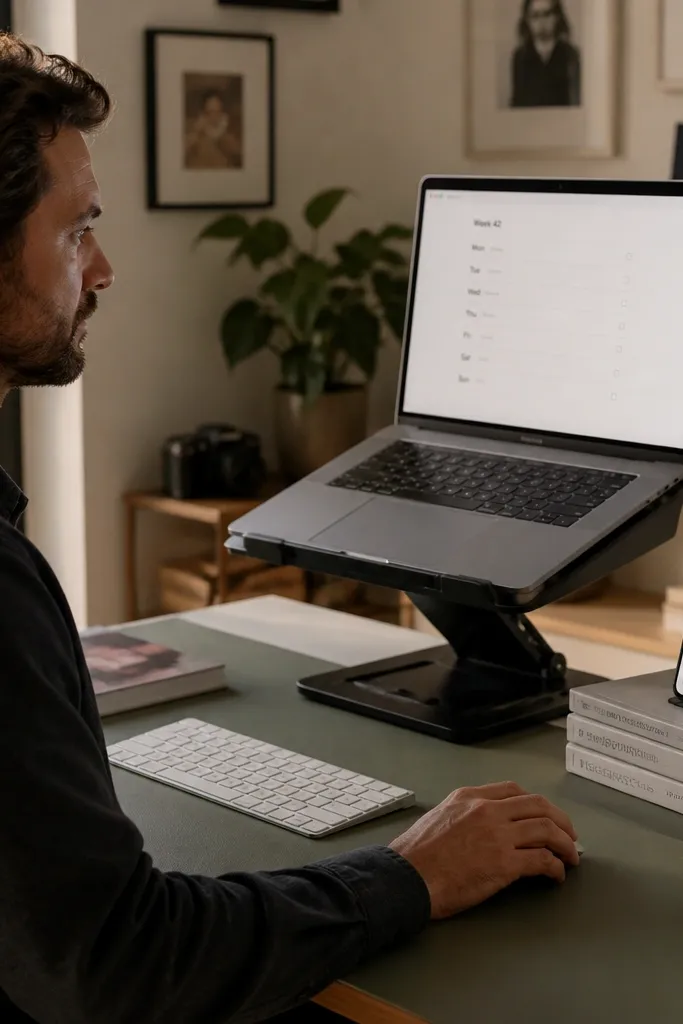
This template is for people who want structure without time-blocking every minute. The beginner-friendly version uses a Week page with a vertical list of days and a filtered tasks view per day. You plan in one sitting, then you execute by checking tasks as the days come. It’s phone-friendly when the week layout stacks nicely and uses consistent labels like Mon, Tue, Wed. It’s great for school schedules, meal prep planning, or work weeks where you need clarity but not a full calendar app.
Start by setting the week start day property (Monday or Sunday) in the template settings or by editing the date filter in each day view. Then connect tasks to the weekly planner by using one shared tasks database with a “Day” or “Due date” property. Finally, add a small “Notes” field per day so you can capture quick thoughts without opening extra pages.
Use a single tasks database for both weekly planning and daily execution so you don’t duplicate tasks.
Avoid weekly templates that create separate databases for each day.
4. Basic Task Manager With Status Workflow and Next Actions
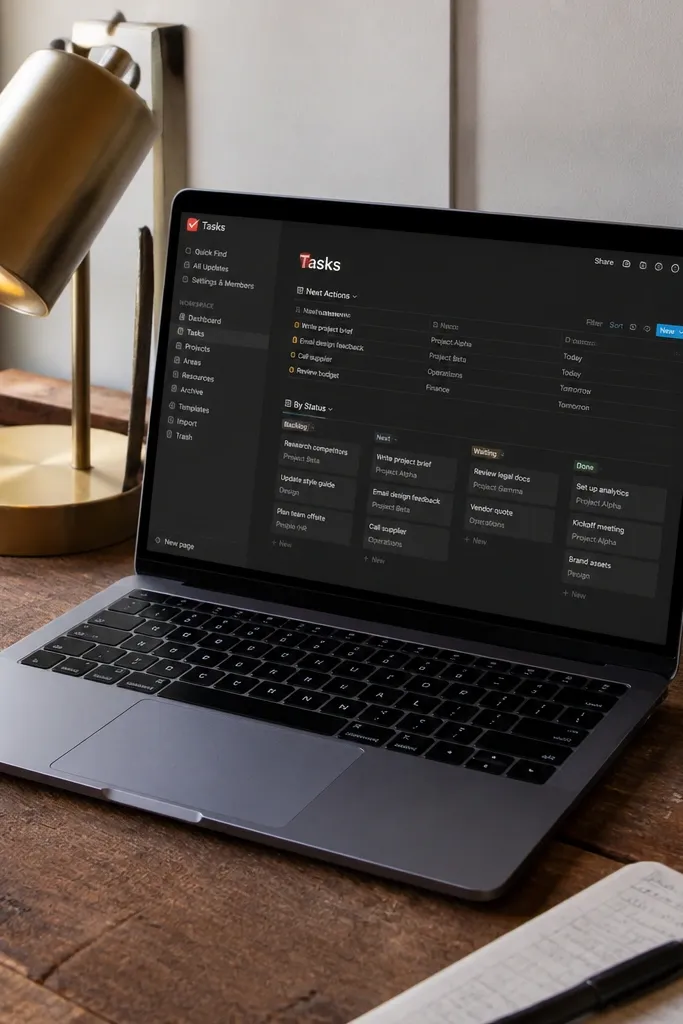
If you only install one productivity template, this one is the safest bet for beginners. It typically uses a Tasks database with a Status select like Backlog, Next, Waiting, and Done, plus filters that show what you should do right now. The “Next Actions” view keeps you from scrolling through everything, which matters on phone. You can add due dates, priority, and notes, and the template keeps those fields visible without clutter. This works for personal projects, small teams, and anyone who wants a simple system that still scales.
Start by editing the Status property options to match how you actually work, then make sure each option has a clear meaning. Next, create a “Next Actions” view filtered to Status = Next and optionally sorted by due date then priority. Finally, set up a “Waiting” view filtered to Status = Waiting so you can see what needs follow-up without mixing it with active work.
Editor's noteAdd a “Context” select (Home, Work, Calls) if you like doing tasks in batches.
Skip thisSkip templates that rely on free-text status fields. You want selects so filters stay reliable.
5. Kanban Board Tasks With a Mobile-Friendly List View
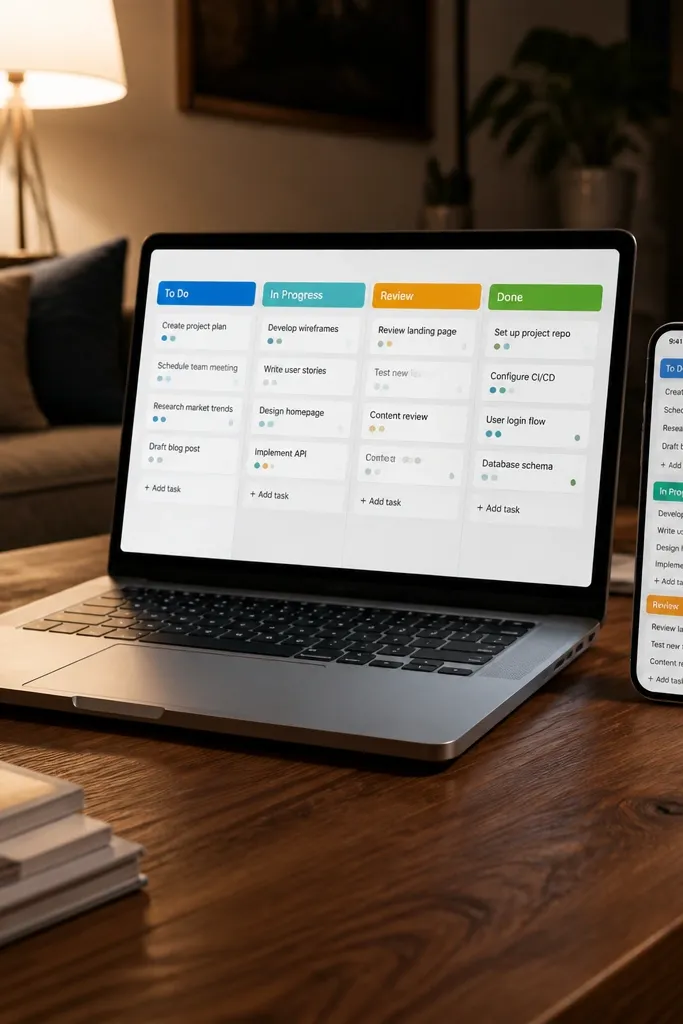
Kanban is satisfying, but it can be annoying on a small screen. The beginner-friendly version I like has both a board and a list view, so you can drag cards on laptop and still read everything on phone. The board view helps you see flow and spot stuck tasks, while the list view helps you scan and edit details fast. This template is best for people who like visual progress but still want the reliability of filters. Use it for job hunting, home projects, or anything where you move tasks from idea to completion.
Start by mapping your workflow columns to a Status property in the tasks database. Then set up two views: one Kanban board grouped by Status, and one list view filtered to exclude Done and sorted by due date. Finally, test mobile editing by opening a task from the list view and confirming you can change Status without losing the context.
Editor's noteKeep the number of columns to 4-5. Too many columns make the board feel noisy on laptop and painful on phone.
Skip thisDon’t choose a Kanban template that has no list view at all.
6. GTD-style Inbox + Projects Starter
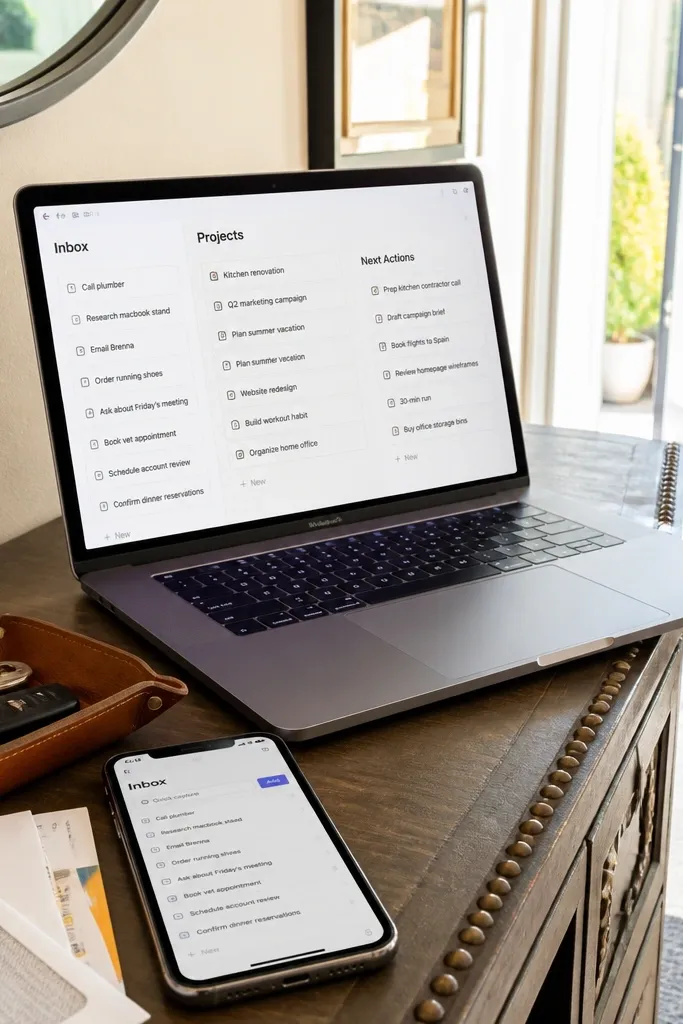
This template is for beginners who like rules and want a capture system that doesn’t collapse. It usually includes an Inbox for quick notes, a Projects database, and a place for Next Actions tied to projects. The benefit is that every task has a home, so you don’t end up with scattered notes. On phone, it works when the inbox is one simple page and the project workflow is filter-based instead of deep navigation. Pick this if your biggest problem is forgetting to process ideas and turning them into real tasks.
Start by setting up your Inbox page as a single place to drop tasks and ideas with a Date added property. Then create a Projects database and link Next Actions to projects using a relation property. Finally, set views for “Inbox (unprocessed)” and “Next Actions (by project)” so you always know what you should do next.
Add a “Someday/Maybe” status inside Projects if you don’t want to throw ideas away.
Avoid GTD templates that require you to maintain too many separate databases for every step.
7. Content Calendar With Drafts Linked to Publishing Tasks
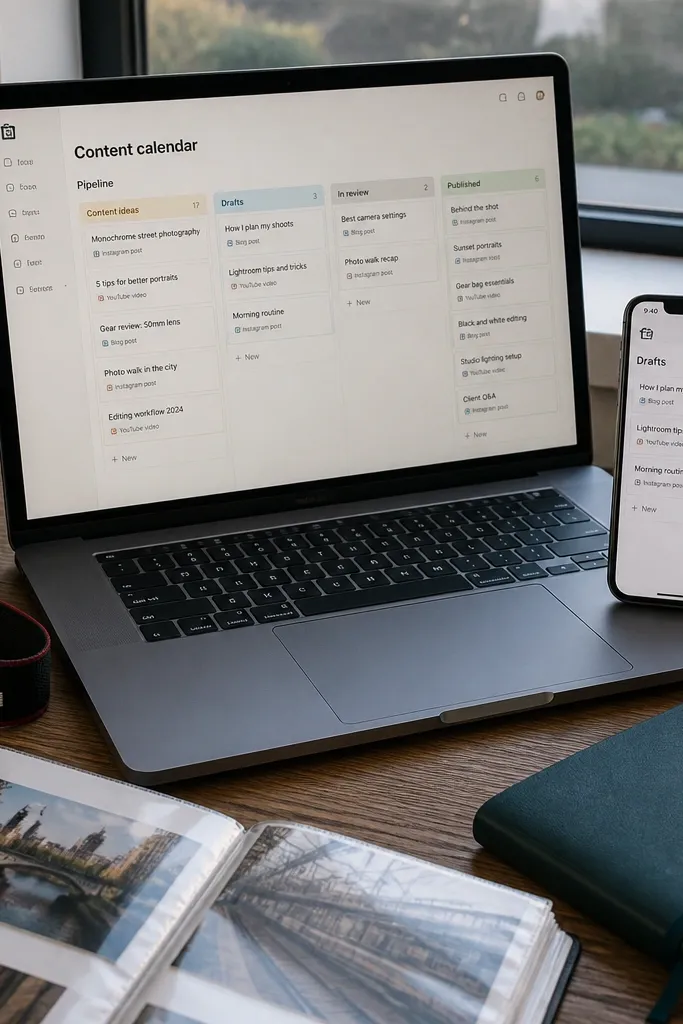
This template is built for people who write and publish on a schedule. The beginner-friendly version connects content ideas and drafts to a publishing pipeline, so you can track what’s in progress, what’s ready, and what’s scheduled. The key is the relation between a Content database (topic, platform, target date) and a Tasks database (draft, edit, approve, publish). On phone, you need a simple “Today/This week” view so you aren’t hunting across multiple calendar pages. It’s ideal for blogging, newsletters, and social content where nothing should slip through the cracks.
Start by creating a Content database with properties like Platform, Status, Topic, and Target date. Then add a linked Tasks database with a relation property to Content, and define task types like Draft, Edit, and Publish in a select field. Finally, build a weekly view filtered to Content Target date within the next 7 days and show tasks grouped by task type.
Editor's noteUse a consistent Status list across both Content and Tasks so filters stay predictable.
Skip thisSkip templates that separate the calendar from the writing workflow with no links.
8. Writing Dashboard With Draft Status and Word Count Targets
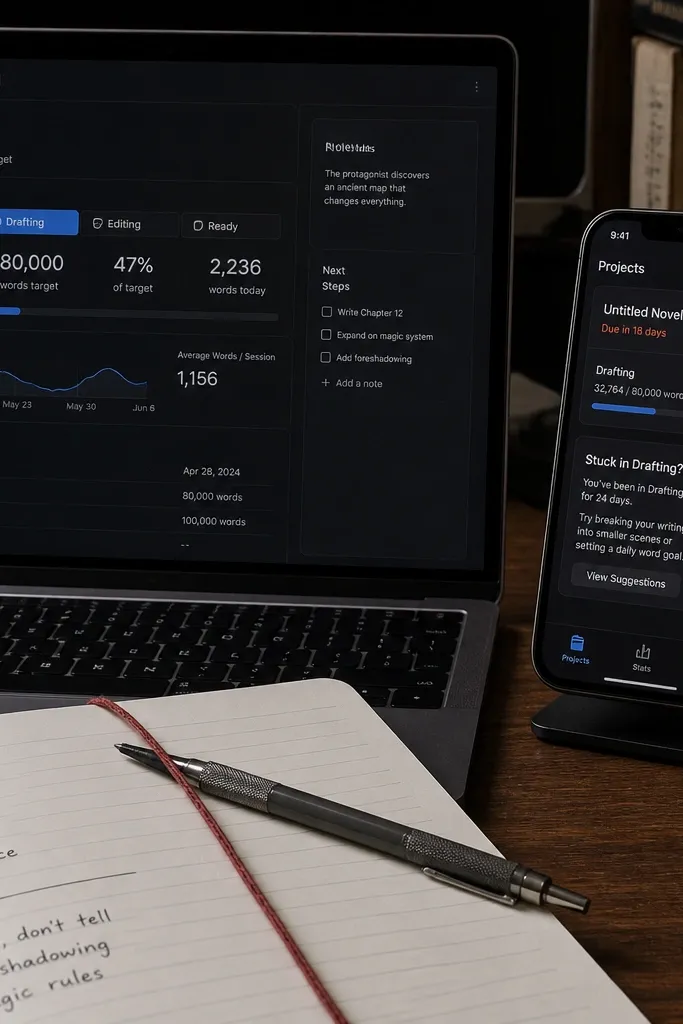
This one is for beginners who want to write more without turning Notion into a complicated project management tool. A good writing dashboard keeps each draft in a database with Status (Idea, Drafting, Editing, Ready) and a Word count property. You also get a view that shows what’s due soon and what’s stuck in Drafting. On phone, the list view is the point — you can open a draft, update status, and adjust word count quickly. It fits writers, students, and anyone who needs a calm place for drafts and revisions.
Start by setting up a Drafts database with properties for Status, Target date, Word count, and Tags. Then add a “Due soon” view filtered to Target date within 14 days and sorted by Word count missing or Status not equal to Ready. Finally, create a simple template button for new drafts that auto-fills Status = Idea and sets the target date so you don’t type the same info repeatedly.
Use a number property for Word count, not a text field, so sorting works and progress is visible.
Don’t use a writing template that logs progress manually in separate pages for each session.
9. Simple Recipe Card Organizer With Grocery List Sync
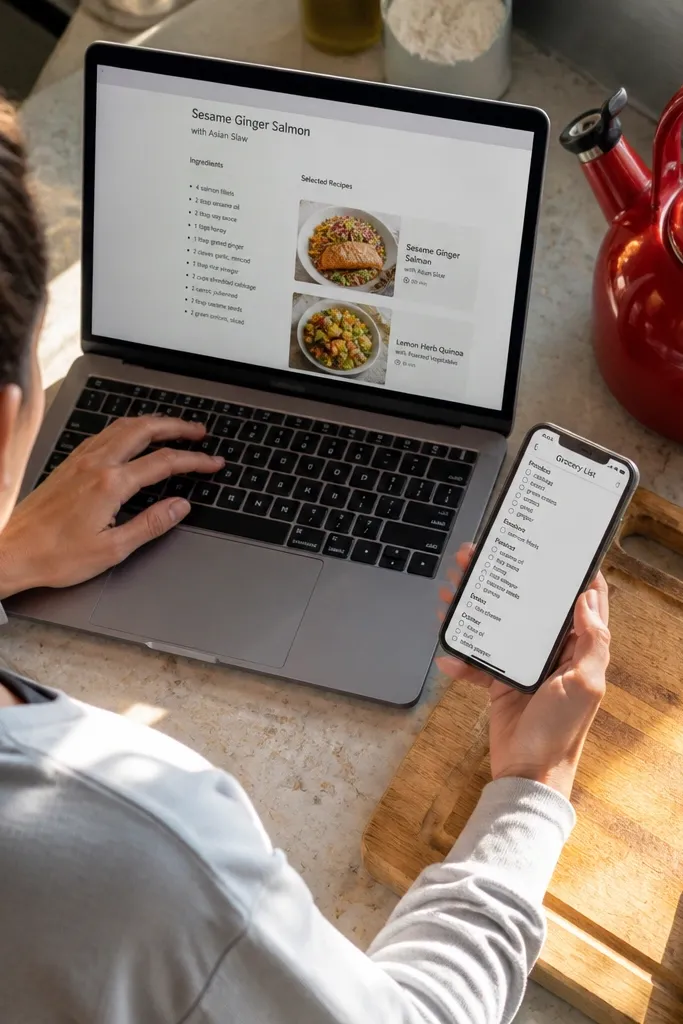
This template is oddly effective because it turns cooking planning into a quick workflow. You store recipes with ingredients and then generate a grocery list from selected recipes, so you don’t retype ingredients every week. For beginners, the best versions keep ingredient lists as text or tags you can filter, and the grocery list view is a single checklist page. On phone, you want big tap targets and a checklist layout you can mark while shopping. It’s great for small kitchens, meal prep, and anyone who gets stuck choosing recipes at the last minute.
Start by building a Recipes database with fields for Name, Cuisine, Difficulty, and Ingredients. Then create a Grocery List page with a view that filters ingredients from the selected recipes using a relation property or a “Meal plan” select. Finally, add a checkbox property for each grocery line and test by selecting one recipe and confirming the grocery list updates.
Standardize ingredient units (tbsp, tsp, cups) across recipes so your grocery list stays readable.
Avoid templates that store ingredients as scattered individual properties for every unit. It’s too much to maintain.
10. Home Inventory With Warranty and Photo Attachments
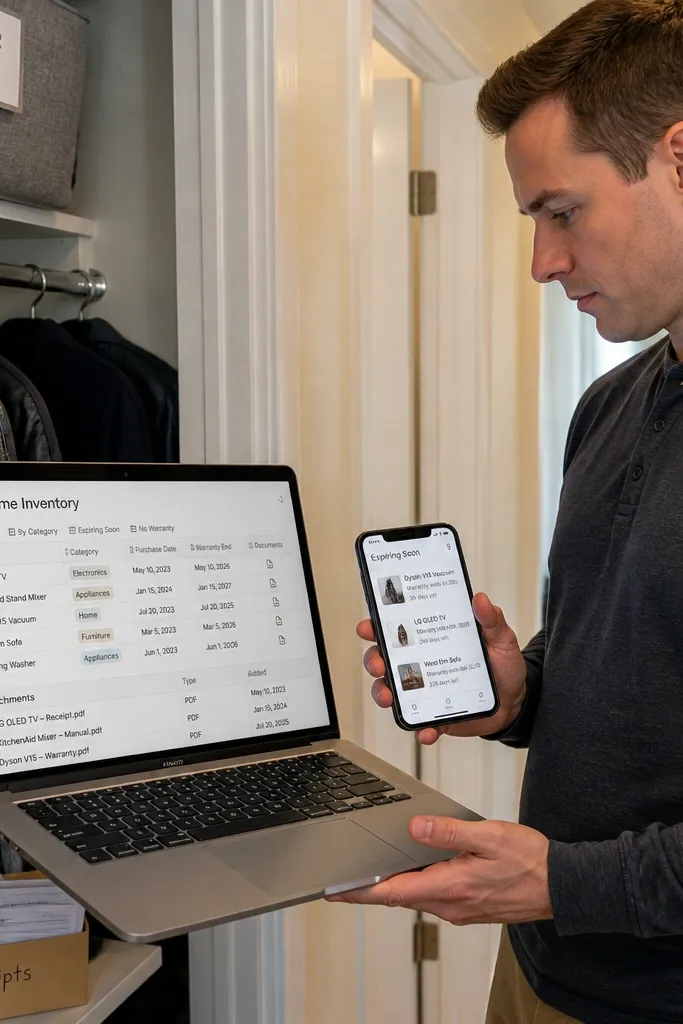
This is a practical decor-adjacent template that saves you time when something breaks. The beginner-friendly version has a Home Inventory database with item name, category, purchase date, warranty end date, and an attachments section for receipts or photos. You also get a view that lists warranties expiring soon, which keeps it from becoming a dead folder. On phone, it works because you open one item and you see all the details without deep navigation. This fits renters, homeowners, and anyone trying to keep paperwork from turning into a pile.
Start by creating an Inventory database with properties for Category (select), Purchase date (date), Warranty end (date), and Vendor (text). Then add an Attachments field for receipts and photos, and confirm you can open attachments on mobile without weird permission issues. Finally, create a “Warranty expiring” view filtered to Warranty end within the next 60 days and sorted by date.
Use consistent category names like Electronics, Kitchen, Furniture so your views stay clean.
Skip templates that store warranty info as free text. You want date fields for filtering.
11. Project Planner With Milestones and a Simple Budget Tracker
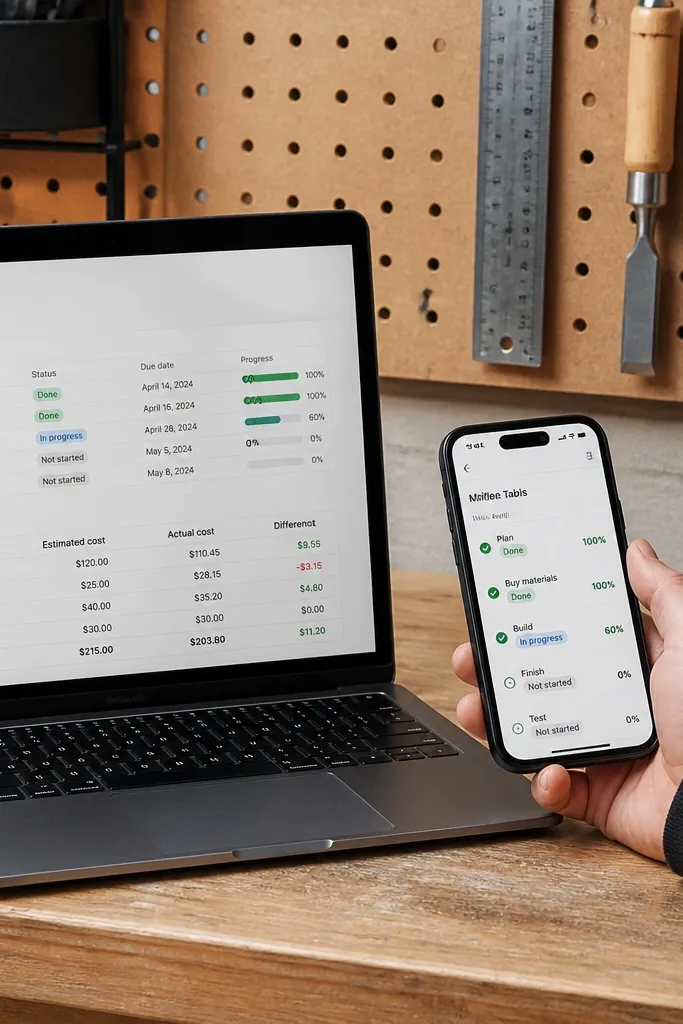
If you do DIY projects, this template keeps the work from turning into chaos. You get a Projects database and each project has milestones like Plan, Buy materials, Build, Finish, and Test. A beginner-friendly budget tracker adds fields for estimated cost and actual cost, so you can see overspending early. On phone, milestones appear as a simple list view, not a complex timeline widget. This suits renovations, craft builds, and any multi-step task where you want progress and spending in the same place.
Start by setting up a Projects database with properties for Status, Start date, End date, and Budget estimate (number). Then add a Milestones relation database with properties for Milestone name, Due date, and Done checkbox. Finally, create a “Budget by project” view sorted by estimated cost and update actual cost as you buy materials.
Track costs per milestone by adding a small note field like “Material used” so you can audit later.
Avoid templates that force you to use a complex spreadsheet-like budget system.
12. Shopping List Template With Store Sections and Priority Tags
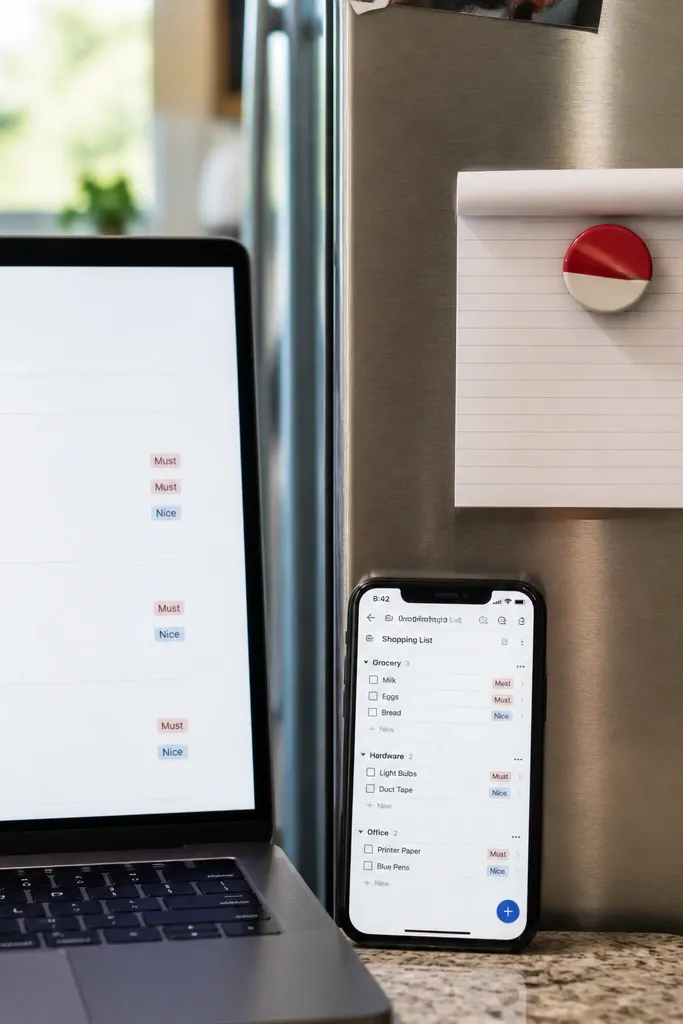
A shopping list template sounds basic, but the good ones reduce trips and missed items. The beginner-friendly version organizes items by store section like Grocery, Hardware, and Office, and adds a priority tag such as Must or Nice. On phone, you want one page with collapsible sections or a simple list grouped by store so you’re not scrolling forever. This works for weekly shopping, craft supply runs, and quick errands when you want to batch stops. It also keeps your decor and DIY purchases from becoming random spending.
Start by creating a Shopping Items database with properties for Item name, Store (select), Quantity (number or text), and Priority (select). Then create a view grouped by Store and sorted by Priority, and make sure the checkboxes are on the list rows. Finally, add a “Quick add” template button that opens a new item with Store set to the last store you used.
Use Quantity as text if you buy non-integer items like “1 sheet” or “2 ft.”
Skip templates that store store names as free text. Grouping breaks.
13. Budget Lite With Weekly Spending Categories
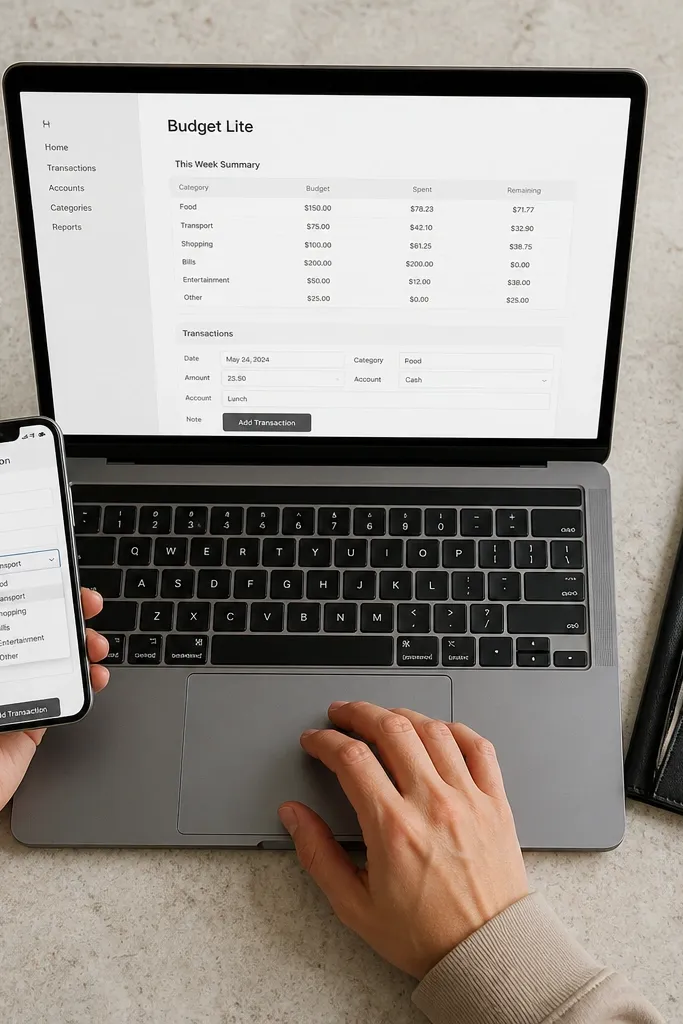
This template is for beginners who want control without building a full accounting system in Notion. It usually has a Transactions database with Category, Amount, Date, and a Weekly summary view by category. The key is keeping categories short and consistent, so mobile entry stays quick and you don’t misfile. On phone, a simple form view for adding transactions is the difference between using it and abandoning it. This fits people who need to see where money went each week, not people who need tax-grade reporting.
Start by creating a Transactions database with Amount as a number property and Date as a Date property. Then create a Category select with a fixed list like Food, Bills, Transport, Shopping, and Other. Finally, build a weekly summary view filtered to the current week and grouped by Category, with totals using rollups or formulas.
Add a Notes property for receipts and keep it short like “Target” or “electric bill.”
Don’t use a budget template that depends on complex formulas to add up totals.
14. Idea Inbox With Tags and a Launchpad for Turning Ideas Into Tasks
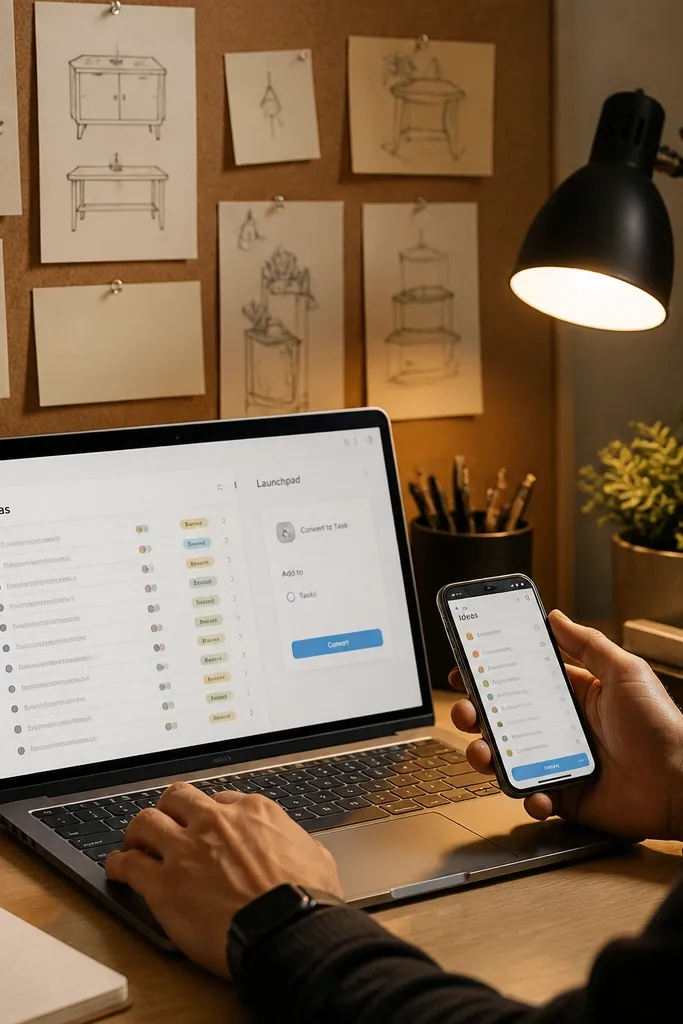
This template fixes a common beginner problem: you collect ideas, then nothing moves. The beginner-friendly version uses an Ideas database with tags and a status like New, Sorted, Planned, Done, then links ideas to tasks when you decide to act. On phone, you can filter by tag and pick one idea to convert into a task with a button or simple copy action. It’s great for DIY decor planning, side projects, and creative life admin. The payoff is that you stop losing good ideas in a Notes app graveyard.
Start by creating an Ideas database with properties for Title, Tag (select), Status (select), and Next step (text). Then add a Tasks database and create a relation property between Tasks and Ideas. Finally, create views for “New Ideas” and “Ready to plan” filtered by Status, then use the template for new tasks to prefill the idea link.
Editor's noteLimit your tags to 8-12 categories max so the tag filters stay usable on mobile.
Skip thisAvoid templates that let ideas become tasks without any relationship field. You lose the trail.