

1. Pastel Habit Tracker Board
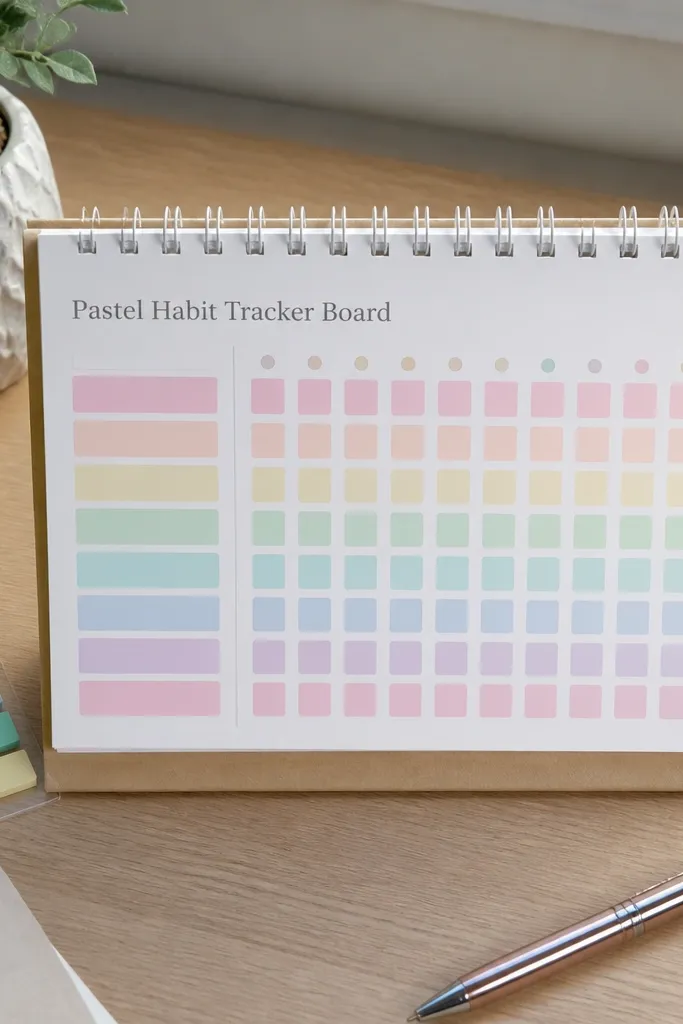
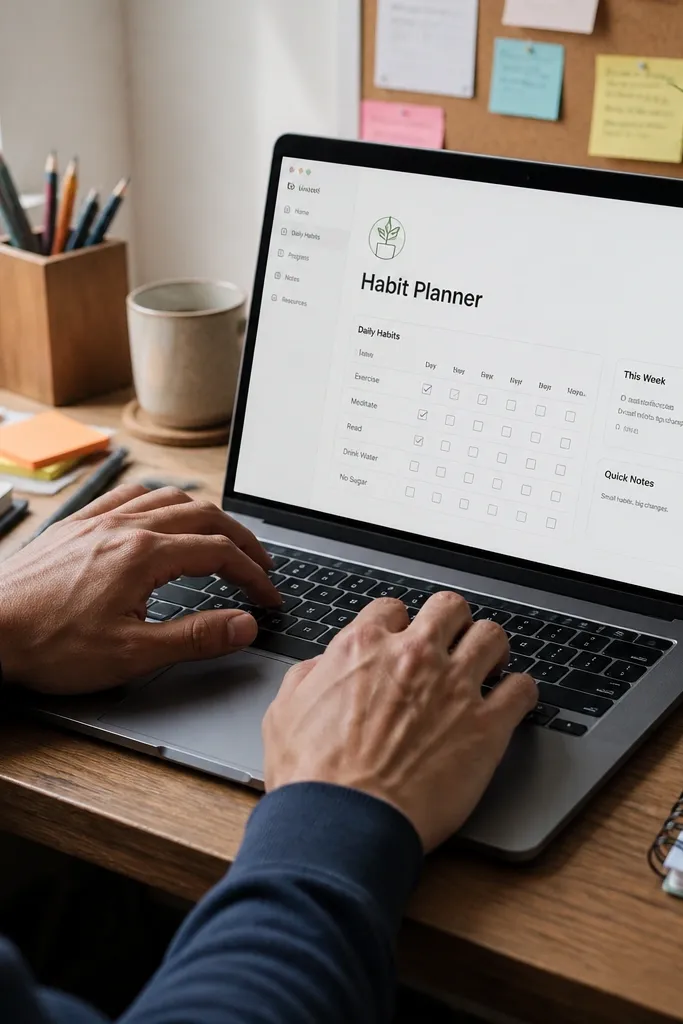
Start by creating one database called Habits with properties for Habit name, Status, and Frequency (Daily/Weekdays). Then add a second database view filtered to show only today’s habits, using a checkbox-style Status property. Finally, add a weekly streak section that groups by habit and sorts by the next due day, so completed items visually slide forward. Keep the card color tied to habit category so the grid stays readable.
This template keeps you on track by turning habits into a clean, daily grid you can scan in 15 seconds. The aesthetic comes from a soft color palette and consistent checkbox styling, so your brain reads it like a calendar instead of a document. It works for beginners because you don’t need to set up complex formulas — you just mark completion and watch streaks update. Use it in a corner of your Notion home or as a full page, and pair it with a simple “why” note for each habit. It’s best for routines you want to feel in your day, like water, stretch, reading, or tidying.
Skip thisDon’t add ten habits at once — build to 5-7 so the grid stays satisfying.
Editor's noteUse one font size for the whole page and keep the same cover color across views so it feels like a single system.
2. Weekly Meal Plan with Grocery List Merge
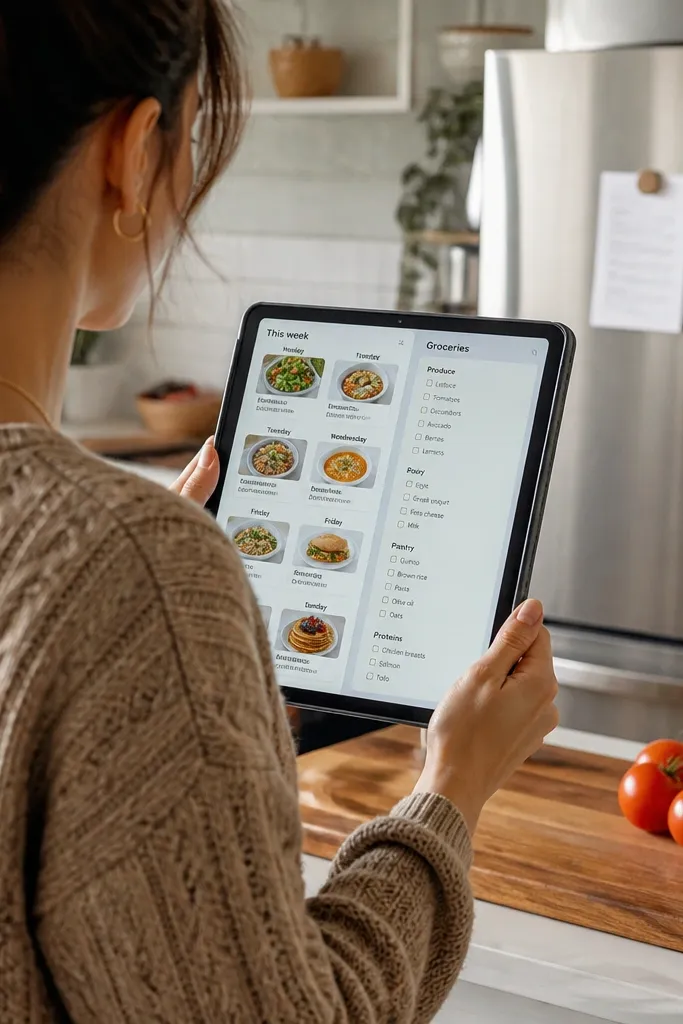
Create a Meal database with properties for Meal name, Date (or Week), Category (Breakfast/Lunch/Dinner), and Ingredients. Add a Grocery list database with a single property for Item name. Then link Ingredients to the Grocery list by using a relation and rollup that groups items by meal week. Finish by adding a view called This Week that filters meals to the current week and displays the grocery rollup at the top.
This is a two-part template that keeps you on track by preventing the classic problem: you plan meals, then forget what you needed at the store. The beauty is in the split layout — meal cards fill the week at a glance, and the grocery list sits beside it in one consistent style. It’s beginner-friendly because you’re not building recipes from scratch; you’re selecting meals and generating a list. This works best for people who shop once or twice a week and want less decision-making at the counter. The end result looks tidy and makes the next action obvious.
Skip thisAvoid free-text ingredient lists with random spelling — rollups won’t behave.
Editor's noteUse standardized ingredient names like “olive oil” and “garlic” so rollups don’t split into duplicates.
3. Project Dashboard with Color-Coded Status
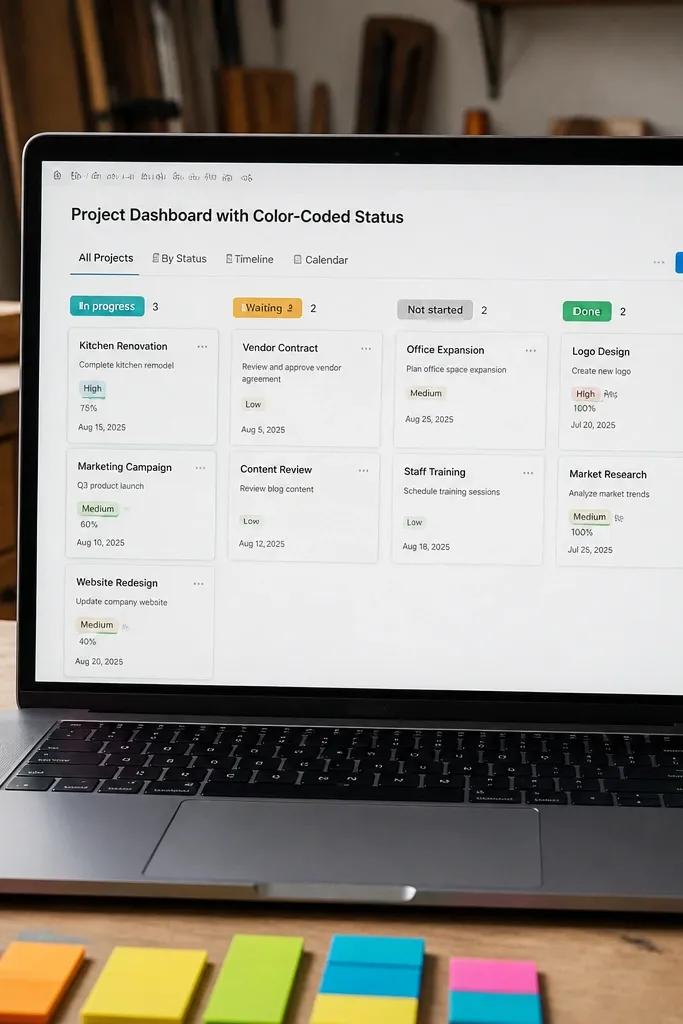
Build a Projects database with properties for Project name, Status (select), Due date, and Next action (text). Create views: Today’s focus filtered to Due date is today, This week filtered to the next 7 days, and A-Z for browsing. Add a dashboard section that shows the top 5 projects by Due date and sorts by Status order. Keep Status values limited to five so the colors stay consistent and readable.
This template keeps you on track by making projects feel alive instead of buried. The aesthetic is clean card layouts with color-coded statuses like Not started, In progress, Waiting, and Done. Beginners like it because you only need to update one Status property, and the dashboard reshuffles itself. It’s great for DIY planning, freelance work, or personal goals where you juggle multiple threads. Put it on your home page so you see what’s moving today and what needs attention this week.
Skip thisDon’t use too many status options — you’ll stop trusting the colors.
Editor's noteSet a Status order that matches your workflow so “In progress” always sits above “Waiting.”
4. Book Notes Aesthetic Reading Log
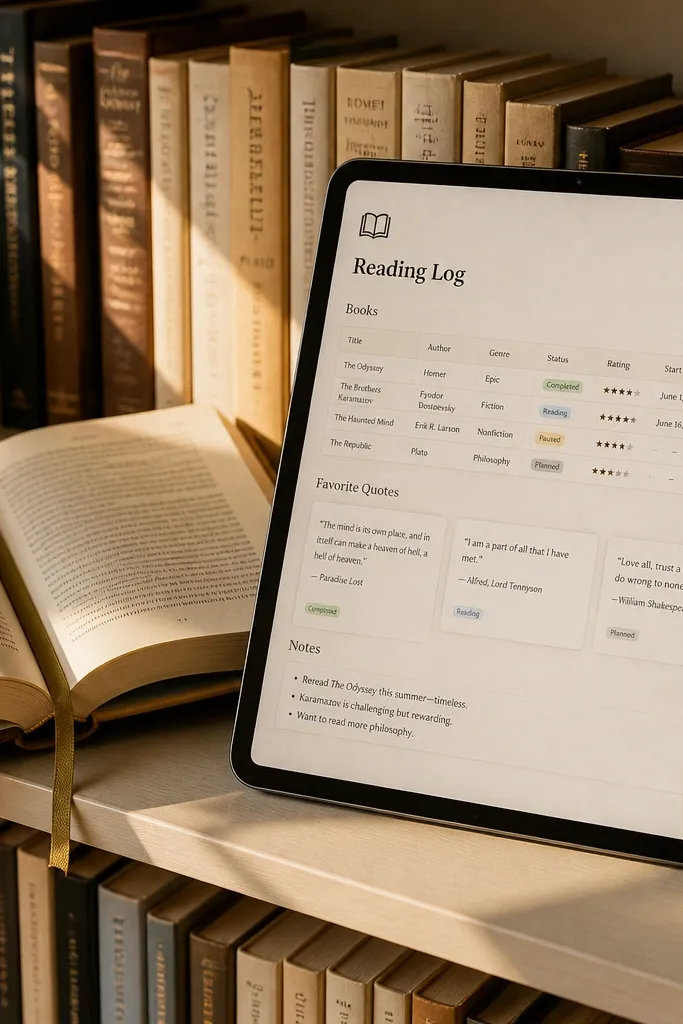
Create a Books database with properties for Title, Author, Status (Reading/Finished/Paused), Start date, and Pages read (number). Add a linked database called Quotes with properties for Quote text, Book (relation), and Page number. Create a view called Currently reading sorted by Start date, and a view called Finished sorted by finished date. Add a simple progress bar using a rollup that calculates Pages read divided by Total pages, if you include Total pages as a number.
This keeps you on track by turning reading into visible progress, not vague intention. The look is a mix of table rows and quote cards, so the page feels like a mini reading scrapbook. It’s beginner-friendly because you track only three things: pages read, status, and your notes. You can use it for novels, nonfiction, or learning goals. This works well if you like capturing quotes and want a place where your future self can find them fast. Your daily action is clear: update pages, add one quote, and move on.
Skip thisDon’t skip the Pages read field — without it, you lose the progress hook.
Editor's noteKeep quote entries short and add page numbers when you can — it makes the log feel organized.
5. Budget Categories with Receipt Attachment
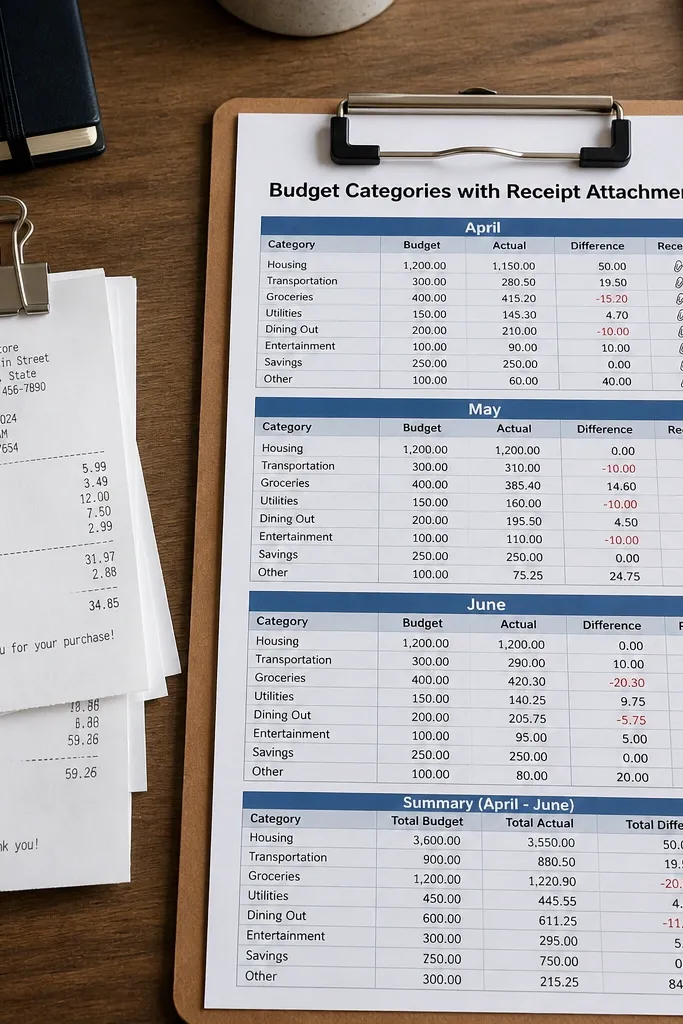
Create an Expenses database with properties for Date, Amount (number), Category (select), Payment method (select), and Receipt (files & media). Add a view filtered by the current month, sorted by Date descending. Then create a rollup for Category totals using a separate Monthly Budget database or a filtered view with grouped totals. Finish by adding a dashboard page with two panels: Top categories this month and Biggest expenses list.
This template keeps you on track financially by forcing every purchase into a category and attaching a receipt right away. The aesthetic is a tidy list with monthly sections and a consistent “receipt” icon column, so it feels like a system rather than a pile. Beginners like it because the workflow is single-step: log the expense, pick a category, attach the receipt, done. It’s especially good for DIY supplies and home projects where costs sneak up. The payoff is you always know where your money went without hunting through emails later.
Skip thisAvoid “misc” as a category for everything — it kills tracking.
Editor's noteUse one receipt naming rule like YYYY-MM-DD-Store so files stay searchable later.
6. Daily Cleaning Reset Checklist
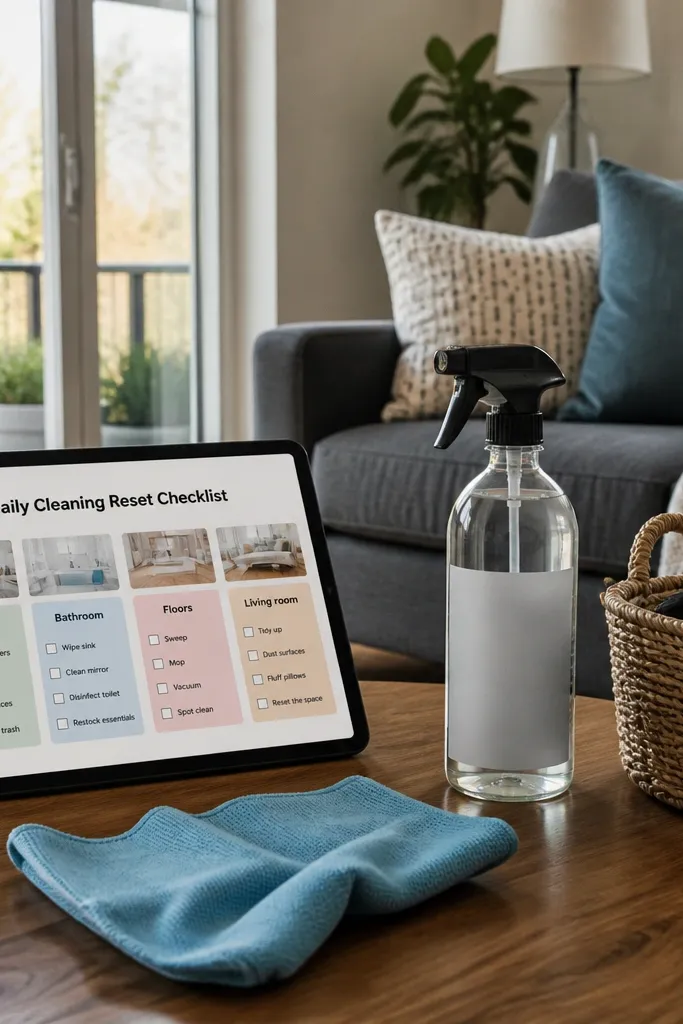
This template keeps your home on track by making cleaning feel like a quick reset, not a weekend project. The look is room-based cards like Kitchen, Bathroom, Floors, and Living room with checkboxes and a neat daily layout. It’s beginner-friendly because you repeat the same checklist each day and only adjust a few items. This works for people who want the house to look good without spending hours. It also helps you stay consistent by turning cleaning into a daily ritual you can finish in 10-20 minutes.
Create a Rooms database with properties for Room name and Routine (select: Daily/Weekly). Create a Tasks database with properties for Task name, Room (relation), Frequency (select), and Time estimate (number). Add a view called Today that filters tasks to Daily and sorts by Room. Then add a dashboard section that shows Today’s tasks as checkbox cards.
Keep time estimates rough like 2, 5, 10 minutes — it reduces overthinking.
Don’t build a checklist you can’t finish — consistency matters more than completeness.
7. Mood + Notes Weekly Reflection
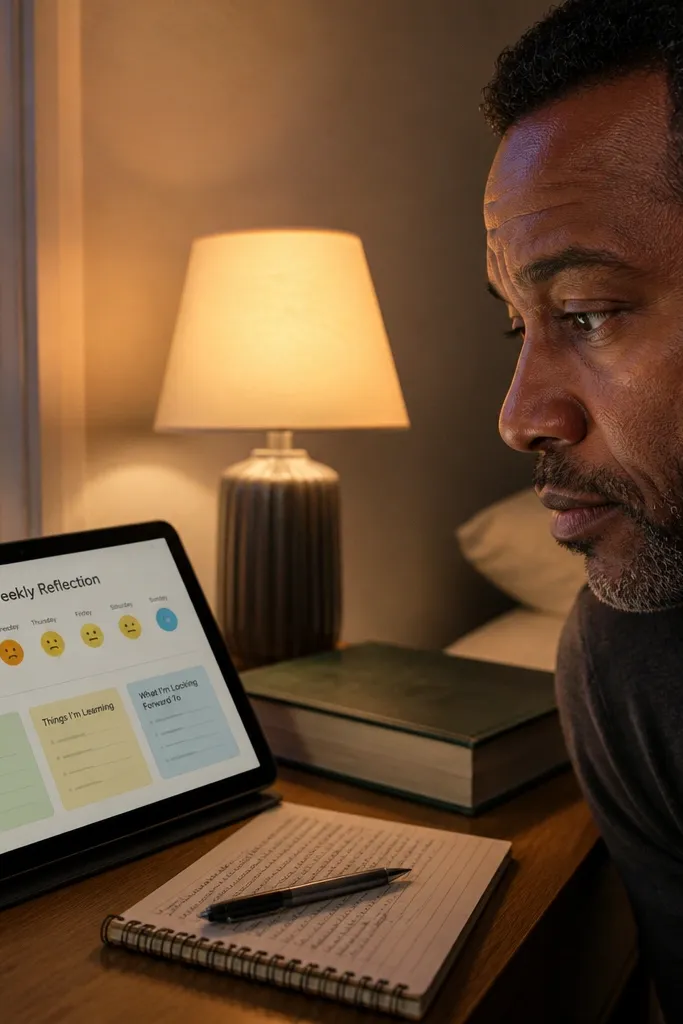
Create a Weekly Reflections database with properties for Week (date), Mood (select with 5 options), Sleep hours (number), and Top win (text). Add a linked database called Next Adjustments with properties for Adjustment (text), Category (select), and Status (select). Create a view filtered to the current week that shows mood and win at the top, then adjustments below. Finish by adding a template button for “New week” that pre-fills the Week date and blank fields.
This template keeps you on track emotionally and practically by connecting your week’s mood to what you want to change next. The aesthetic uses mood icons and color-coded tags so the page looks calm and readable. Beginners benefit because you don’t need journaling prompts everywhere; you only fill a few fields each week. It’s a great fit for people who feel scattered and want to spot patterns in sleep, stress, or routines. The system nudges you toward one next adjustment, not a thousand thoughts.
Skip thisAvoid writing long paragraphs in every field — short notes keep it doable.
Editor's noteUse the same five mood options every week so you can visually compare weeks.
8. Grocery Staples Inventory with Refill Dates
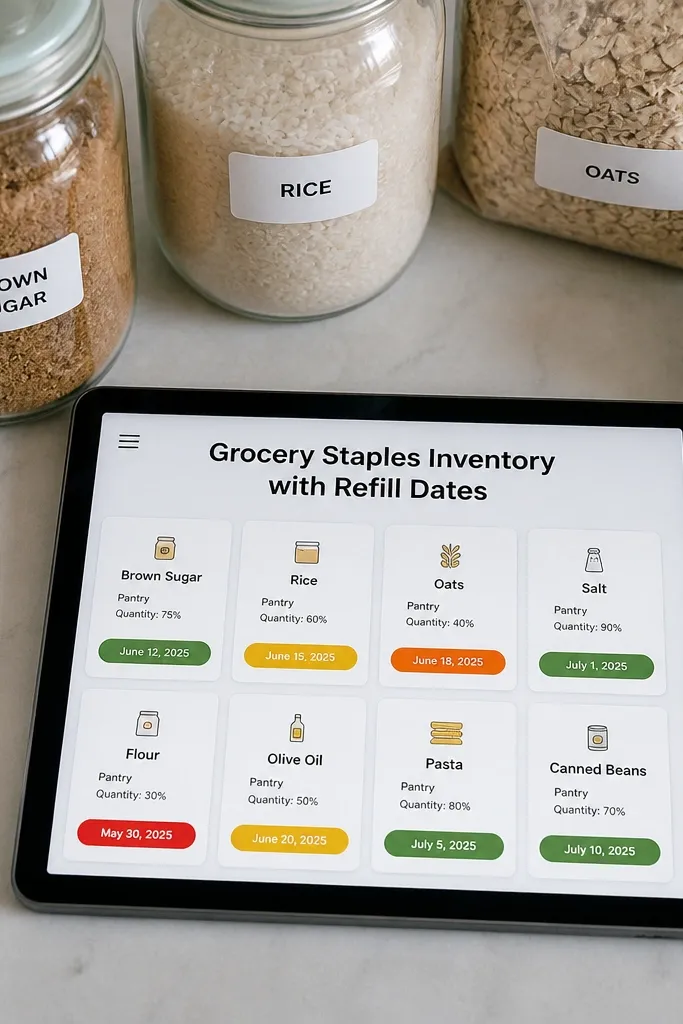
Create an Inventory database with properties for Item name, Category (select), Stock level (number), Refill by (date), and Notes (text). Add a view called Low stock filtered to Stock level <= your threshold and sorted by Refill by. Add a second view called Pantry basics grouped by Category for browsing. Finally, create a dashboard section that shows the next 10 refill items as cards.
This template keeps you on track by stopping last-minute runs when you’re missing basics. The look is card-style inventory with stock level numbers and refill dates that pop in a consistent color scheme. It’s beginner-friendly because you’re tracking a small list of staples, not every item in your house. Best for kitchens where you cook at home and want to avoid “we have nothing” shopping trips. It also looks good because your pantry list feels curated and tidy, not chaotic.
Skip thisDon’t include items you rarely use — the list becomes noise.
Editor's notePick one threshold per category like 2 for snacks and 1 for baking ingredients so you don’t overstock.
9. DIY Supply Tracker with Linked Projects
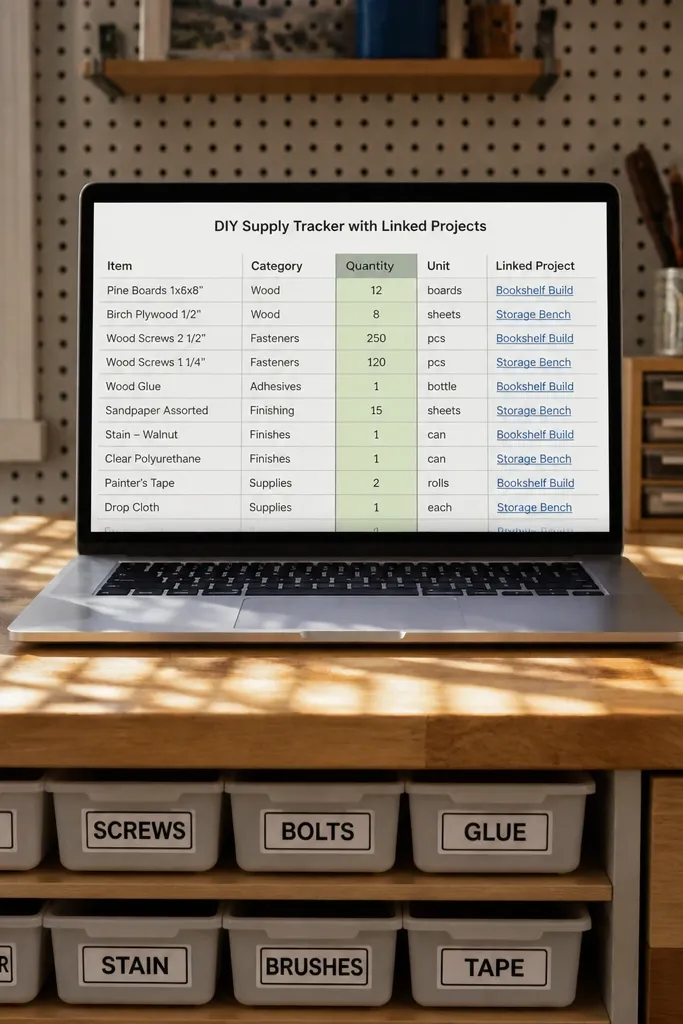
This keeps you on track by preventing the annoying loop: you start a project, realize you’re missing a part, then delay everything. The aesthetic is a clean supplies table with quantities that feel like a little inventory board. Beginners like it because you connect supplies to projects once, then updates flow through. It’s perfect for home DIY, crafting, and small product builds. The visual payoff is you can glance at a project and see what you have, what’s missing, and what you need to buy next.
Create a Supplies database with properties for Supply name, Quantity (number), Unit (select), and Status (select: In hand, Ordered, Missing). Create a Projects database with properties for Project name and Status. Add a relation property called Supplies used (between Projects and Supplies). Then create a view for each project that filters supplies where relation includes that project, and show missing items first by sorting Status order. Add a dashboard panel called Missing supplies that filters Supplies to Status = Missing.
Use consistent unit labels like “roll,” “sheet,” “bottle” so totals make sense.
Don’t track every tiny consumable — focus on items that stop progress.
10. Vision Board Timeline for Goals
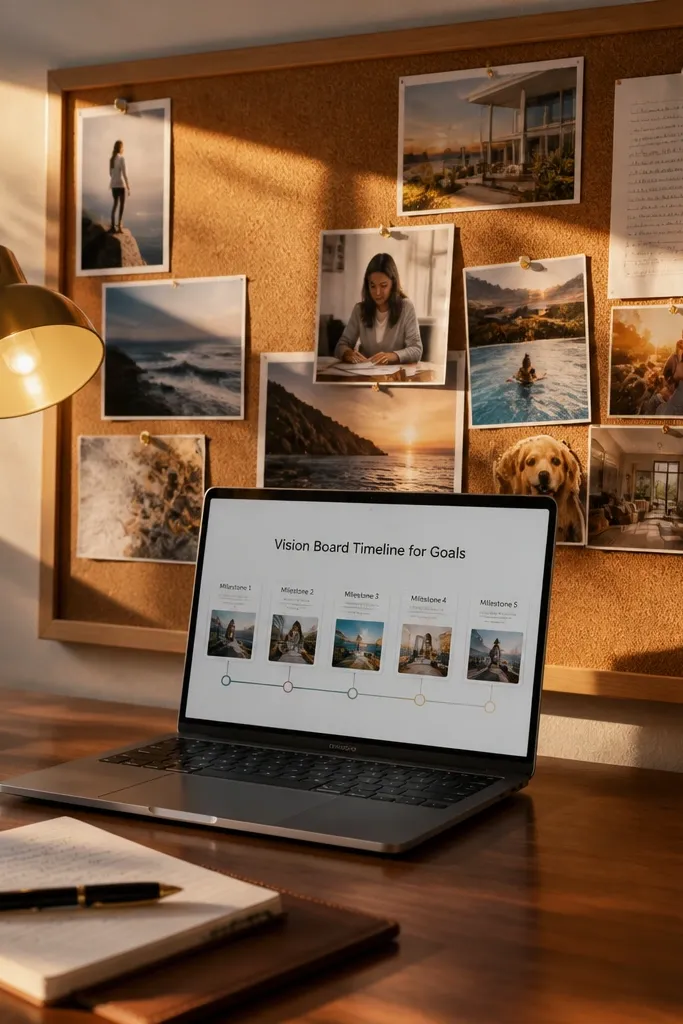
This keeps you on track by turning goals into milestones you can see moving across time. The aesthetic is a timeline layout with milestone cards that look like a mini moodboard. Beginners benefit because you don’t need to write a manifesto — you set a goal, add 3-6 milestones, then update status as you go. It’s great for long projects like learning a skill, redecorating a room, or building a routine. The visual structure makes your next step feel close instead of far away.
Create a Goals database with properties for Goal name, Start date, Target date, and Status. Create a linked database called Milestones with properties for Milestone title, Due date, Goal (relation), and Status. Add a view grouped by Goal and sorted by Due date so milestones stack in order. Finish by adding a “Next up” view that filters milestones where Status!= Done and sorts by Due date ascending.
Limit milestones to actions you can finish in 1-3 weeks so the timeline stays believable.
Avoid vague milestones like “work on it” — they don’t create next actions.
11. Content Planner with Publish Calendar
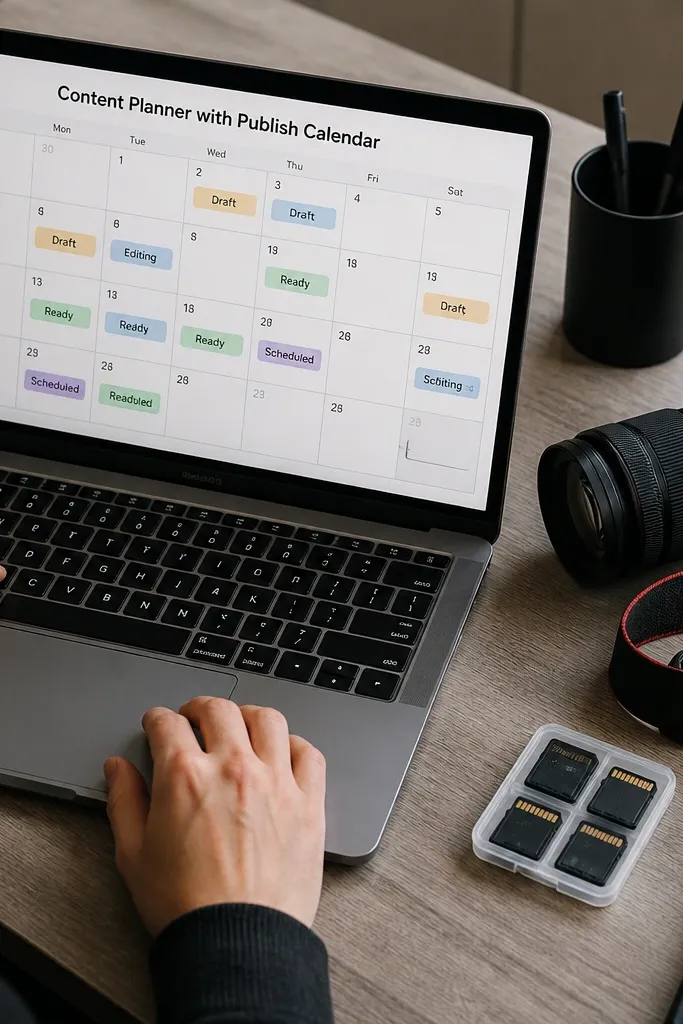
This template keeps you on track if you post regularly because it makes publishing a schedule, not a scramble. The look is a calendar view with color-coded status tags like Draft, Editing, Ready, and Scheduled. It’s beginner-friendly because you track one workflow from idea to publish with a single Status property. Use it for blog posts, newsletters, or social content. The aesthetic payoff is the calendar is visually scannable, so you instantly see gaps and deadlines.
Create a Content database with properties for Title, Type (select), Status (select), Publish date (date), and Notes (text). Set up views: Calendar (grouped by month), This week (filter by Publish date within 7 days), and Needs attention (filter Status!= Ready and Publish date <= today + 14). Add a simple template inside the database called “New post” that pre-fills Status = Draft and adds a checklist section in the Notes field. Keep Type values limited to 3-4 for clean color mapping.
Use one reminder rule: if Publish date is within 3 days and Status isn’t Ready, it jumps to the top of Needs attention.
Don’t leave Publish date blank — the calendar is the point.
12. Weekly Study Plan with Focus Blocks
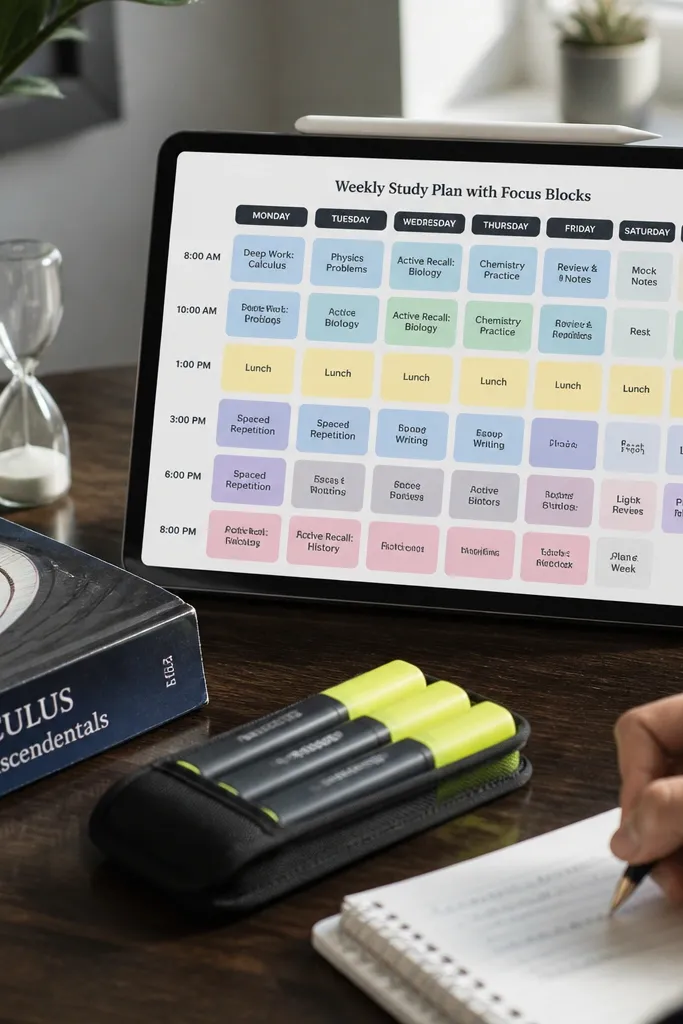
Create a Study Sessions database with properties for Topic (select), Day (date), Duration (number, minutes), Status (select), and Notes (text). Add a view called This week sorted by Day and grouped by Topic. Create a separate database called Goals with Topic and Target hours. Then use a rollup on the Study Sessions to total hours for each Goal and show a progress number on the Goals page. Plan 4-8 sessions per week to keep it realistic.
This keeps you on track for learning by forcing time blocks onto your week. The aesthetic is a grid of focus sessions with consistent card sizes, so it looks structured and motivating. Beginners like it because you plan in blocks like 25-50 minutes, not abstract “study more.” It’s ideal for language learning, exam prep, or creative practice. The system helps you see what you did and what’s still missing before the week ends.
Skip thisAvoid scheduling every hour — you’ll break the system and stop using it.
Editor's noteKeep Duration in 25/45/60 increments so your week math stays clean.
13. Fitness Routine Tracker with Exercise Templates

Create a Workouts database with properties for Workout name, Date, and Status. Create an Exercise Log database with properties for Exercise (relation to an Exercises database), Sets (number), Reps (number), Weight (number), and Workout (relation). In the Exercises database, add default fields like suggested rep range and equipment type. Create a database template button inside Workouts that pre-populates the Exercise Log entries for that workout. Then add a view called Last workout to compare your previous session.
This template keeps you on track by making workouts repeatable and easy to log. The aesthetic is structured exercise rows with consistent field labels, so it feels like a training log, not a messy note. Beginners benefit because you start from exercise templates and only fill sets, reps, and weight. It’s best for strength training, mobility, or home workouts where you want to track progress without spreadsheets. The visual payoff is you can see your routine and improvements at a glance.
Skip thisDon’t include too many exercises per workout — 5-8 is the sweet spot for logging.
Editor's noteUse weight units consistently (like kg) across the whole database so your progress doesn’t get confusing.
14. Room Makeover Checklist with Before/After Notes
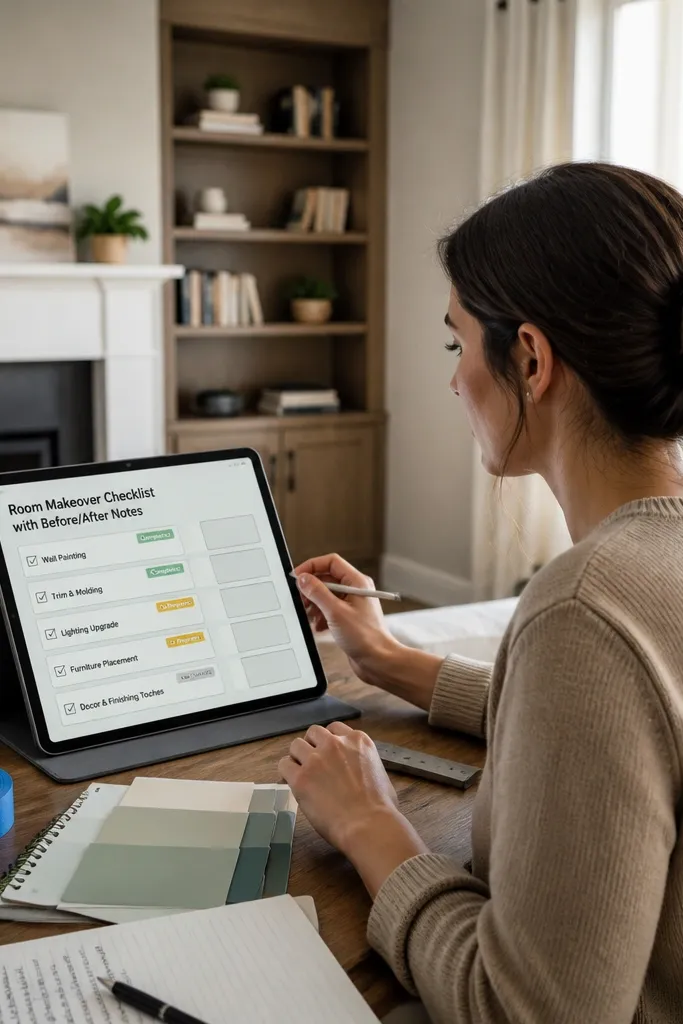
Create a Room Projects database with properties for Room name, Status, Target date, and Before photo and After photo (files & media). Create a Tasks database with properties for Task name, Room (relation), Status (select), Due date, and Checklist (text or separate linked subtasks). Add a view filtered by the current room that shows tasks grouped by Status. Create a template button for each room that pre-creates common tasks like measure, paint, hardware, lighting, and styling so you don’t blank out.
This template keeps you on track for decorating by turning a messy room project into a step-by-step checklist. The aesthetic is photo-friendly: before and after image slots sit near the task list so you feel progress visually. Beginners like it because you track tasks by status and due date, not by complicated project management. It’s perfect for DIY decorators who want the room to look good and want to remember what they changed. The checklist also reduces the “where do I start?” problem.
Skip thisAvoid starting with styling — do the structural work first.
Editor's noteAdd a “Materials bought” task early so you don’t fall behind on supply delivery.
15. Laundry Day Plan with Sort Map
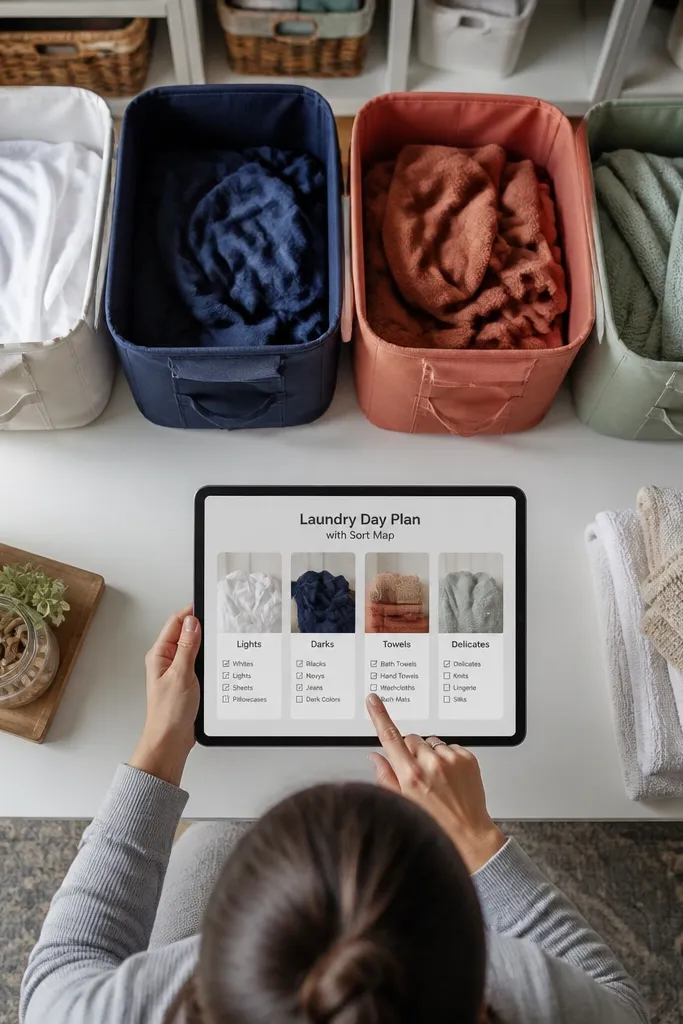
Create a Laundry Routine database with properties for Category (select), Step (text), Time estimate (number), and Frequency (select: weekly). Add a view called Laundry Day that filters Frequency = weekly and sorts by Step order. Create a Supplies database with Stock level and Refill by date, then link Supplies to Laundry steps using a relation property for items used. Finish by adding a dashboard panel that shows the Supplies low stock list alongside Laundry Day tasks.
This keeps you on track by taking laundry from a vague chore into a repeatable routine with visible steps. The aesthetic is simple category cards — lights, darks, towels, delicates — with a clean checklist layout. Beginners like it because you fill it out once, then reuse it weekly. It’s great for households where laundry gets ignored until it becomes overwhelming. The template also helps you track detergent, fabric softener, and stain remover so supplies don’t run out.
Skip thisDon’t treat laundry as one giant task — split it into steps you can finish.
Editor's noteWrite your steps like actions: “Start washer,” “Hang dry,” “Fold baskets” so the checklist reads smoothly.
16. Weekly Budget + Spending Snapshot
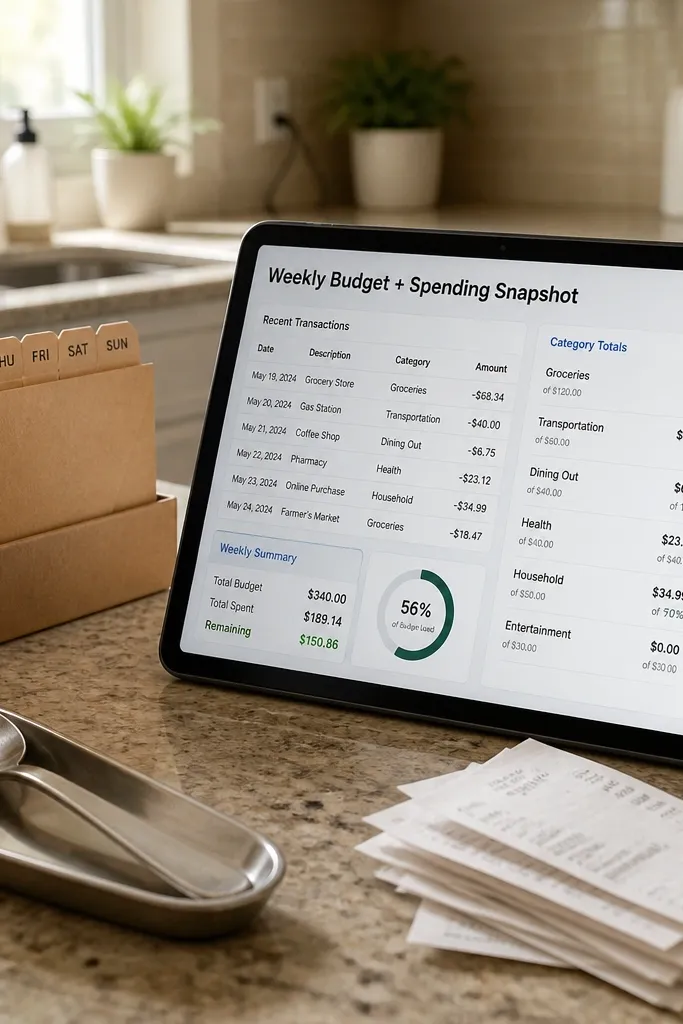
Create an Expenses database with properties for Date, Amount, Category (select), and Week (date or formula). Create a Budget Categories database with Category names and Weekly limit (number). Add a rollup that calculates total spend per category for each Week, then display the difference vs limit. Create a view called This week filtered to current week and show a grouped list by Category. Keep the dashboard page with two sections: category spend bars and the last 10 transactions.
This template keeps you on track by giving you a quick spending reality check every week. The look is a snapshot-style layout with a short transaction list and category totals displayed in a consistent format. Beginners benefit because you log quickly, then review once. It’s best for people who overspend in a few categories and want to catch it early. The aesthetic makes it feel like a personal dashboard, not a bookkeeping project.
Skip thisAvoid logging without a category — you’ll lose the snapshot.
Editor's noteSet limits in round numbers like 50, 100, 150 so you’re not recalculating constantly.
17. Recipe Cards with Cooking Steps Timeline
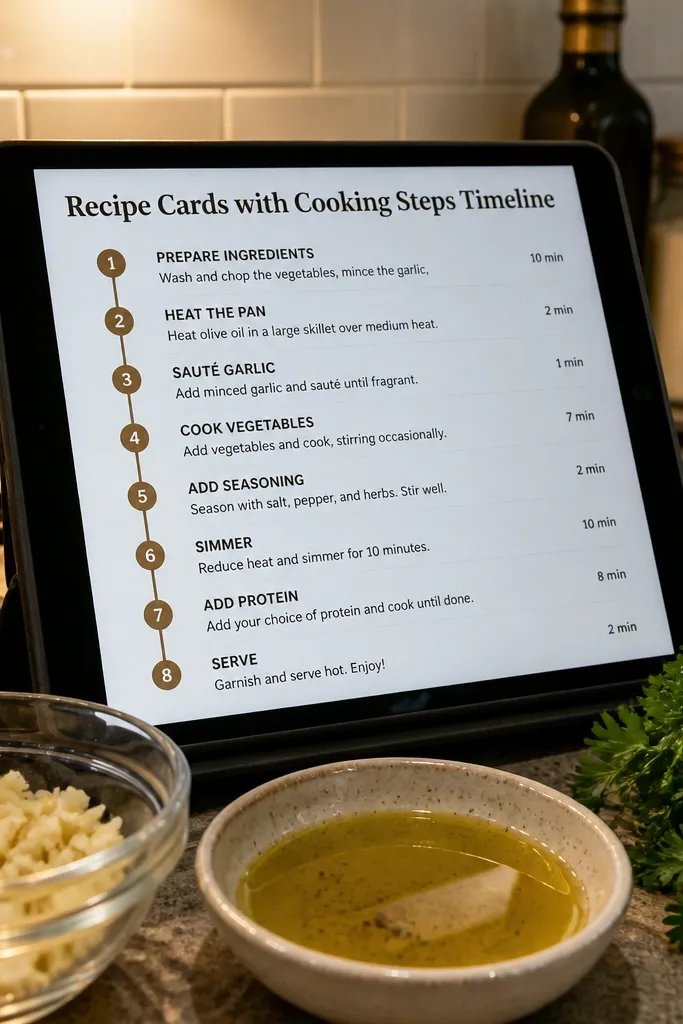
Create a Recipes database with properties for Recipe name, Category, Cooking time (number), Servings (number), and Last cooked (date). Add a linked database called Steps with properties for Step number (number), Step text (text), and Recipe (relation). Add another linked database called Ingredients with properties for Ingredient name and Quantity (text) and Recipe (relation). On each recipe page, create a view that shows Steps ordered by Step number. Add a button template that copies the last cooked date into a “next cook” field when you finish.
This keeps you on track in the kitchen by making recipes easier to follow and less likely to flop. The aesthetic is recipe-card style pages with big section headers and numbered steps you can glance at while cooking. Beginners like it because you store ingredients and steps in one place and don’t need to rewrite them each time. It’s perfect for meal prep, weeknight dinners, and learning to cook. The template also helps you plan what to cook next because each recipe page has a “last cooked” date and a “next cook” note.
Skip thisDon’t cram tips into the step text — keep them in a separate Notes field.
Editor's noteUse consistent step wording like “Preheat,” “Chop,” “Simmer” so steps feel uniform across recipes.
18. Appointment Tracker with Prep Checklist
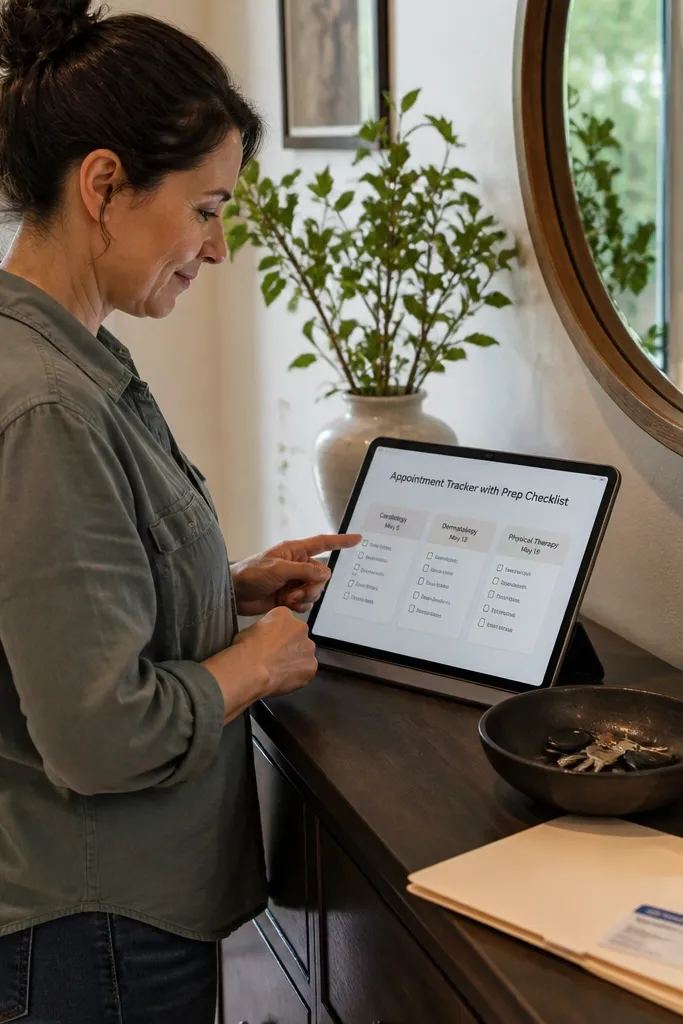
Create an Appointments database with properties for Title, Date, Type (select), Status (select), and Prep checklist (text or separate linked tasks). Create a linked database called Prep Items with properties for Item name, Appointment (relation), and Done (checkbox). Add a view called Upcoming filtered to Date within 14 days and sorted by Date. Add a second view called Due today filtered to Date = today. On each appointment page, show Prep Items ordered by Item name.
This template keeps you on track with real-life commitments by pairing each appointment with a prep checklist. The look is a clean list view where each appointment card has a small checkbox section, so you see what’s left before the day. Beginners benefit because you don’t forget forms, documents, or questions — they live right under the appointment. This works for doctors, salons, travel, and any recurring “I always forget something” moments. The visual layout makes the next action obvious.
Skip thisDon’t create one giant checklist for every appointment — keep it per appointment.
Editor's noteWrite prep items like “Bring ID” and “Download insurance card” — action verbs reduce confusion.
19. Goal Habit Stack for Morning Routine
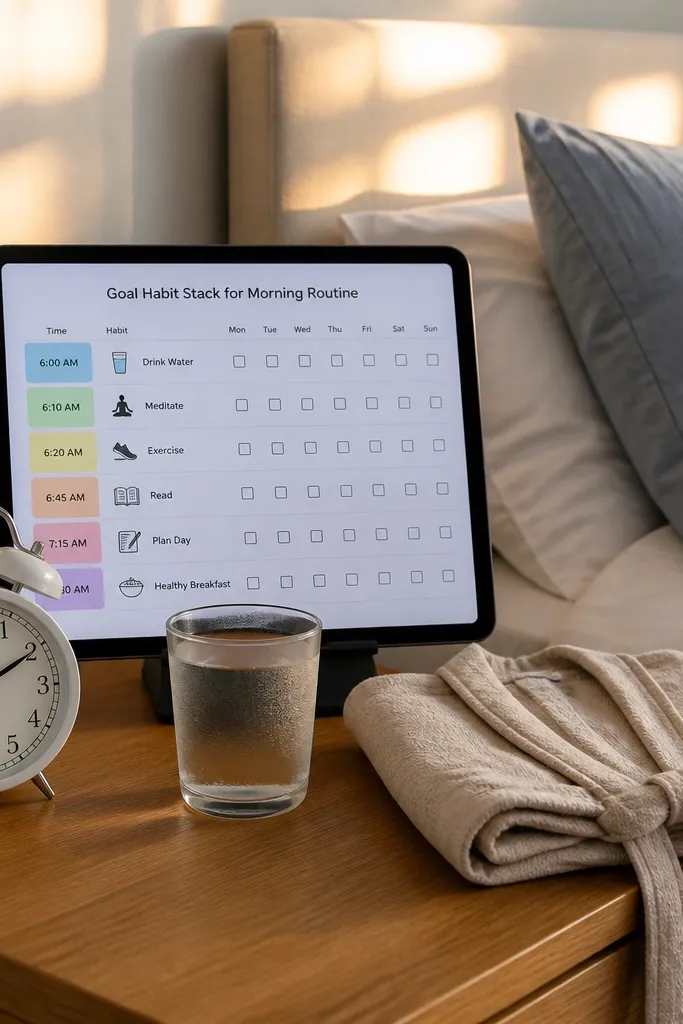
Create a Morning Routine database with properties for Step name, Order (number), Suggested time (number, minutes), and Habit type (select). Add a second database called Routine Log with properties for Date, Step (relation), Completed (checkbox), and Notes. Create a view called This week that filters Routine Log to the current week and groups by Date, then displays steps in order. Finally, add a dashboard section that shows completion rate for each step by counting checkboxes via rollup.
This template keeps you on track by linking habits into a timed morning flow instead of isolated tasks. The aesthetic is a stacked layout where each habit has a small duration and a weekly checkbox row. Beginners like it because it’s clear what happens first and what happens next. It works for anyone who wants to build momentum early in the day and keep it consistent. The template also looks good on a home page because the routine reads like a mini schedule.
Skip thisAvoid changing the routine daily — the visual consistency matters.
Editor's noteKeep the order fixed for 30 days before changing it so you build automaticity.
20. Monthly Reset Plan with Declutter Zones
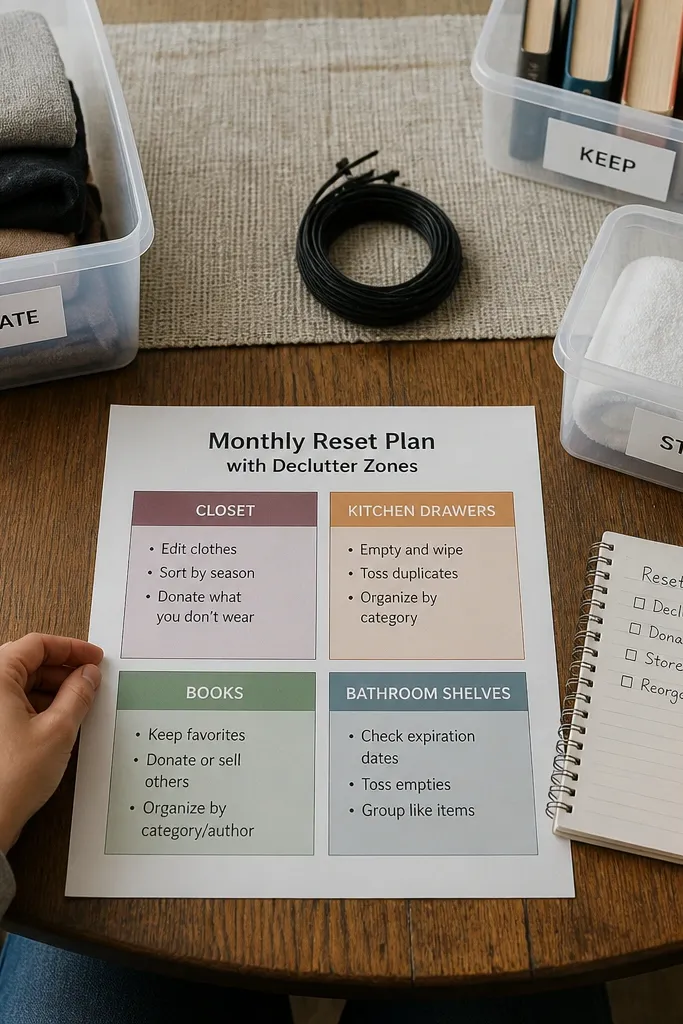
Create a Zones database with properties for Zone name and Category (select). Create a Tasks database with properties for Task title, Zone (relation), Due date, Status, and Estimated time (number). Add a view called This month that filters tasks to the current month and groups by week number. Add a view called Next up that filters Status!= Done and sorts by Due date. Use a database template for tasks that pre-fills Estimated time like 30 or 45 minutes.
This template keeps you on track by turning decluttering into a scheduled zone plan. The aesthetic uses a zone grid like Closet, Kitchen drawers, Books, and Bathroom shelves with matching colors, so the page looks organized and motivating. Beginners like it because the plan is monthly, not endless. You always know what to tackle this week and what comes next. It’s great for people who want a tidy home without spending every weekend. The result is a system that looks like a home project board.
Skip thisDon’t schedule deep clean plus declutter in the same session — you’ll stall.
Editor's noteAssign one zone per week to keep the visual plan realistic.
21. Travel Pack List with Checklist Templates
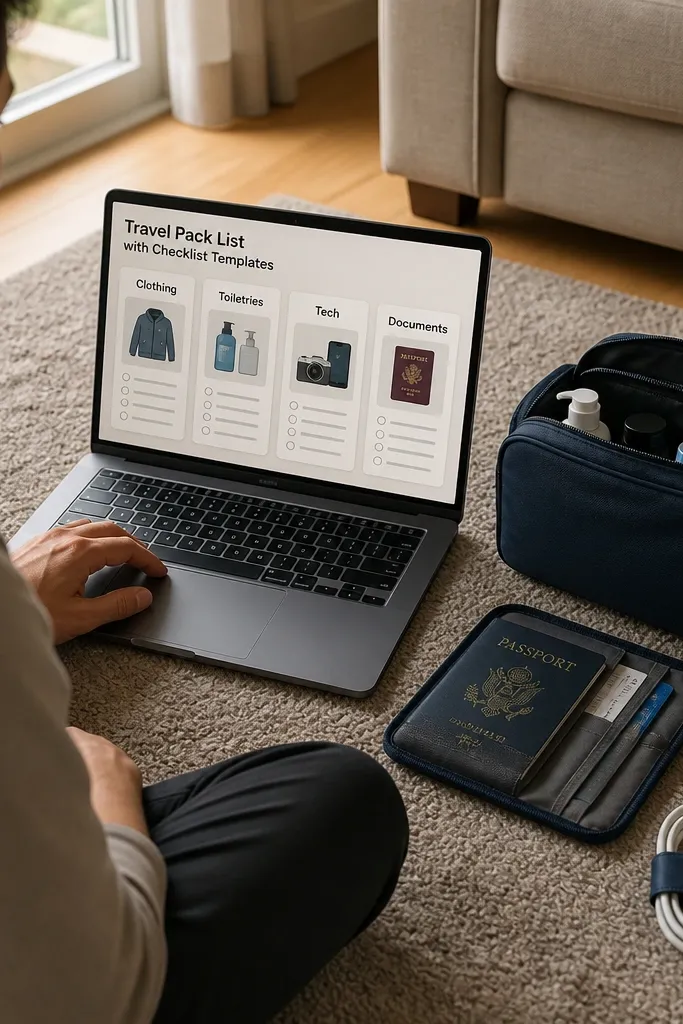
This keeps you on track for trips by making packing a checklist you can reuse for each trip. The aesthetic is category-based cards like Clothing, Toiletries, Tech, and Documents, with checkbox styling that looks clean and satisfying. Beginners benefit because you don’t rebuild the list every time; you duplicate a template. It’s best for people who travel a few times a year and want fewer last-minute scrambles. The template also includes a “ready to go” section so you know when you can stop thinking about it.
Create a Trips database with properties for Destination, Start date, End date, and Trip type (select). Create a Packing Items database with properties for Item name, Category (select), Quantity (number), and Trip (relation). Add a database template button called “New trip” that pre-creates packing categories and default items using linked relations. Add a view filtered to the current trip and grouped by Category. Add a “Ready” checkbox on the Trip page that you manually tick after documents and chargers are packed.
Keep documents in one category and include a single item called “Downloaded offline maps” so you don’t forget phone prep.
Avoid packing too early without a re-check date — items get missed.
22. Skill Builder Tracker with Weekly Benchmarks
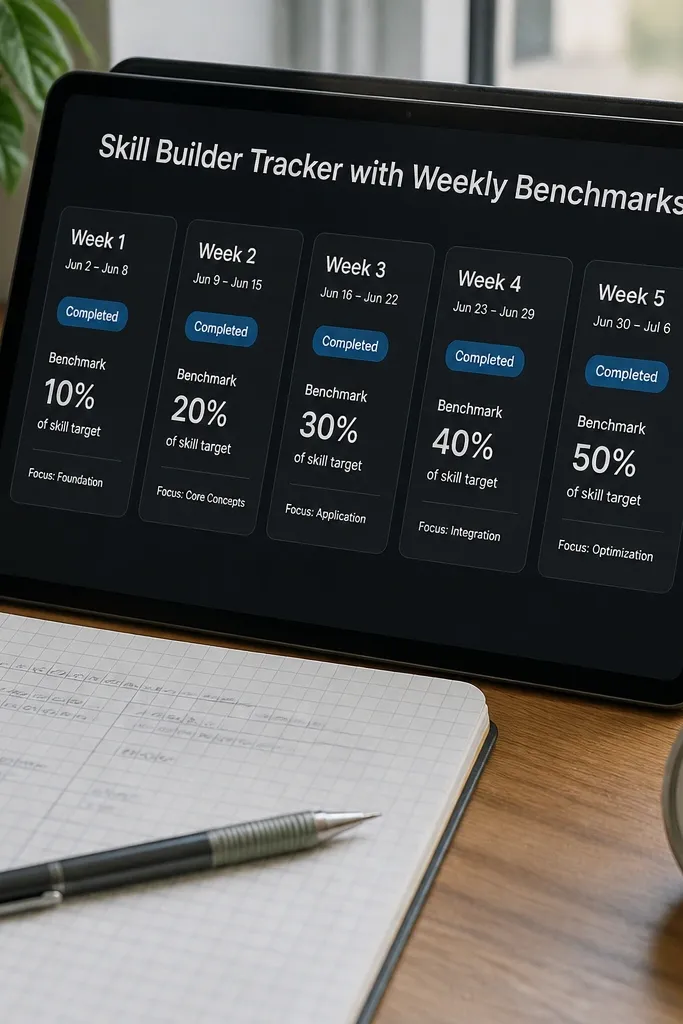
Create a Skills database with properties for Skill name, Target (text), and Start date. Create a Weekly Benchmarks database with properties for Week (date), Skill (relation), Practice hours (number), Output (text), and Status (select). Add a view called Current month that filters by Week within the month and sorts by Week. Add another view called Needs practice that filters Status!= Done and sorts by Week ascending. On the Skill page, show a rollup of total practice hours for the last 4 weeks.
This template keeps you on track by turning skill practice into clear weekly benchmarks. The aesthetic is a set of benchmark cards that look like milestones, with a consistent status tag for each week. Beginners like it because you track one metric per week, not a complicated measurement system. It works for learning design, coding, drawing, or any craft where you want steady progress. The template also makes it easy to see what you did last week and what you’ll try next.
Skip thisDon’t add multiple skills at once — you’ll lose the weekly rhythm.
Editor's noteChoose one output per week like a sketch, a mini project, or a practice set so the tracker stays concrete.
23. Cleaning Supply Restock Calendar
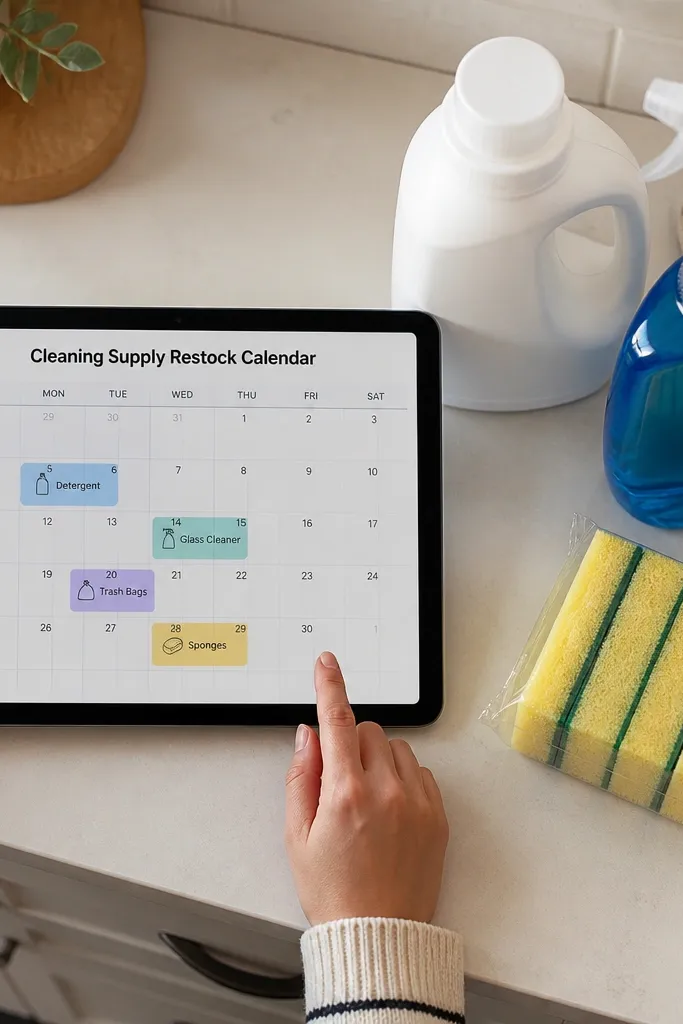
Create a Cleaning Supplies database with properties for Product name, Category, Current stock (number), and Refill by (date). Add a view called Calendar that displays Refill by as the date. Create a view called Running low filtered to Current stock <= your threshold and sorted by Refill by. Finish with a dashboard panel that shows the next 7 restocks as a card list.
This keeps you on track at home by handling restocks before you run out. The aesthetic is a calendar-style page with colored cards for products like detergent, glass cleaner, trash bags, and sponges. Beginners benefit because it’s not a spreadsheet; it’s a visual schedule. It’s a great fit for people who hate forgetting supplies and want fewer store trips. The template also keeps your cleaning routine consistent because you always have what you need on hand.
Skip thisAvoid using one generic threshold for everything — towels and trash bags last differently.
Editor's noteSet refill dates based on average usage, not hope — pick a real number like “every 6 weeks.”
24. Wedding-Style Moodboard for Home Decor
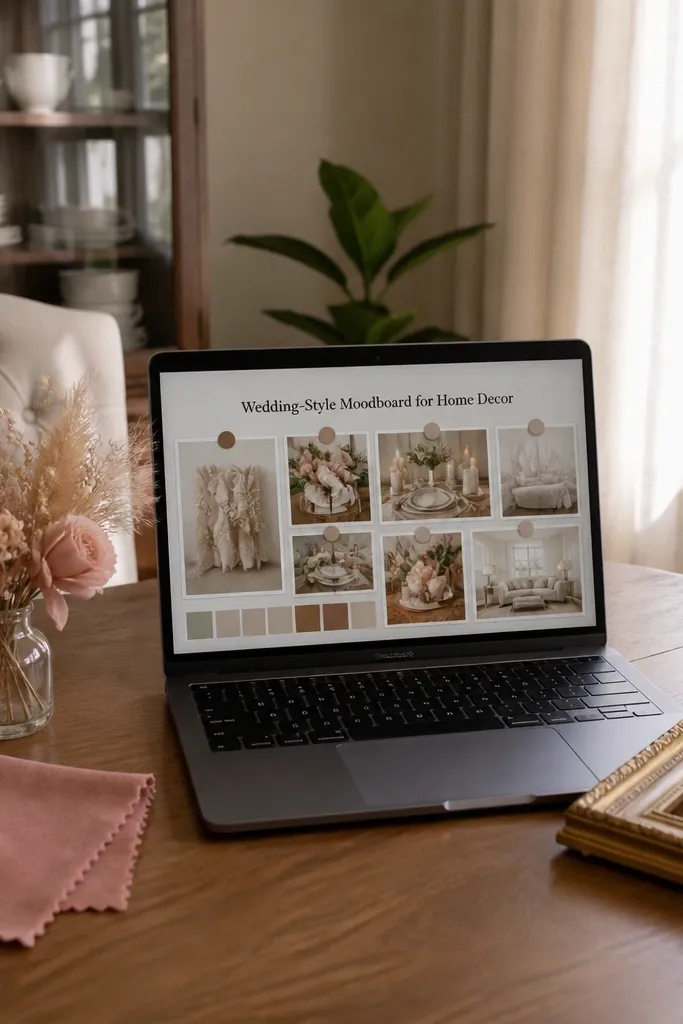
This keeps you on track for decorating by turning choices into a visual shortlist. The aesthetic is a grid of pinned images with room tags and a consistent card layout that feels like a magazine page. Beginners benefit because you stop saving random photos in your camera roll; everything is in Notion with a decision trail. It works for anyone redecorating a room and wants the same look across paint, textiles, and lighting. The template also helps you avoid buying the wrong thing by keeping a “selected” set separate from “ideas.”
Create a Moodboard Items database with properties for Item type (select: paint, furniture, lighting, textiles), Room (select), Status (select: Idea, Shortlist, Selected), and Color (select). Add an image field with files & media. Create views for each room and a view called Shortlist filtered to Status = Shortlist. Add a dashboard section that shows Selected items grouped by Room so you can shop with confidence.
Use 6-10 color tags max so your palette stays coherent and easy to scan.
Don’t pin 50 images per room — keep it to what you’d buy or build.
25. Micro-Projects Organizer with One-Week Sprints
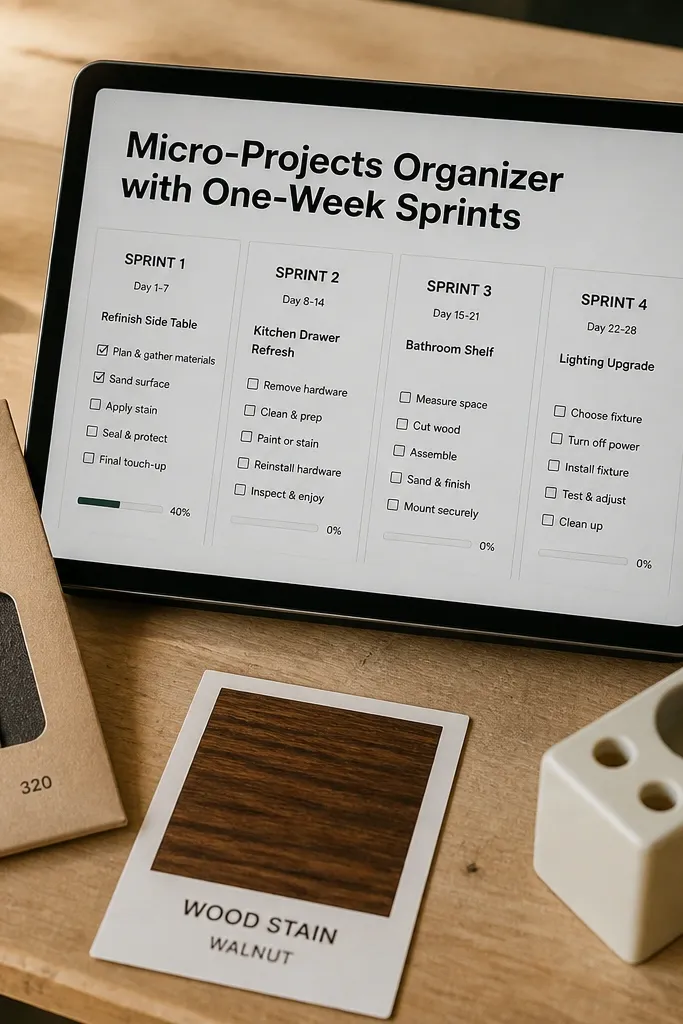
Create a Sprints database with properties for Sprint name, Week of (date), Status (select), and Outcome (text). Create a Tasks database with properties for Task name, Sprint (relation), Status (select), and Time estimate (number). Add a view filtered to the current sprint that shows tasks grouped by Status and sorted by time estimate. Add a template inside Sprints called “New sprint” that pre-fills Status = In progress and creates a checklist with 5-7 blank task rows.
This template keeps you on track by breaking big goals into one-week sprints you can actually finish. The aesthetic is sprint cards with a clear header and a checkbox list that feels compact and doable. Beginners like it because you plan a small set of tasks and stop there. It’s perfect for DIY tasks like refinishing a chair, organizing a closet, or starting a new craft. The visual structure helps you keep momentum and avoid the “project limbo” stage.
Skip thisAvoid adding “nice-to-do” tasks — if it doesn’t fit the sprint, it goes to the next one.
Editor's noteSet a rule: total planned task time should stay under 4 hours for a beginner-friendly sprint.
26. Cleaning + Declutter Donation Log
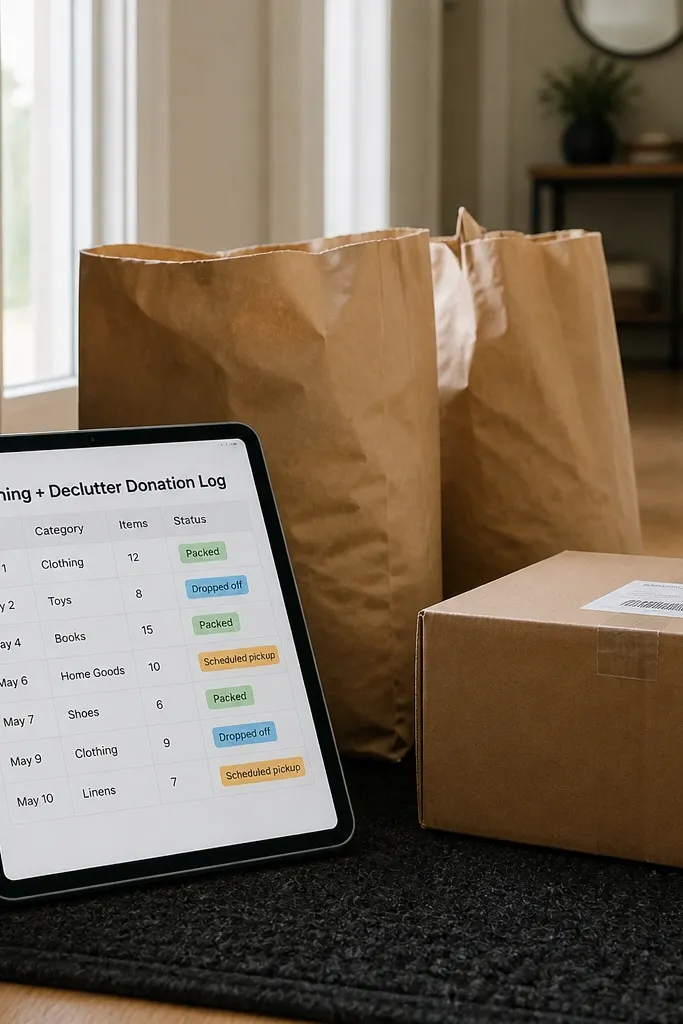
Create a Donations database with properties for Donation batch name, Date, Item count (number), Category (select), and Status (select). Add fields for Pickup address or Donation location (text). Create a view called Next donation that filters Status!= Dropped off and sorts by Date. Add a dashboard widget that groups by Category and shows totals for the current month.
This keeps you on track during decluttering by tracking what you donate so you see real progress. The aesthetic is a tidy list with date rows and small status tags like Packed, Dropped off, or Scheduled pickup. Beginners benefit because you don’t lose track of bags and boxes once they’re out of your hands. It’s a smart companion for monthly reset plans or closet cleanouts. The visual count makes the work feel worth it, because you can see how much you’ve cleared.
Skip thisDon’t mix donation types in one batch if you care about tracking totals by category.
Editor's noteUse one batch per outing so your records stay clean and easy to scan later.
27. Home Repair Tracker with Parts Checklist
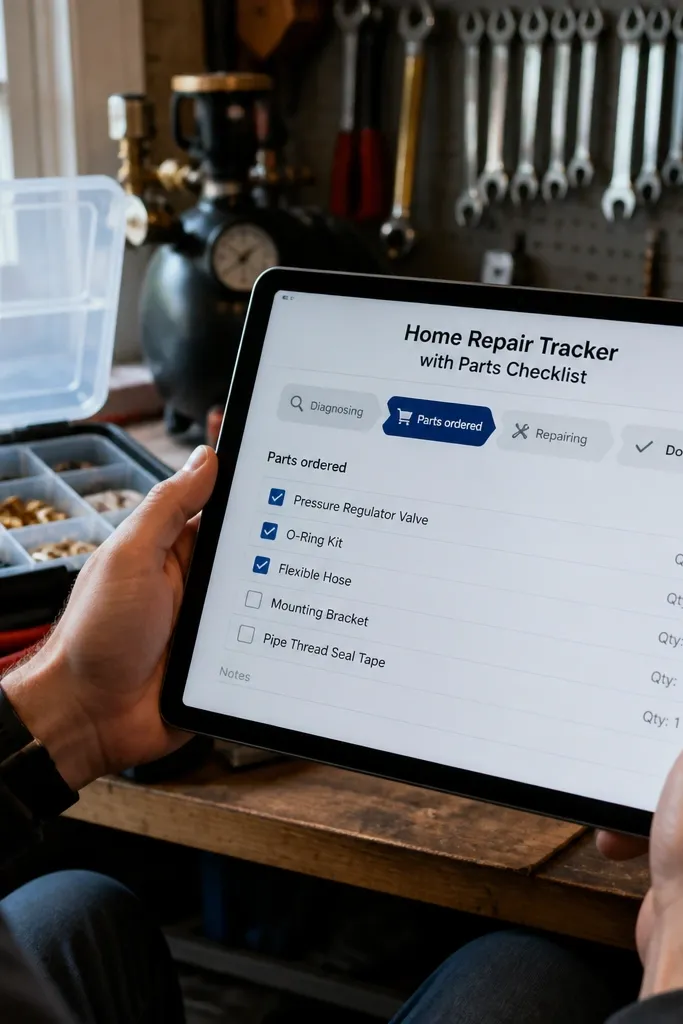
Create a Repairs database with properties for Repair name, Location (select), Status (select), Due date, and Notes. Create a linked database called Parts with properties for Part name, Quantity (number), Cost (number), and Repair (relation). Add a view called Parts needed that filters Repairs where Status!= Done and Parts where Cost is empty or Quantity is missing. On each repair page, show Parts grouped by status and sort by Part name.
This keeps you on track for small repairs by listing what to fix, what parts you need, and what stage you’re in. The aesthetic is a straightforward repair board with stage tags like Diagnosing, Parts ordered, Repairing, and Done. Beginners benefit because the parts checklist prevents delays. It’s great for renters and homeowners who want to keep repairs organized and avoid paying twice because they forgot a part. The template also makes it easier to remember what you tried last time.
Skip thisAvoid vague notes like “buy part” — write the part name and model.
Editor's noteWrite part names exactly as they appear on the label or receipt so you can reorder fast.
28. Event Planning Checklist with RSVP Status
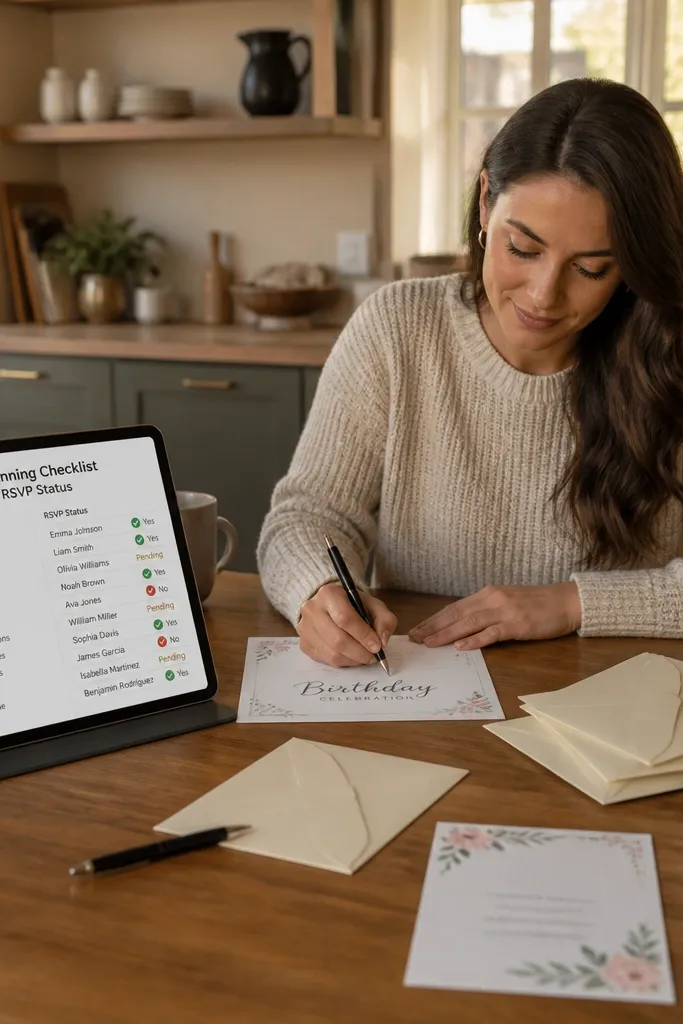
Create an Events database with properties for Event name, Date, Status (select), and Theme/Style (text). Create a Guests database with properties for Guest name, RSVP (select: Yes/No/Maybe), and Event (relation). Create a Tasks database with properties for Task name, Event (relation), Status (select), and Due date. Add a view filtered to the current event grouped by Status and sorted by Due date. Add a second view for Guests filtered to RSVP!= Yes to show who hasn’t confirmed.
This template keeps you on track for events by combining planning tasks with RSVP tracking. The aesthetic is a clean event header with a checklist panel and an RSVP list that feels organized. Beginners like it because you update one RSVP status per person and one task status per planning item. It’s great for birthdays, dinners, and small gatherings where you want fewer surprises. The template also keeps your prep timeline visible so you don’t scramble for food, seating, or supplies at the last minute.
Skip thisDon’t let RSVP statuses drift with random labels; keep to 3 options.
Editor's noteUse one due date per task, even if it’s approximate like “2 weeks before.”
29. Weekly Spending Envelope Aesthetic Dashboard
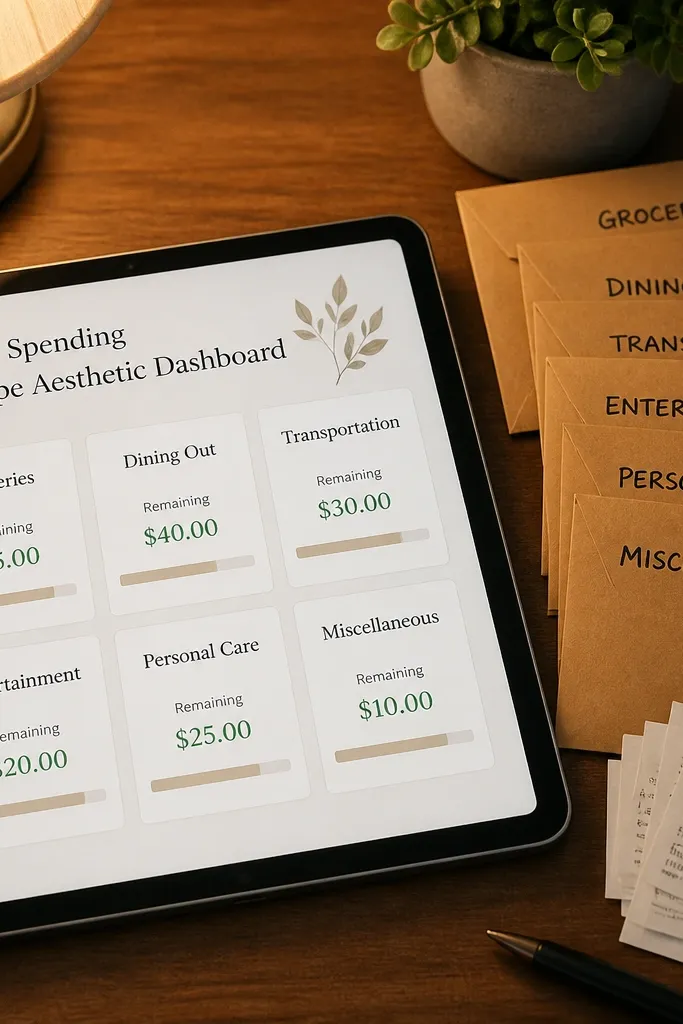
Create a Budget Envelopes database with properties for Category (select), Weekly limit (number), and Week (date). Create an Expenses database with properties for Amount, Category, and Week (date). Add a rollup that sums expenses by Category for each Week, then compute Remaining (rollup result minus limit) using a formula. Add a dashboard view that shows each Category card with Remaining. Keep only 5-7 categories so the layout stays uncluttered.
This keeps you on track by making spending limits visible like envelopes, not hidden in calculations. The aesthetic is category cards that show remaining money at a glance, which feels motivating and easy to scan. Beginners like it because the workflow is simple: set limits, log expenses, watch remaining amounts shrink. It’s best for people who overspend when they forget limits and need a visual reminder. The look is clean and “homey,” like a budgeting board you’d want on your desk.
Skip thisAvoid too many categories; the cards become tiny and unreadable.
Editor's noteChoose categories you actually track in real life, like groceries, eating out, and transport.
30. Laundry + Closet Rotation Calendar

Create an Outfit Sets database with properties for Set name, Category (select: everyday, work, weekend), and Season (select). Create a Rotation calendar database with properties for Swap date (date), Set (relation), and Location (select: closet, storage, in use). Add a view called Upcoming swaps filtered to swap date within 30 days. Finish by adding a dashboard section that shows the next swap and the current in-use sets grouped by category.
This keeps you on track by aligning what’s in your closet with the season and your routine. The aesthetic is a rotation calendar with outfit-set cards and swap dates, so the page looks like a planning board. Beginners benefit because you don’t need to reinvent your wardrobe; you move sets in and out on a schedule. It’s great for people who hate closet chaos and want fewer morning decisions. The template also helps you keep track of what’s in storage and what you need to restock.
Skip thisDon’t rotate too frequently; set it to 4-6 weeks so you actually stick to it.
Editor's noteUse clear set names like “Fall basics” so you don’t forget what’s inside each box.